_811205.png)
_e196d8.png)
_32b3d9.png)
_1c53fe.png)

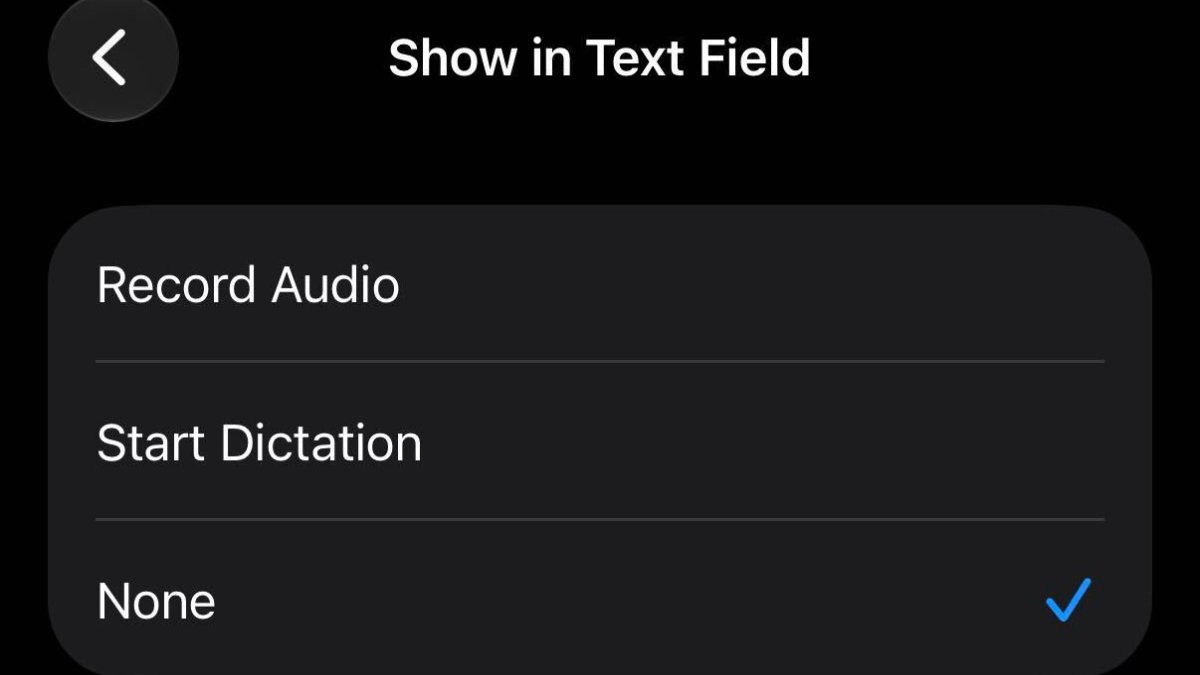 Last year, singer Justin Bieber turned to social media to complain about the placement of the dictation button in the Messages app's text field on the iPhone. Specifically, he said he kept accidentally pressing the dictation button after sending a text, given it shows up in the same spot as the send button.
Apple has seemingly listened to this feedback, as iOS 27 lets you turn off the dictation button in the Settings app under Apps → Messages → Show in Text Field.
Related Roundup: iOS 27
This article, "iOS 27 Fixes Justin Bieber's Problem in Messages App" first appeared on MacRumors.com
Discuss this article in our forums
Recommended Comments
Join the conversation
You can post now and register later. If you have an account, sign in now to post with your account.