_811205.png)
_e196d8.png)
_32b3d9.png)
_1c53fe.png)

OpenAI appears to be working on Apple Health integration for ChatGPT, although it is unclear when the functionality might be made available to the public.
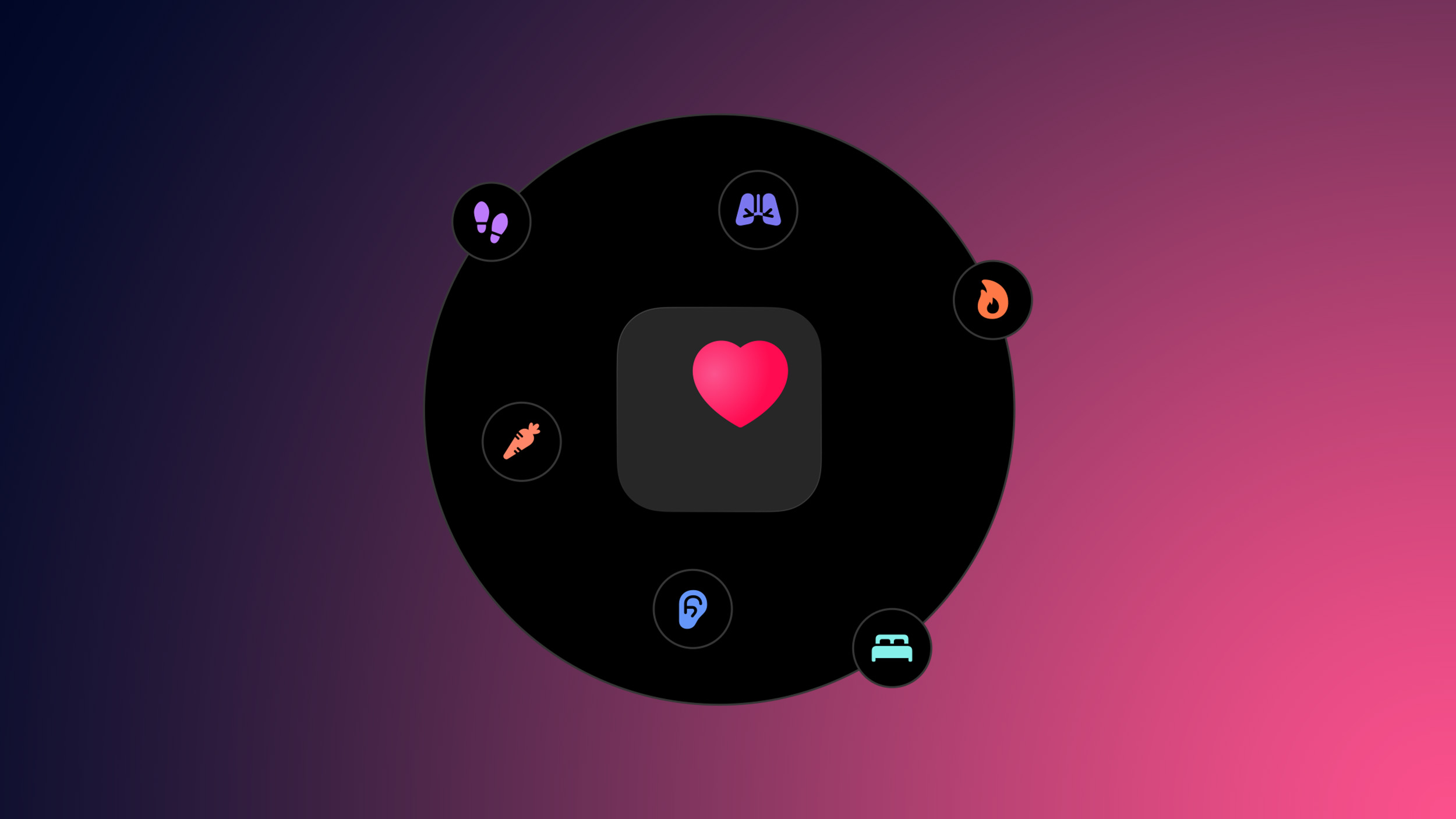
The latest version of the ChatGPT app for the iPhone contains a new image of the Apple Health icon hidden within the app's code. The image's file name suggests that it will be possible to connect the Apple Health app to ChatGPT, so that you can receive more personalized and useful answers based on your health and fitness data.
The image shows that ChatGPT would be able to tap into several Apple Health categories related to your activity, sleep, diet, breathing, and hearing.
While the ChatGPT app for the iPhone was updated on Monday, it is unclear when this functionality will go live, if ever. Should the plans move forward, Apple Health would be available in ChatGPT's settings, under Apps & Connectors.
ChatGPT can already connect to many other apps, including Box, Dropbox, GitHub, Google Drive, Gmail, Microsoft Outlook, Notion, Slack, and others.
This article, "Apple Health Integration Seemingly Coming to ChatGPT" first appeared on MacRumors.com
Discuss this article in our forums
The latest version of the ChatGPT app for the iPhone contains a new image of the Apple Health icon hidden within the app's code. The image's file name suggests that it will be possible to connect the Apple Health app to ChatGPT, so that you can receive more personalized and useful answers based on your health and fitness data.
The image shows that ChatGPT would be able to tap into several Apple Health categories related to your activity, sleep, diet, breathing, and hearing.
While the ChatGPT app for the iPhone was updated on Monday, it is unclear when this functionality will go live, if ever. Should the plans move forward, Apple Health would be available in ChatGPT's settings, under Apps & Connectors.
ChatGPT can already connect to many other apps, including Box, Dropbox, GitHub, Google Drive, Gmail, Microsoft Outlook, Notion, Slack, and others.
This article, "Apple Health Integration Seemingly Coming to ChatGPT" first appeared on MacRumors.com
Discuss this article in our forums
Recommended Comments
Join the conversation
You can post now and register later. If you have an account, sign in now to post with your account.