_811205.png)
_e196d8.png)
_32b3d9.png)
_1c53fe.png)

In late March, Apple notified the winners of the 2026 Swift Student Challenge, who each received a complimentary one-year Apple Developer Program membership, AirPods Max 2, and a special certificate. A smaller group of Distinguished Winners were also invited to a three-day experience at Apple Park during WWDC 2026 in June.
The annual Swift Student Challenge gives eligible student developers around the world the opportunity to showcase their coding capabilities by using the Swift Playground or Xcode apps to create an interactive "app playground."
Despite receiving many incredible submissions, Apple can only select a limited number of winners due to WWDC space constraints. Below, we have highlighted three young developers who did not quite win, but still deserve attention for their efforts.
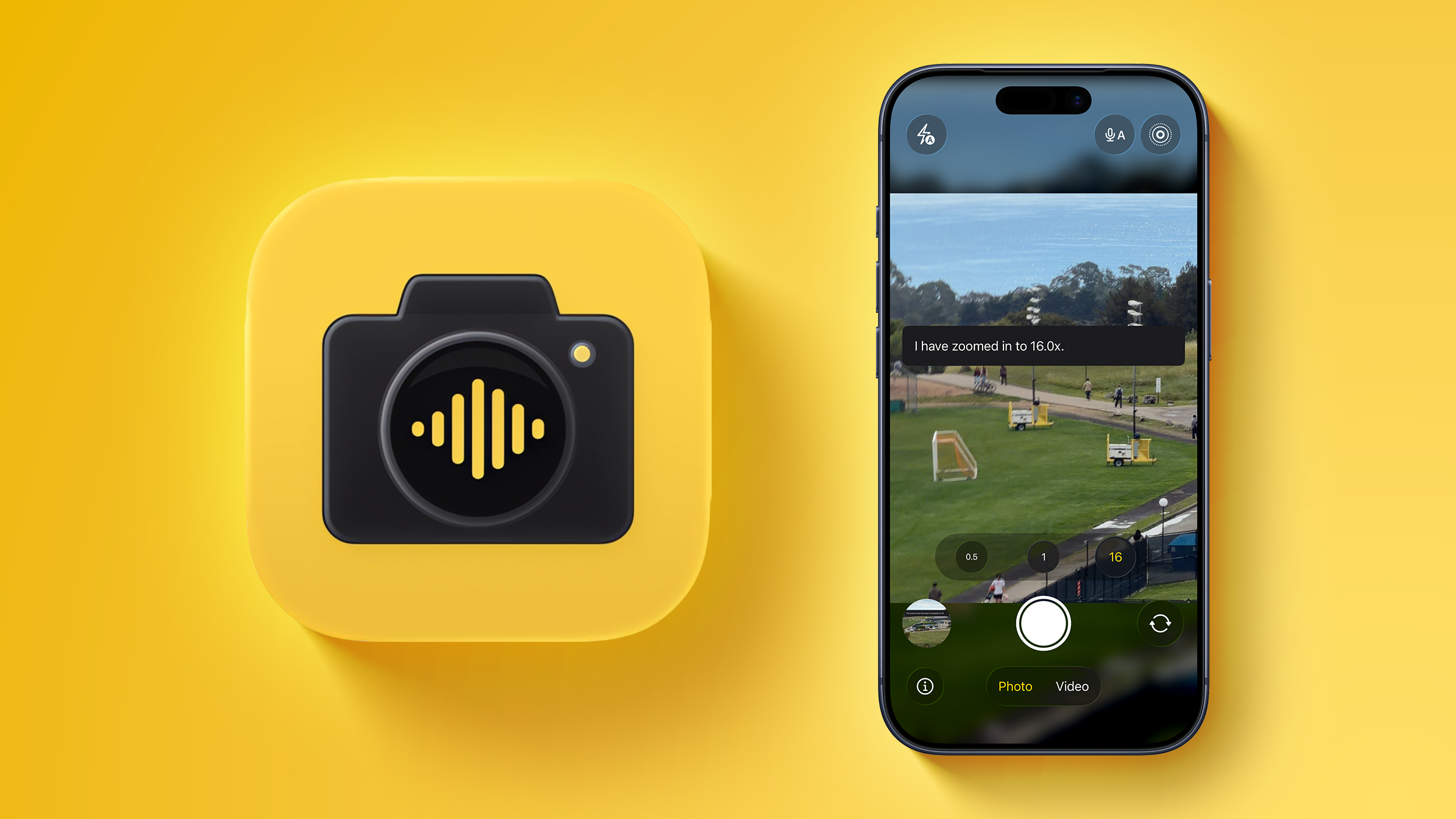
For the 2026 Swift Student Challenge, UC Santa Cruz student Morris Richman submitted Teddy, a voice-controlled camera app that uses Apple Foundation Models to help those with touch-related accessibility issues take photos.
"There is a strong overlap between those who have touch issues and those who have difficulty learning accessibility focused features such as VoiceOver," said Morris. "Teddy addresses this issue through Apple's Foundation Models and SpeechAnalyzer APIs to take action on behalf of the user through natural language processing and tool calling."
Morris created the app after being inspired by his grandfather, Larry.
Teddy is available in beta via TestFlight and as an open-source project on GitHub.
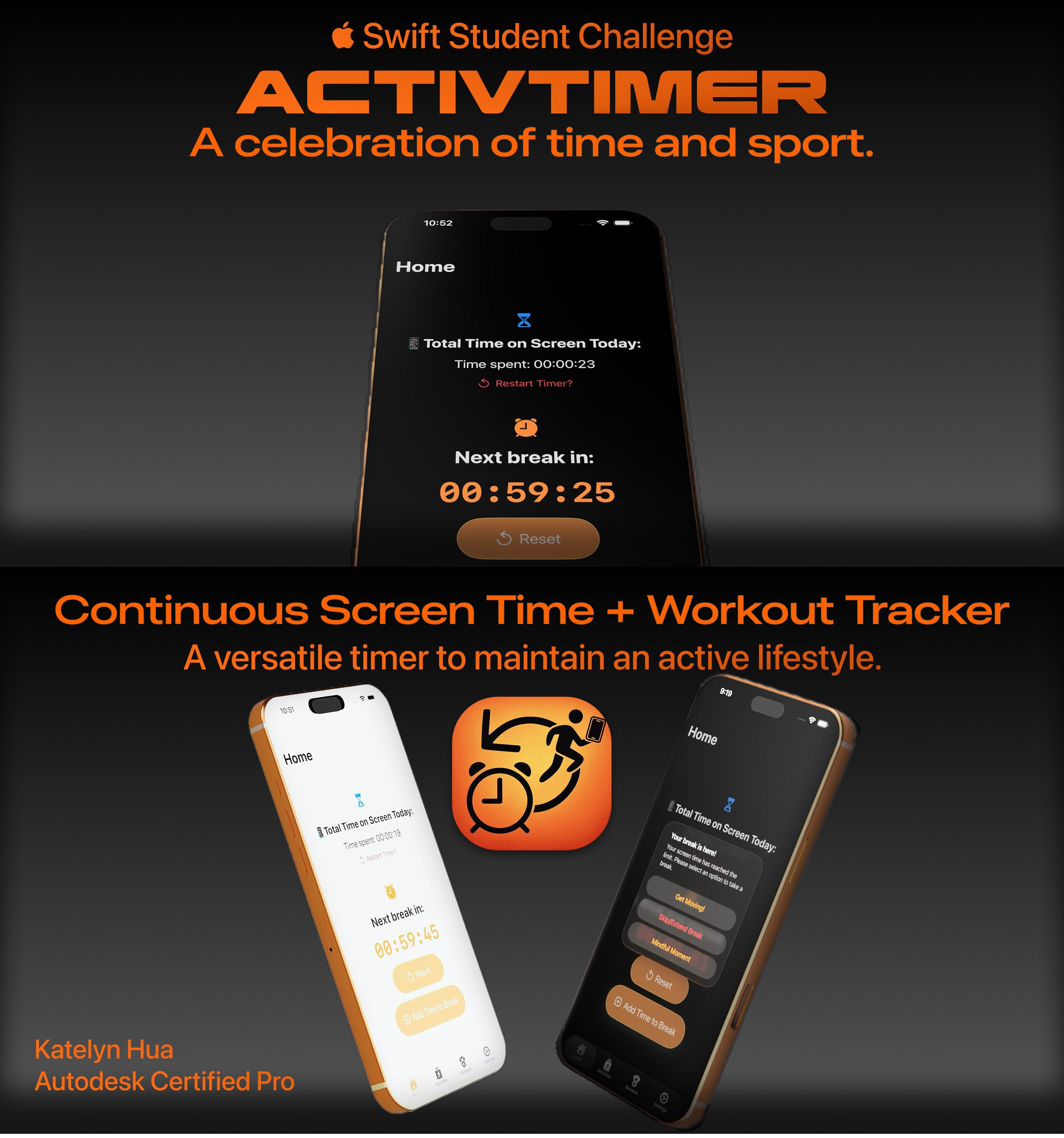
MacRumors reader Kate's first-ever Swift Student Challenge submission was ActivTimer, an iPhone app designed to help reduce your screen time and increase your activity. The app was built with SwiftUI and other modern Apple technologies.
Kate describes the app as a "screen time tracker and workout app all in one."
"It keeps track of how long you're on your screen and alerts you with a sound to get up and move, or to do some mindfulness," said Kate.
ActivTimer is not available in the App Store, but the project's source code is available on GitHub.
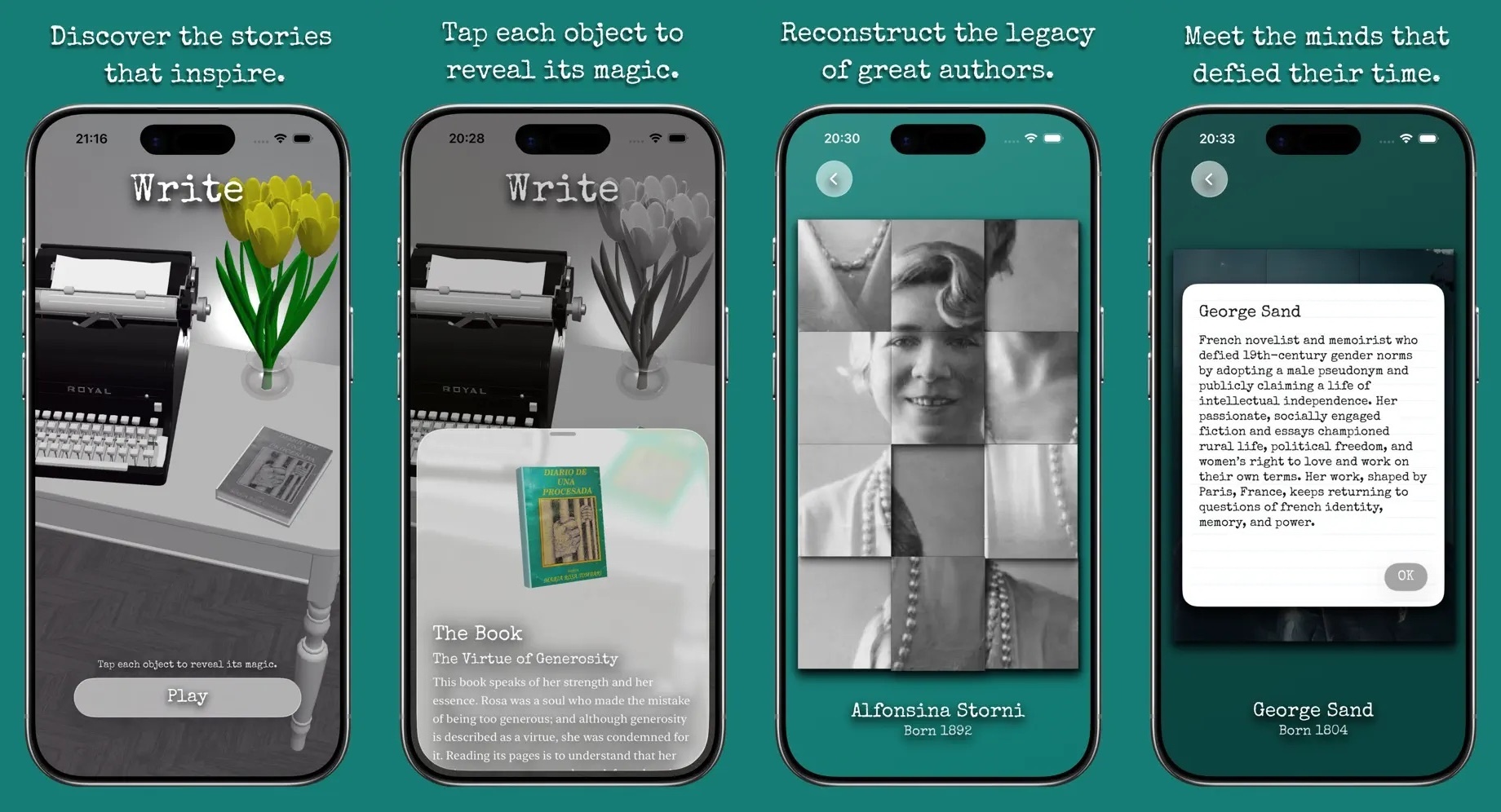
Victoria Ali is a young developer from Argentina who created Write: A Literary Journey, an iPhone app that she describes as a narrative puzzle experience.
The app tasks you with solving puzzles to reconstruct the portraits and legacies of history's most influential female authors.
Victoria said the app both demonstrates her coding skills and serves as a tribute to her late grandmother and writer, Rosa.
When you first open the app, you are presented with a 3D onboarding experience that allows you to explore Rosa's desk.
"Through an immersive 3D onboarding I designed in SceneKit with models I built in Blender—like her vintage Remington typewriter and her yellow tulips—I wanted to create a bridge to feel her close again," she said.
This article, "2026 Swift Student Challenge: Three Apps Created by Young Developers" first appeared on MacRumors.com
Discuss this article in our forums
The annual Swift Student Challenge gives eligible student developers around the world the opportunity to showcase their coding capabilities by using the Swift Playground or Xcode apps to create an interactive "app playground."
Despite receiving many incredible submissions, Apple can only select a limited number of winners due to WWDC space constraints. Below, we have highlighted three young developers who did not quite win, but still deserve attention for their efforts.
Teddy
For the 2026 Swift Student Challenge, UC Santa Cruz student Morris Richman submitted Teddy, a voice-controlled camera app that uses Apple Foundation Models to help those with touch-related accessibility issues take photos.
"There is a strong overlap between those who have touch issues and those who have difficulty learning accessibility focused features such as VoiceOver," said Morris. "Teddy addresses this issue through Apple's Foundation Models and SpeechAnalyzer APIs to take action on behalf of the user through natural language processing and tool calling."
Morris created the app after being inspired by his grandfather, Larry.
Teddy is available in beta via TestFlight and as an open-source project on GitHub.
ActivTimer
MacRumors reader Kate's first-ever Swift Student Challenge submission was ActivTimer, an iPhone app designed to help reduce your screen time and increase your activity. The app was built with SwiftUI and other modern Apple technologies.
Kate describes the app as a "screen time tracker and workout app all in one."
"It keeps track of how long you're on your screen and alerts you with a sound to get up and move, or to do some mindfulness," said Kate.
ActivTimer is not available in the App Store, but the project's source code is available on GitHub.
Write: A Literary Journey
Victoria Ali is a young developer from Argentina who created Write: A Literary Journey, an iPhone app that she describes as a narrative puzzle experience.
The app tasks you with solving puzzles to reconstruct the portraits and legacies of history's most influential female authors.
Victoria said the app both demonstrates her coding skills and serves as a tribute to her late grandmother and writer, Rosa.
When you first open the app, you are presented with a 3D onboarding experience that allows you to explore Rosa's desk.
"Through an immersive 3D onboarding I designed in SceneKit with models I built in Blender—like her vintage Remington typewriter and her yellow tulips—I wanted to create a bridge to feel her close again," she said.
Related Roundup: WWDC 2026
Related Forum: Apple, Inc and Tech Industry
This article, "2026 Swift Student Challenge: Three Apps Created by Young Developers" first appeared on MacRumors.com
Discuss this article in our forums
Recommended Comments
Join the conversation
You can post now and register later. If you have an account, sign in now to post with your account.