_811205.png)
_e196d8.png)
_32b3d9.png)
_1c53fe.png)

Ahead of CES 2026, gaming company 8BitDo has teased a new controller designed for smartphone users who want to play games exclusively in portrait mode.
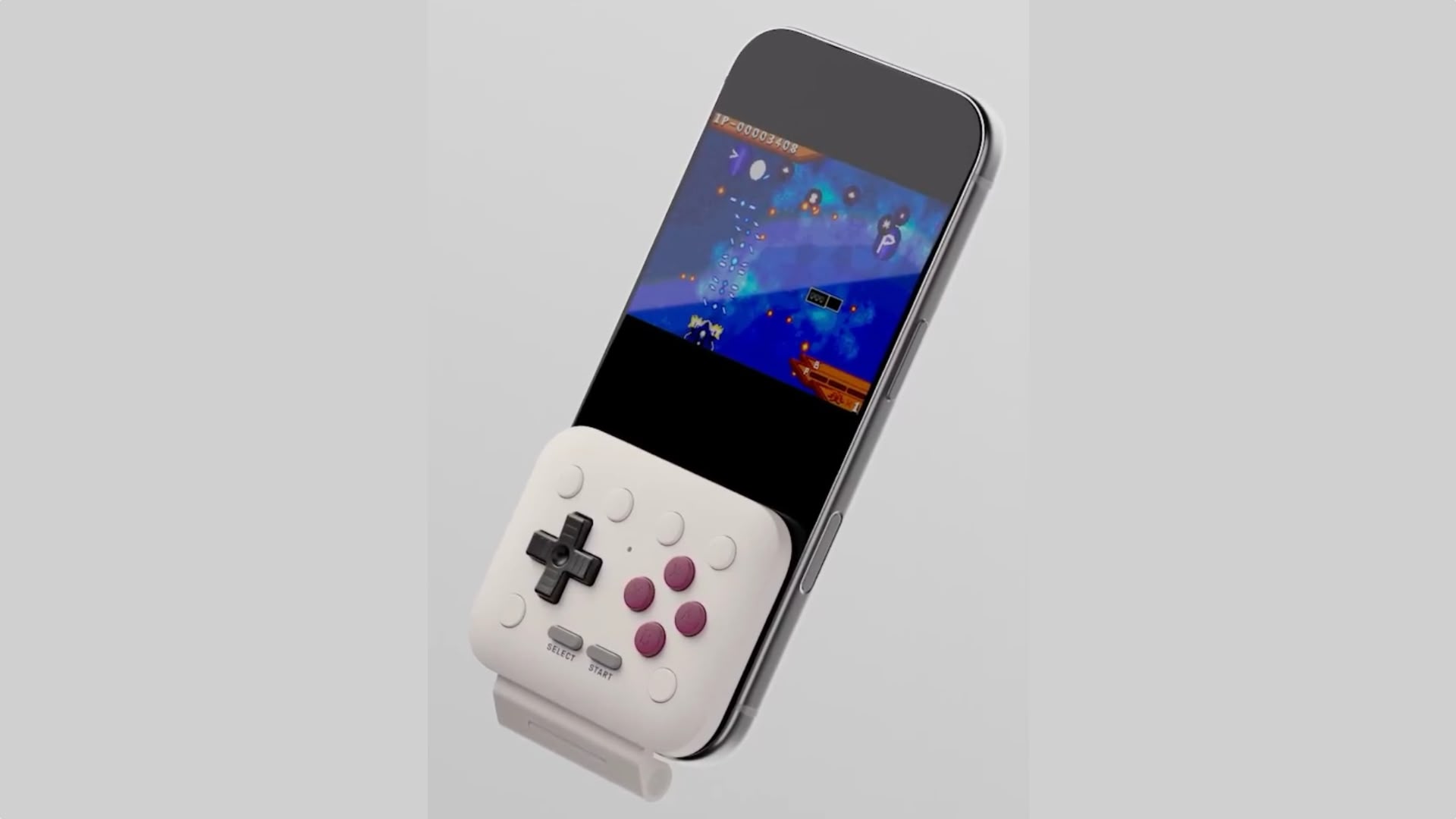
The FlipPad connects to iOS and Android devices via the USB-C port, and snaps onto the bottom half of the screen via a hinge mechanism, reminiscent of a classic flip phone keyboard.
The controller features a black D-Pad, red ABXY buttons, Start and Select buttons, and six white buttons along the top and on the bottom corners that are likely to be custom-assignable.
8bitDo says the FlipPad is "officially supported by Apple" and will arrive in the summer, though the company has not yet revealed pricing information.
Last month, 8bitDo teased the unveiling of a new "Pro" controller at CES 2026, so we might also get more details about the FlipPad in the coming week as the tech event in Las Vegas gets underway.
This article, "8bitDo Reveals Flip-Style iPhone Controller for Portrait Mode Gaming" first appeared on MacRumors.com
Discuss this article in our forums
The FlipPad connects to iOS and Android devices via the USB-C port, and snaps onto the bottom half of the screen via a hinge mechanism, reminiscent of a classic flip phone keyboard.
The controller features a black D-Pad, red ABXY buttons, Start and Select buttons, and six white buttons along the top and on the bottom corners that are likely to be custom-assignable.
Where mobile play unfolds.
— 8BitDo (@8BitDo) January 4, 2026
Introducing 8BitDo FlipPad — a flip-style gamepad designed for mobile gaming.
Compatible with iOS and Android devices. Officially supported by Apple.
Coming Summer 2026.
Experience it first at @CES 2026.
LVCC Central Hall · Booth #15641#FlipPad… pic.twitter.com/snddY5OaMx
8bitDo says the FlipPad is "officially supported by Apple" and will arrive in the summer, though the company has not yet revealed pricing information.
Last month, 8bitDo teased the unveiling of a new "Pro" controller at CES 2026, so we might also get more details about the FlipPad in the coming week as the tech event in Las Vegas gets underway.
Tag: CES 2026
This article, "8bitDo Reveals Flip-Style iPhone Controller for Portrait Mode Gaming" first appeared on MacRumors.com
Discuss this article in our forums
Recommended Comments
Join the conversation
You can post now and register later. If you have an account, sign in now to post with your account.