_811205.png)
_e196d8.png)
_32b3d9.png)
_1c53fe.png)

In iOS 27 beta 2, Apple updated the Home app to add support for remotely updating an Apple TV.
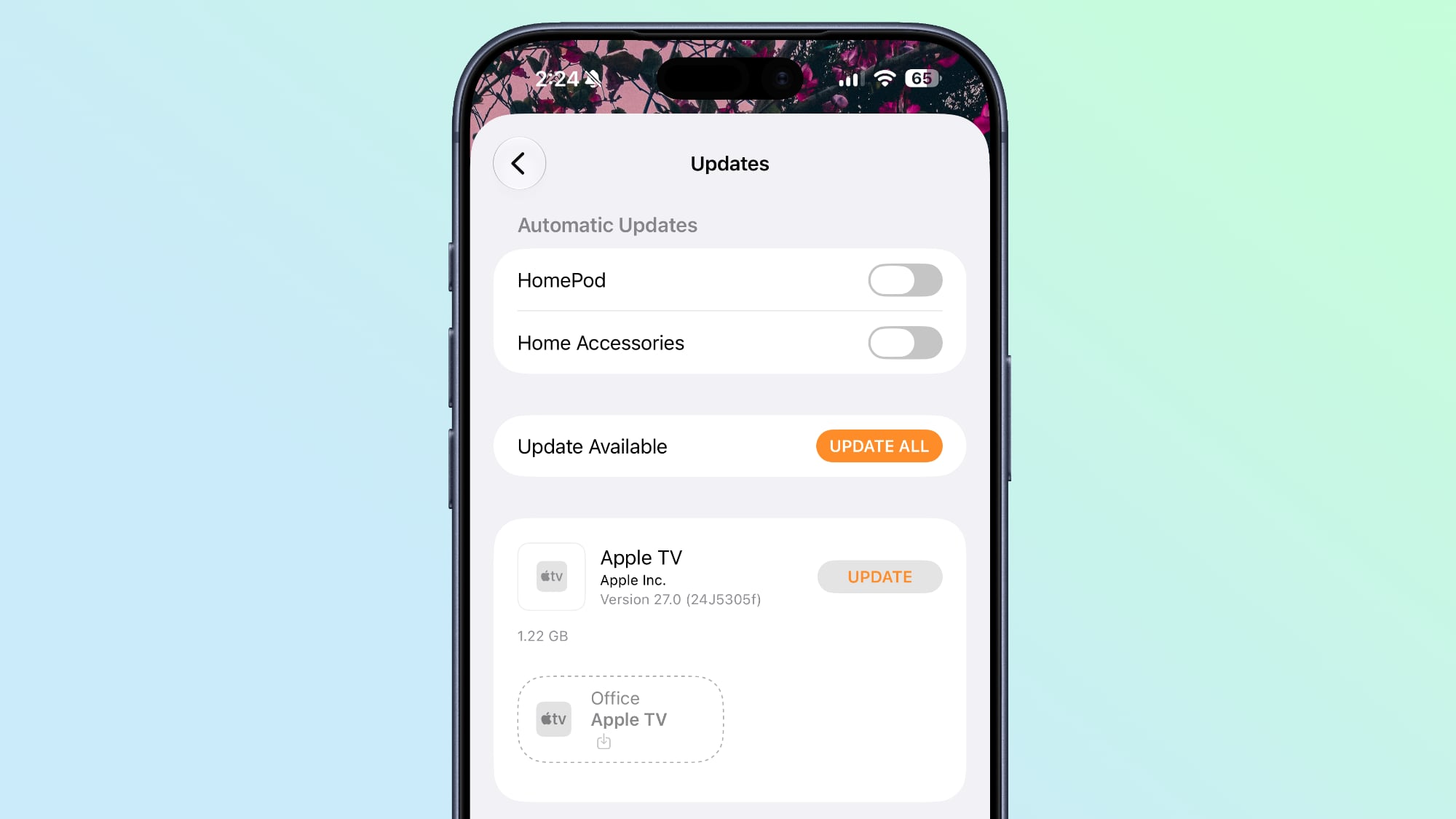
The Apple TV is now listed in the Updates section of the Home app's Settings interface, and tapping on the Apple TV update button installs the latest software without needing to turn on the Apple TV.
The HomePod and HomePod mini have long been able to be updated through the Home app, so the iOS 27 change for the Apple TV puts it on par with the HomePod. The HomePod and HomePod mini run a variant of tvOS, so it makes sense for the Apple TV to be updated in the same way.
Apple's decision to add the Apple TV to the Home app update interface suggests that the upcoming home hub device that's in the works will also be controlled and updated through the Home app.
Apple is expected to release a dedicated home hub later this year, and it will run a version of tvOS like the HomePod. It will be a centralized spot for controlling smart home products, making video calls, getting information like the current weather, and interfacing with Siri. The device is expected to have a 7-inch square display with built-in speakers, and it could be something of a HomePod-iPad hybrid.
This article, "A Small iOS 27 Change Hints at Apple's Long-Rumored Home Hub" first appeared on MacRumors.com
Discuss this article in our forums
The Apple TV is now listed in the Updates section of the Home app's Settings interface, and tapping on the Apple TV update button installs the latest software without needing to turn on the Apple TV.
The HomePod and HomePod mini have long been able to be updated through the Home app, so the iOS 27 change for the Apple TV puts it on par with the HomePod. The HomePod and HomePod mini run a variant of tvOS, so it makes sense for the Apple TV to be updated in the same way.
Apple's decision to add the Apple TV to the Home app update interface suggests that the upcoming home hub device that's in the works will also be controlled and updated through the Home app.
Apple is expected to release a dedicated home hub later this year, and it will run a version of tvOS like the HomePod. It will be a centralized spot for controlling smart home products, making video calls, getting information like the current weather, and interfacing with Siri. The device is expected to have a 7-inch square display with built-in speakers, and it could be something of a HomePod-iPad hybrid.
Tag: Apple Command Center
This article, "A Small iOS 27 Change Hints at Apple's Long-Rumored Home Hub" first appeared on MacRumors.com
Discuss this article in our forums
Recommended Comments
Join the conversation
You can post now and register later. If you have an account, sign in now to post with your account.