_811205.png)
_e196d8.png)
_32b3d9.png)
_1c53fe.png)

Your iPhone's Lock Screen has built-in media playback controls that appear whenever music, a podcast, or other audio is playing. What you might not realize is that those controls can also include a volume slider that lets you adjust the volume without you having to unlock your iPhone or fumble for the physical buttons.
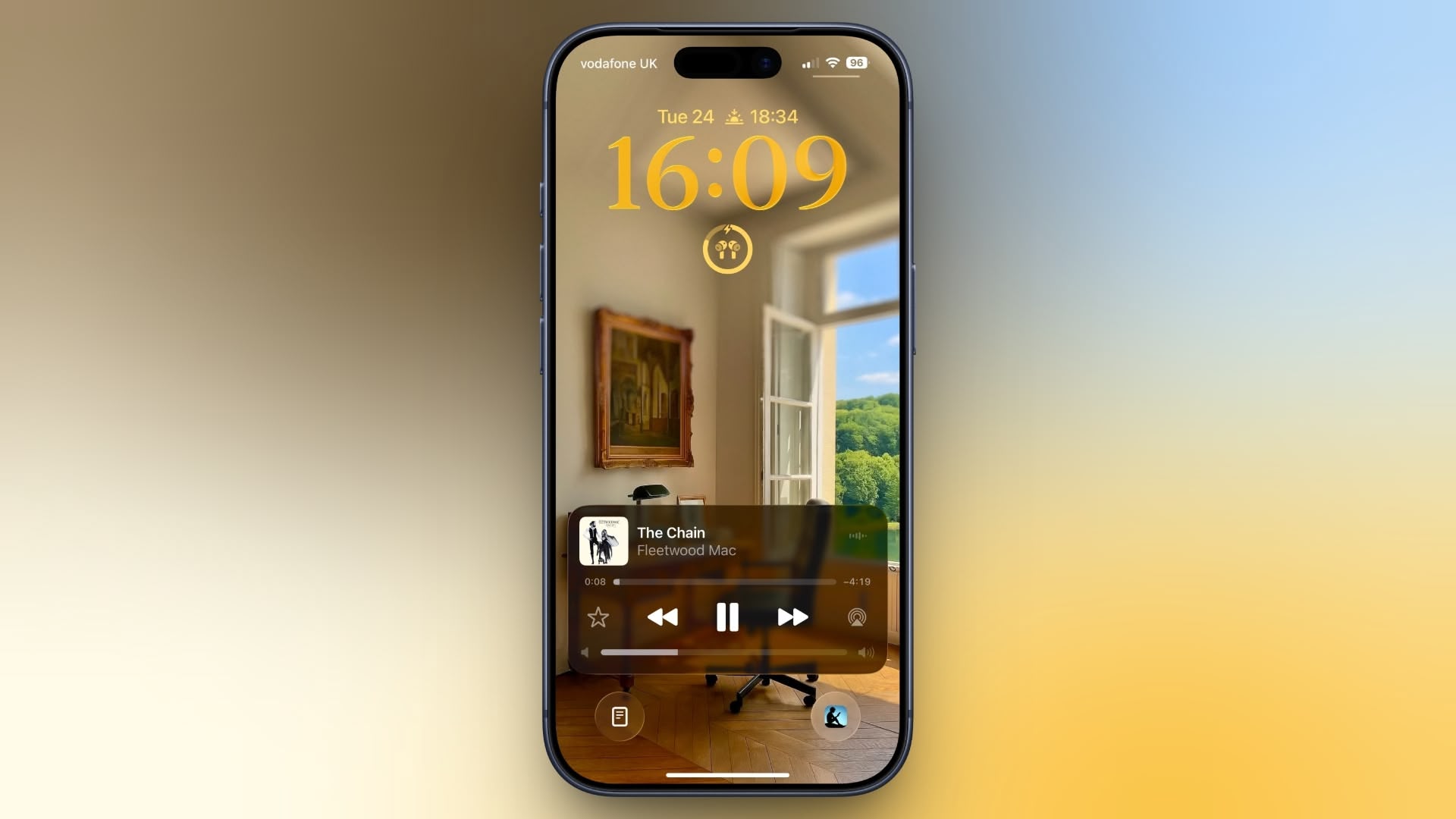
Originally, Apple included a volume slider in the Lock Screen media player by default, but it quietly removed the function in iOS 16. It eventually returned as an option in iOS 18.2, but Apple decided to bury it in Accessibility settings, where it's easy to overlook. The setting is still available in iOS 26, and it's super-simple to enable.
Here's how to turn it on:
Open Settings on your iPhone.
Tap Accessibility.
Under "Hearing," tap Audio & Visual.
Toggle on the switch next to Always Show Volume Control.
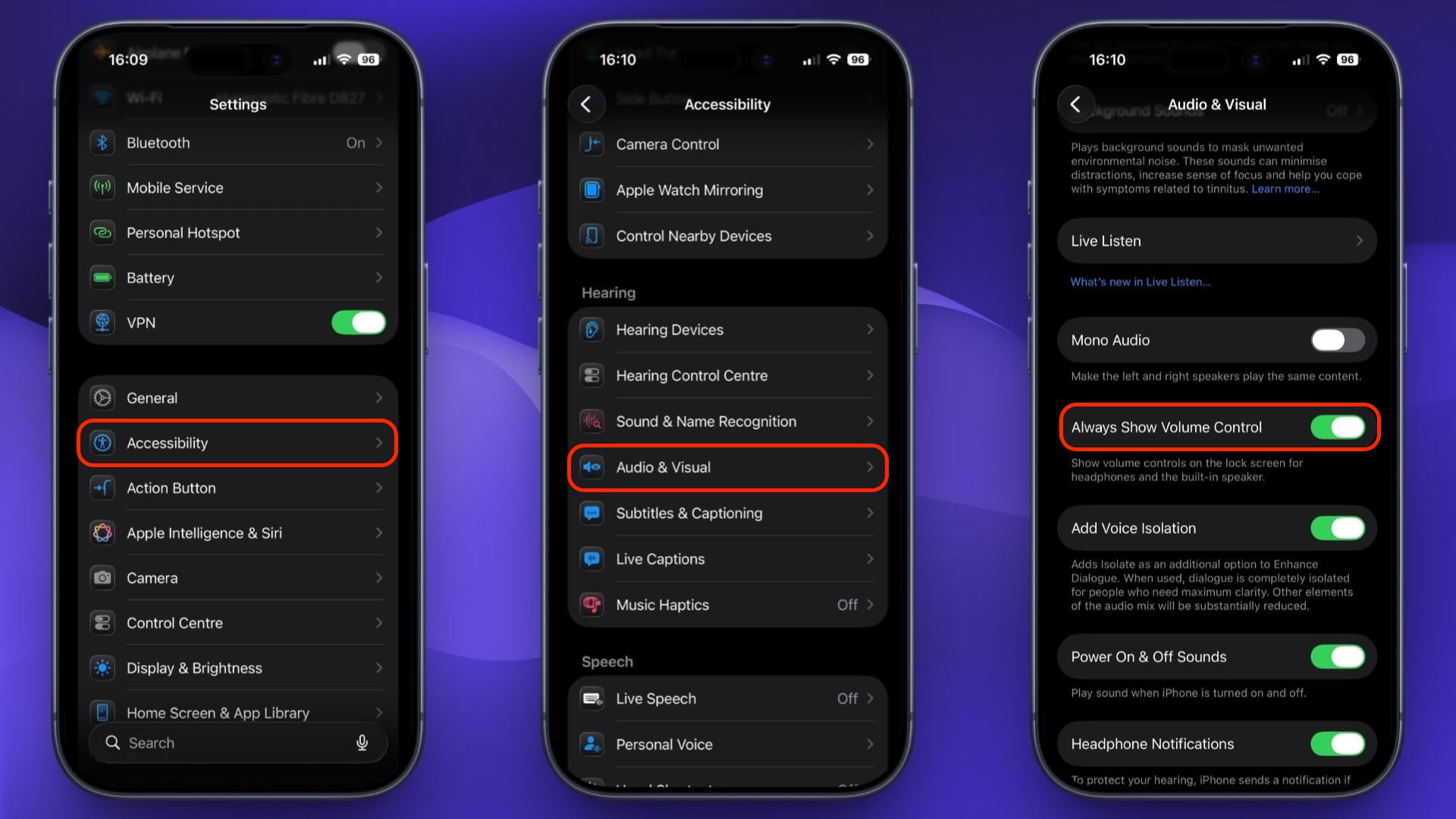
The next time you play audio, a volume slider will appear in the Lock Screen's media player underneath the existing playback controls. It's especially useful when your iPhone is propped up on a desk or sitting on a nightstand, since you don't need to pick it up just to change the volume.
To turn it off again, just head back to Settings ➝ Accessibility ➝ Audio & Visual and toggle off Always Show Volume Control.
This article, "Add a Volume Slider to Your iPhone Lock Screen" first appeared on MacRumors.com
Discuss this article in our forums
Originally, Apple included a volume slider in the Lock Screen media player by default, but it quietly removed the function in iOS 16. It eventually returned as an option in iOS 18.2, but Apple decided to bury it in Accessibility settings, where it's easy to overlook. The setting is still available in iOS 26, and it's super-simple to enable.
Here's how to turn it on:
Open Settings on your iPhone.
Tap Accessibility.
Under "Hearing," tap Audio & Visual.
Toggle on the switch next to Always Show Volume Control.
The next time you play audio, a volume slider will appear in the Lock Screen's media player underneath the existing playback controls. It's especially useful when your iPhone is propped up on a desk or sitting on a nightstand, since you don't need to pick it up just to change the volume.
To turn it off again, just head back to Settings ➝ Accessibility ➝ Audio & Visual and toggle off Always Show Volume Control.
This article, "Add a Volume Slider to Your iPhone Lock Screen" first appeared on MacRumors.com
Discuss this article in our forums
Recommended Comments
Join the conversation
You can post now and register later. If you have an account, sign in now to post with your account.