_811205.png)
_e196d8.png)
_32b3d9.png)
_1c53fe.png)

In February, Apple notified the European Commission that it would be acquiring certain assets from and have the right to hire certain employees from Rabbit 3 Times, the company behind the award-winning app design tool Play. The notification was published on the European Commission's website this week, following a four-month waiting period.
Play was a Mac and iPhone app that allowed designers to prototype iPhone app interfaces using Apple's SwiftUI frameworks, and then send them to Xcode.
In 2025, the app won an Apple Design Award for innovation.
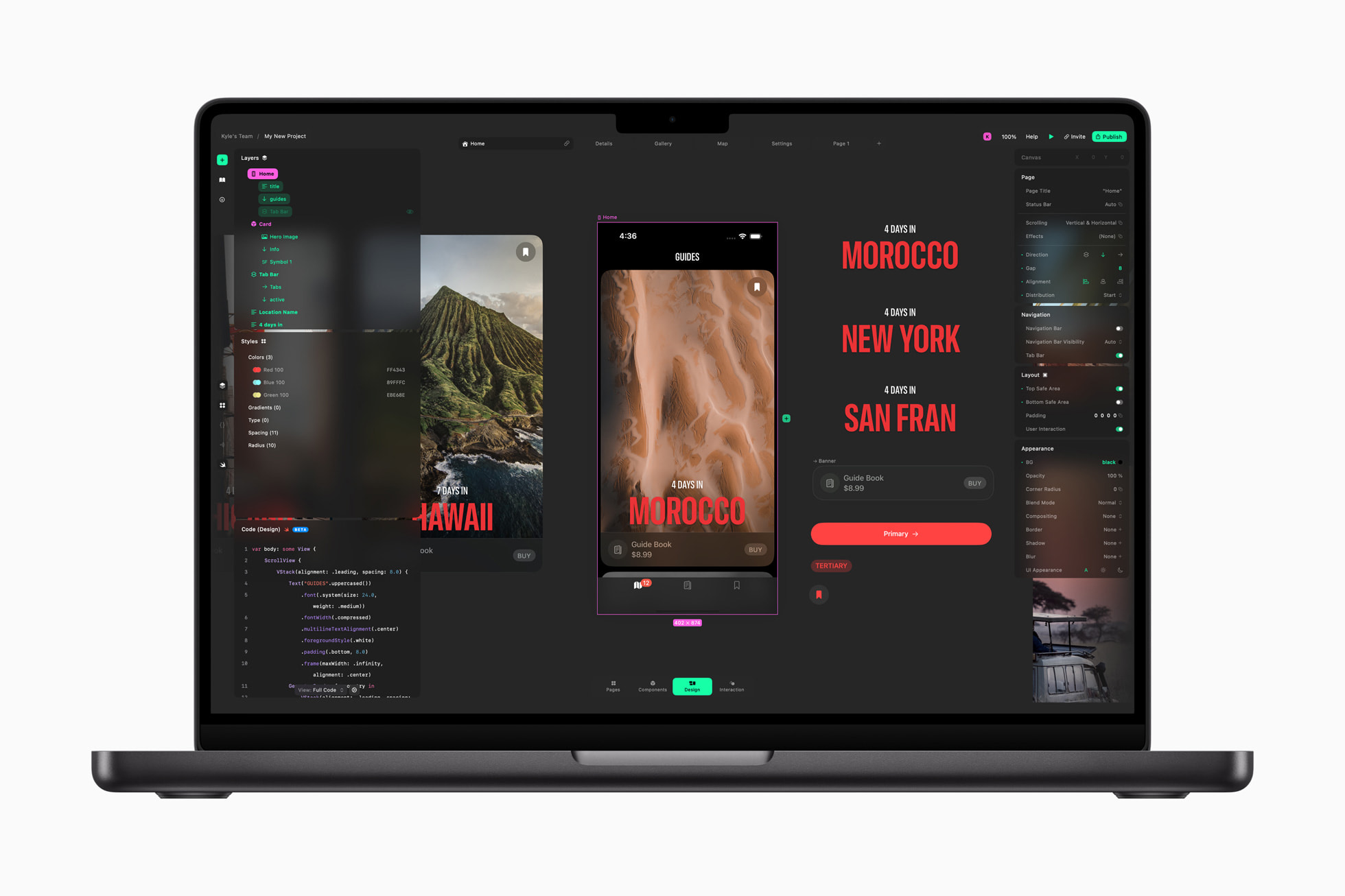
"Play is a sophisticated yet accessible tool that lets users build interactive prototypes with SwiftUI frameworks," said Apple. "Its thoughtfully crafted user interface is both powerful and easy to navigate, helping designers create interactive prototypes and collaborate across Mac and iPhone, all synced in real time for seamless creativity."
Play is no longer available in the App Store, presumably due to Apple's acqui-hire.
Apple could use the intellectual property that it acquired from the Play app to improve Xcode, but its exact plans remain to be seen.
This article, "Apple Acquires Award-Winning App 'Play'" first appeared on MacRumors.com
Discuss this article in our forums
Play was a Mac and iPhone app that allowed designers to prototype iPhone app interfaces using Apple's SwiftUI frameworks, and then send them to Xcode.
In 2025, the app won an Apple Design Award for innovation.
"Play is a sophisticated yet accessible tool that lets users build interactive prototypes with SwiftUI frameworks," said Apple. "Its thoughtfully crafted user interface is both powerful and easy to navigate, helping designers create interactive prototypes and collaborate across Mac and iPhone, all synced in real time for seamless creativity."
Play is no longer available in the App Store, presumably due to Apple's acqui-hire.
Apple could use the intellectual property that it acquired from the Play app to improve Xcode, but its exact plans remain to be seen.
This article, "Apple Acquires Award-Winning App 'Play'" first appeared on MacRumors.com
Discuss this article in our forums
Recommended Comments
Join the conversation
You can post now and register later. If you have an account, sign in now to post with your account.