_811205.png)
_e196d8.png)
_32b3d9.png)
_1c53fe.png)

Apple today announced a series of improvements to Liquid Glass, the translucent design language the company introduced last year.
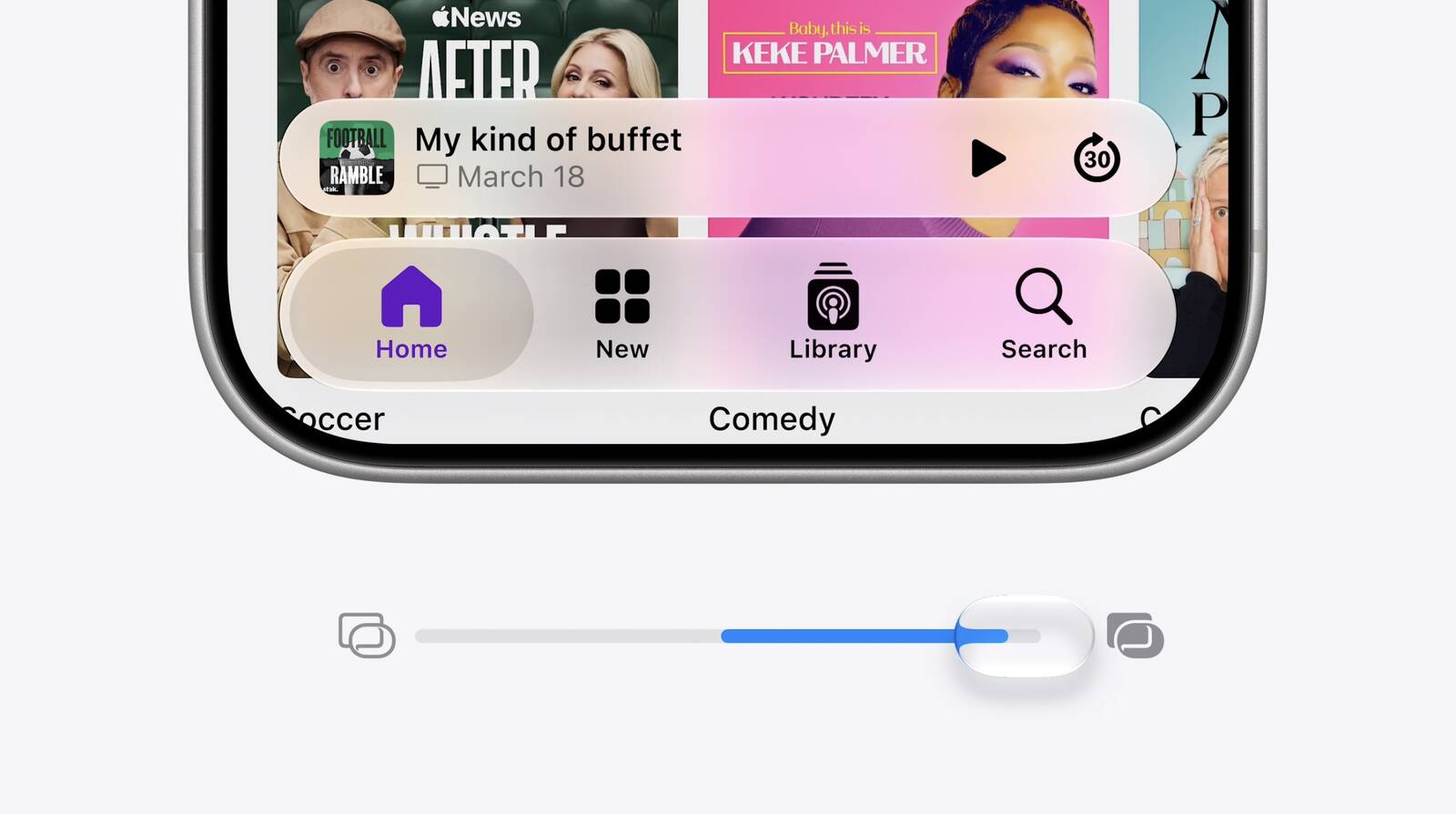
Apple said it has heard user feedback, which it "deeply appreciates," and is now making adjustments to the underlying foundations of how Liquid Glass is constructed. Chief among those changes is a new slider that lets users control transparency, ranging from fully opaque to completely clear.
Sidebar behavior is also being updated. Sidebars will now expand to the full edge of the window, with refraction effects continuing beneath them rather than cutting off at the sidebar boundary. Sidebar icons will also retain their color, a change that addresses a common complaint about the original Liquid Glass implementation.
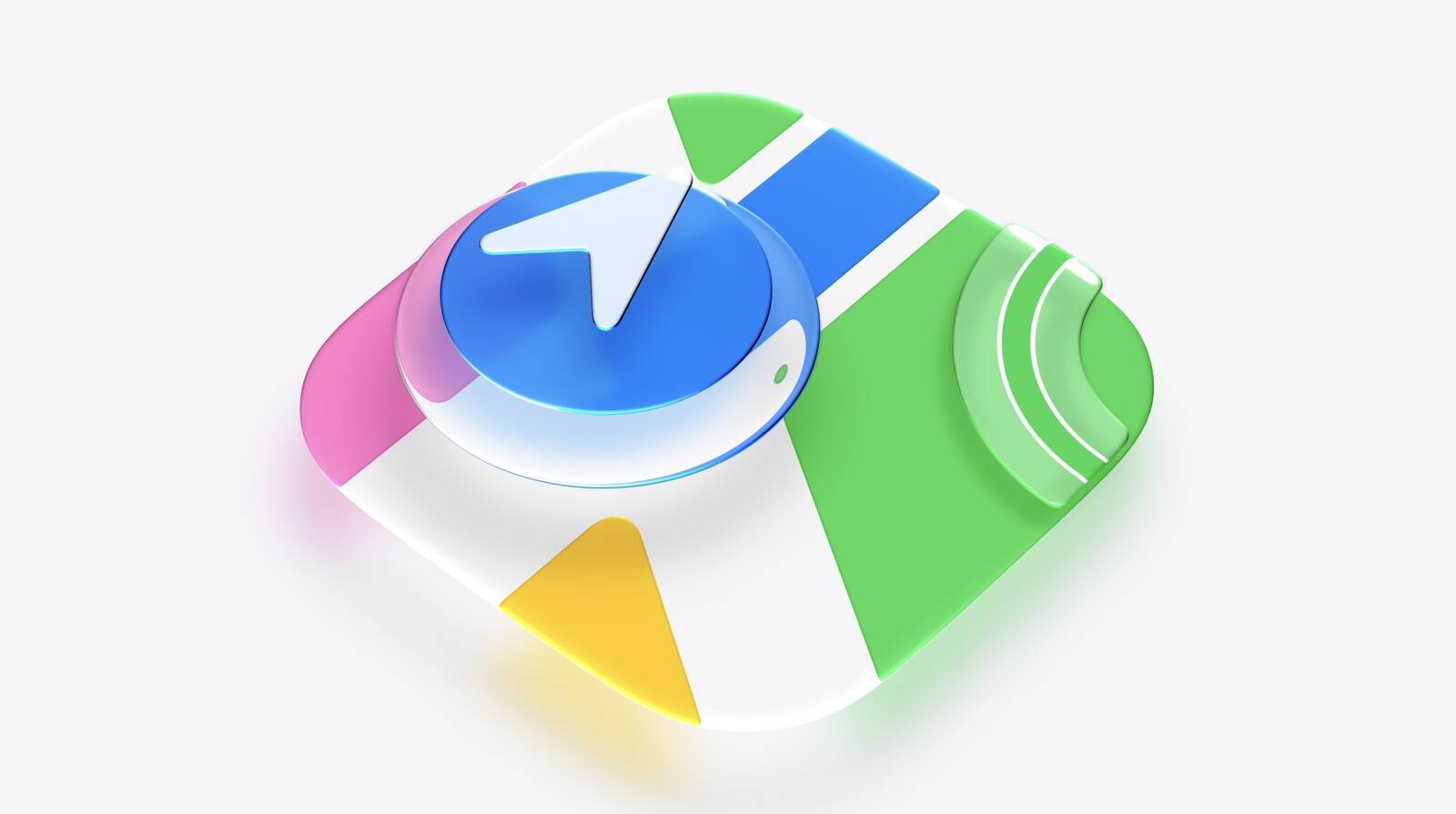
Apple also announced updates to its app icon design language. Having redesigned all of its first-party icons last year to create a more consistent look across apps and platforms, the company said it is now taking that work further by incorporating additional layers of Liquid Glass directly into the icon artwork itself.
This article, "Apple Announces Liquid Glass Improvements and Transparency Slider" first appeared on MacRumors.com
Discuss this article in our forums
Apple said it has heard user feedback, which it "deeply appreciates," and is now making adjustments to the underlying foundations of how Liquid Glass is constructed. Chief among those changes is a new slider that lets users control transparency, ranging from fully opaque to completely clear.
Sidebar behavior is also being updated. Sidebars will now expand to the full edge of the window, with refraction effects continuing beneath them rather than cutting off at the sidebar boundary. Sidebar icons will also retain their color, a change that addresses a common complaint about the original Liquid Glass implementation.
Apple also announced updates to its app icon design language. Having redesigned all of its first-party icons last year to create a more consistent look across apps and platforms, the company said it is now taking that work further by incorporating additional layers of Liquid Glass directly into the icon artwork itself.
Tags: Liquid Glass, WWDC 2026
This article, "Apple Announces Liquid Glass Improvements and Transparency Slider" first appeared on MacRumors.com
Discuss this article in our forums
Recommended Comments
Join the conversation
You can post now and register later. If you have an account, sign in now to post with your account.