_811205.png)
_e196d8.png)
_32b3d9.png)
_1c53fe.png)

The macOS Tahoe 26.4 beta that Apple released today includes a Charge Limit feature for the Mac. There is a new slider bar that lets Mac users select a charge level from 80 percent to 100 percent.
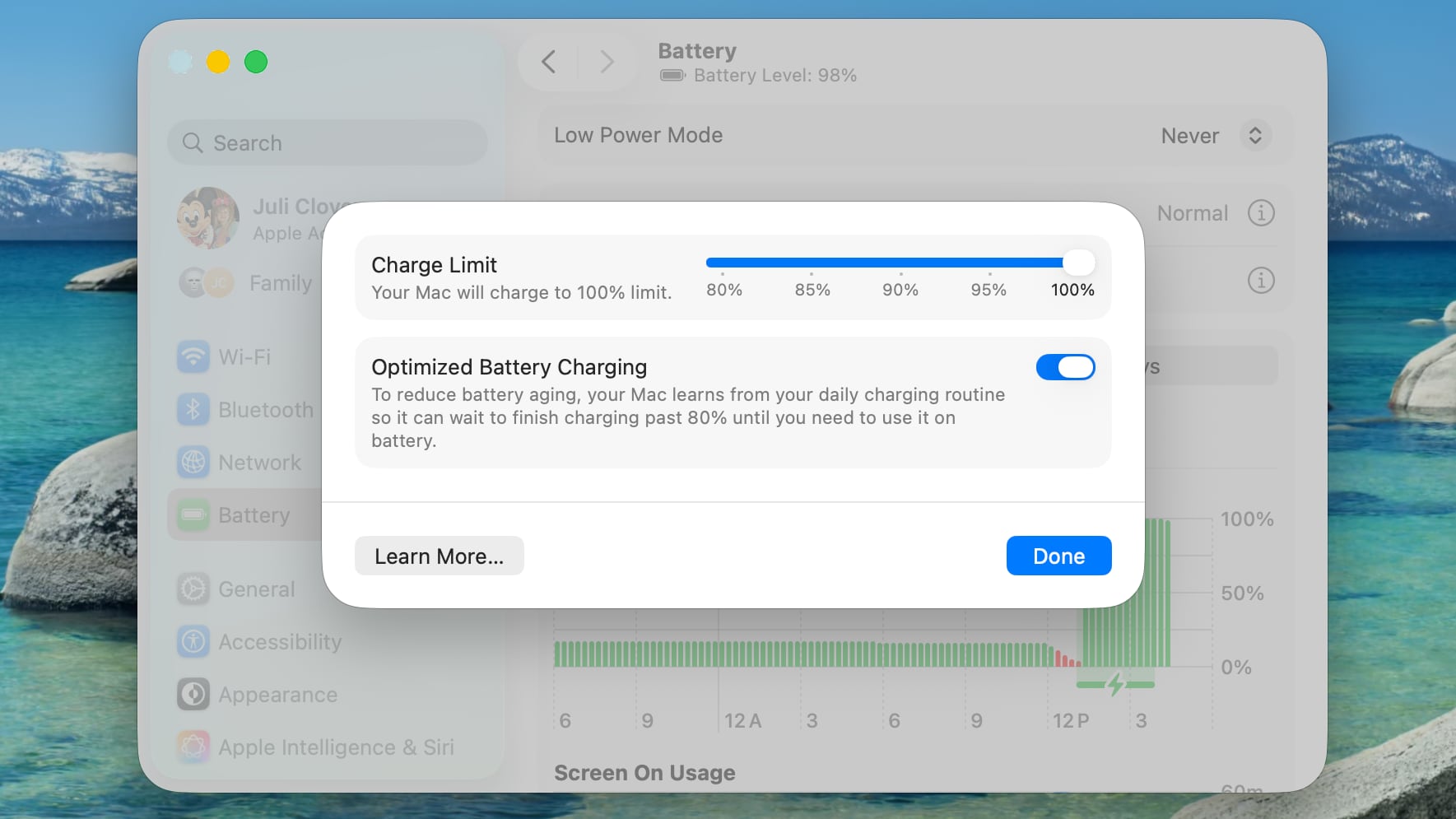
The Charge Limit is a setting that's available in addition to Optimized Battery Charging, and it can prevent a Mac from ever charging to 100 percent.
Apple's existing Optimized Battery Charging feature keeps a Mac from charging to 100 percent until it's needed for use, with the option using your daily charging routine to determine when to charge to full. While Optimized Battery Charging can help preserve battery life, it still regularly allows a Mac to charge to 100 percent.
The new Charge Limit feature is a hard restriction that keeps a Mac's battery at 80 percent, 85 percent, 90 percent, 95 percent, or 100 percent, giving users more control over the Mac's maximum charging level. Keeping a Mac's battery at 80 percent could increase battery longevity by preserving battery health over time.
Charge Limit can be enabled by opening up the System Settings app, going to Battery, and clicking on the "i" button next to Charging.
Apple's iPhones have had a charge limit feature since the iPhone 15 lineup launched in 2023.
This article, "Apple Brings iPhone-Style Battery Charge Limits to the Mac in macOS Tahoe 26.4" first appeared on MacRumors.com
Discuss this article in our forums
The Charge Limit is a setting that's available in addition to Optimized Battery Charging, and it can prevent a Mac from ever charging to 100 percent.
Apple's existing Optimized Battery Charging feature keeps a Mac from charging to 100 percent until it's needed for use, with the option using your daily charging routine to determine when to charge to full. While Optimized Battery Charging can help preserve battery life, it still regularly allows a Mac to charge to 100 percent.
The new Charge Limit feature is a hard restriction that keeps a Mac's battery at 80 percent, 85 percent, 90 percent, 95 percent, or 100 percent, giving users more control over the Mac's maximum charging level. Keeping a Mac's battery at 80 percent could increase battery longevity by preserving battery health over time.
Charge Limit can be enabled by opening up the System Settings app, going to Battery, and clicking on the "i" button next to Charging.
Apple's iPhones have had a charge limit feature since the iPhone 15 lineup launched in 2023.
Related Roundup: macOS Tahoe
Related Forum: macOS Tahoe
This article, "Apple Brings iPhone-Style Battery Charge Limits to the Mac in macOS Tahoe 26.4" first appeared on MacRumors.com
Discuss this article in our forums
Recommended Comments
Join the conversation
You can post now and register later. If you have an account, sign in now to post with your account.