_811205.png)
_e196d8.png)
_32b3d9.png)
_1c53fe.png)

Apple today announced that users can now describe a shortcut in natural language, with Apple Intelligence automatically building the automation in the background.
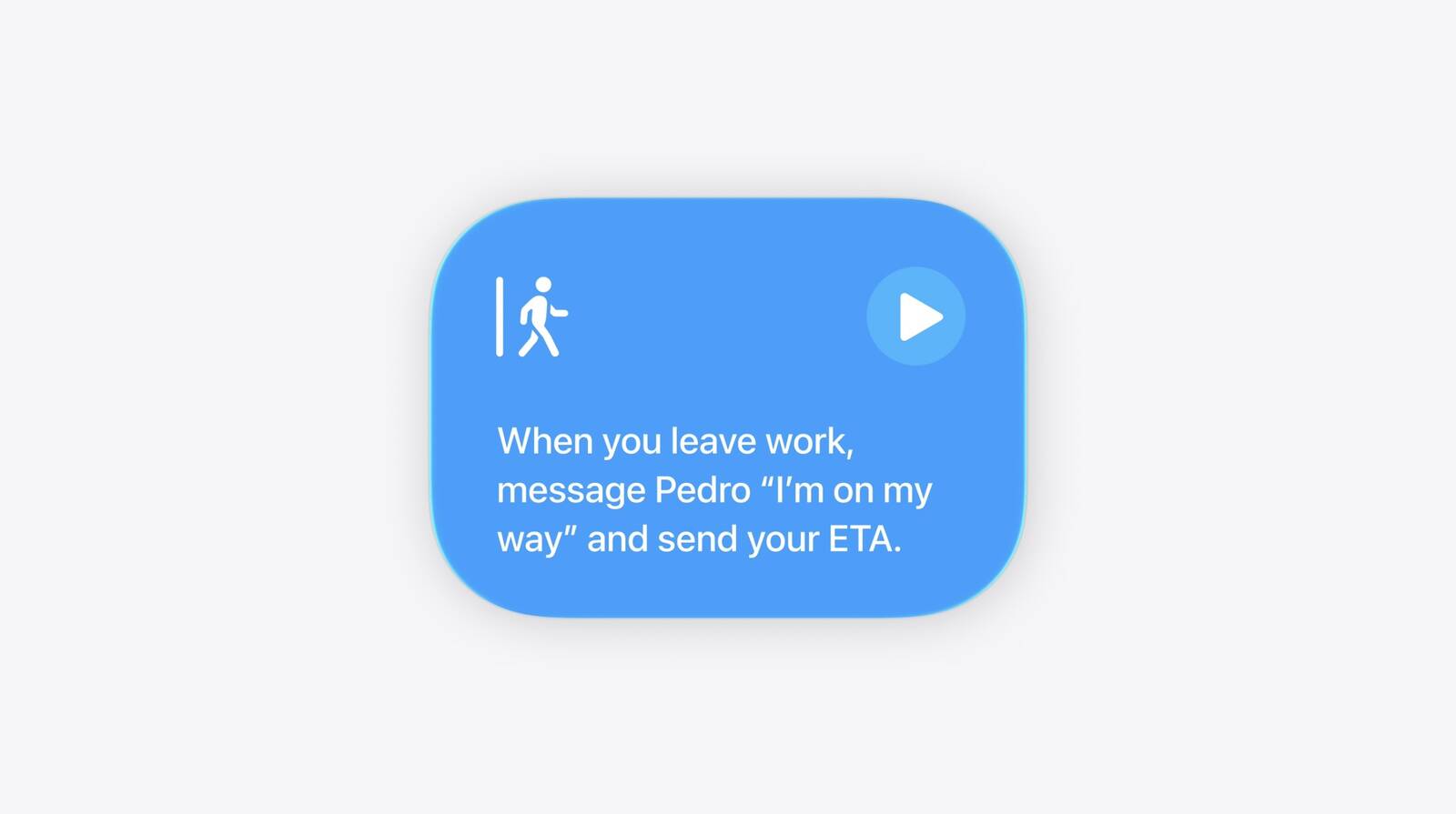
Previously, creating a Shortcuts automation required users to manually build workflows step by step, making the feature largely the preserve of more technically minded users. With the upcoming update, users can simply describe what they want a shortcut to do in plain English text, and Apple Intelligence then handles the construction.
Apple demonstrated the feature with a practical example: A user asking the Shortcuts app to automatically send their estimated time of arrival to a designated recipient whenever they leave home. Apple Intelligence calculates the ETA based on the user's location and sends the correct time without any manual configuration.
This article, "Apple Brings Natural Language Creation to Shortcuts App" first appeared on MacRumors.com
Discuss this article in our forums
Previously, creating a Shortcuts automation required users to manually build workflows step by step, making the feature largely the preserve of more technically minded users. With the upcoming update, users can simply describe what they want a shortcut to do in plain English text, and Apple Intelligence then handles the construction.
Apple demonstrated the feature with a practical example: A user asking the Shortcuts app to automatically send their estimated time of arrival to a designated recipient whenever they leave home. Apple Intelligence calculates the ETA based on the user's location and sends the correct time without any manual configuration.
Tags: Apple Intelligence, Shortcuts
This article, "Apple Brings Natural Language Creation to Shortcuts App" first appeared on MacRumors.com
Discuss this article in our forums
Recommended Comments
Join the conversation
You can post now and register later. If you have an account, sign in now to post with your account.