_811205.png)
_e196d8.png)
_32b3d9.png)
_1c53fe.png)

Apple's Car Keys feature appears to be coming to future vehicles made by Indian maker Mahindra, based on code changes discovered by MacRumors in Apple's Wallet app backend.
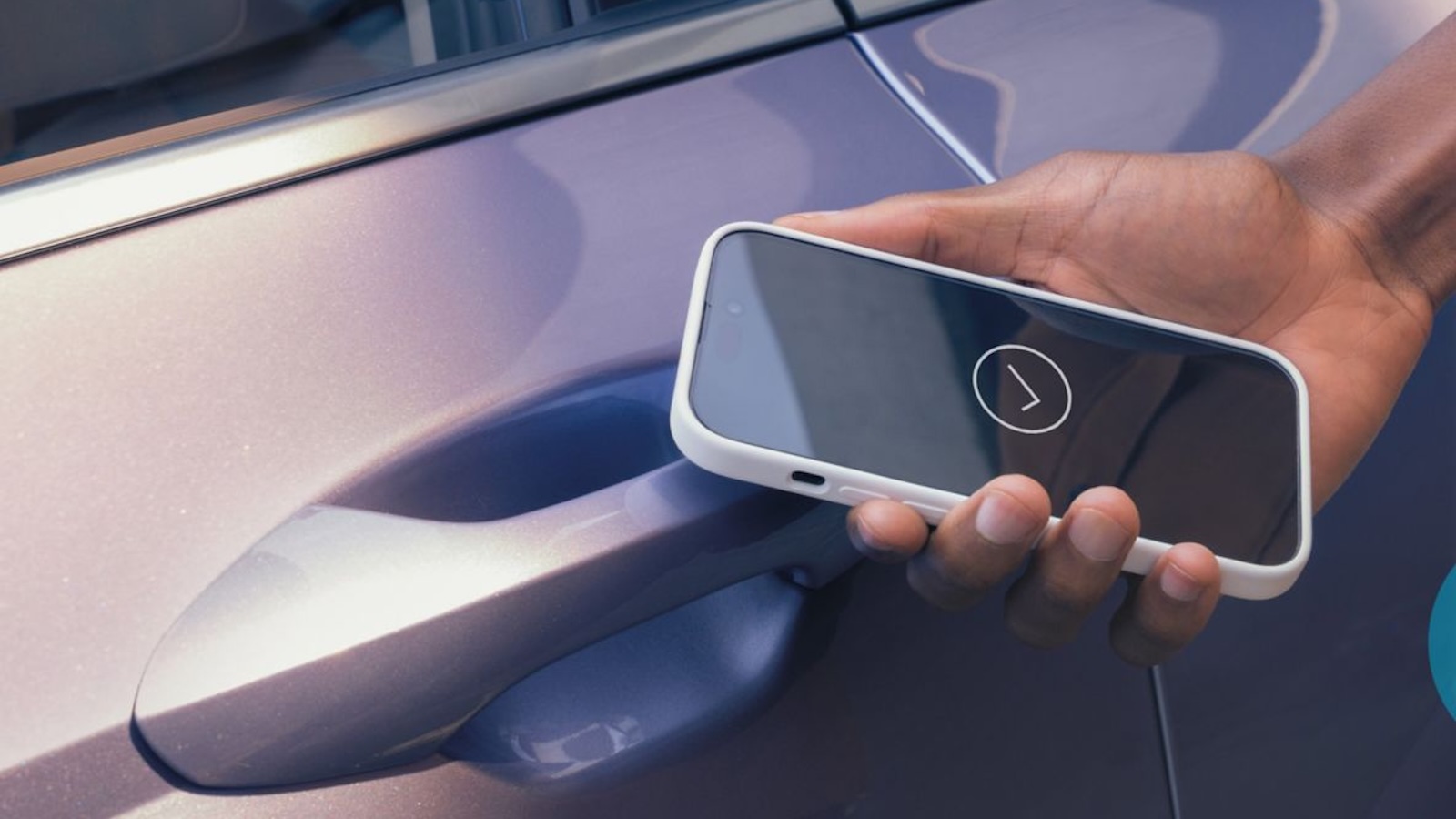
Car Keys allows an iPhone or Apple Watch with NFC capabilities to unlock a vehicle through the Wallet app. A digital version of a car key is stored in Wallet, and unlocking can be done simply by holding an Apple Watch or iPhone near a compatible vehicle's NFC reader.
Mahindra already supports Samsung Wallet's Digital Car Key feature for Galaxy devices, but it does not yet offer native Apple Car Key support, so this would need to be implemented by the automobile manufacturer first on future models.
What can be done with Car Keys may vary by car manufacturer, but at a minimum, Car Keys can be used to unlock your car, lock your car, and start your car, which are the features available with a physical key.
Apple introduced Car Keys in 2022, and car manufacturers like BMW, Rivian, Kia, and Hyundai have all implemented support for Car Keys. Apple maintains a full list of vehicles that support Car Keys on its CarPlay model availability webpage.
This article, "Apple Car Key Support Coming to Future Mahindra Vehicles" first appeared on MacRumors.com
Discuss this article in our forums
Car Keys allows an iPhone or Apple Watch with NFC capabilities to unlock a vehicle through the Wallet app. A digital version of a car key is stored in Wallet, and unlocking can be done simply by holding an Apple Watch or iPhone near a compatible vehicle's NFC reader.
Mahindra already supports Samsung Wallet's Digital Car Key feature for Galaxy devices, but it does not yet offer native Apple Car Key support, so this would need to be implemented by the automobile manufacturer first on future models.
What can be done with Car Keys may vary by car manufacturer, but at a minimum, Car Keys can be used to unlock your car, lock your car, and start your car, which are the features available with a physical key.
Apple introduced Car Keys in 2022, and car manufacturers like BMW, Rivian, Kia, and Hyundai have all implemented support for Car Keys. Apple maintains a full list of vehicles that support Car Keys on its CarPlay model availability webpage.
Tag: iPhone Car Keys
This article, "Apple Car Key Support Coming to Future Mahindra Vehicles" first appeared on MacRumors.com
Discuss this article in our forums
Recommended Comments
Join the conversation
You can post now and register later. If you have an account, sign in now to post with your account.