_811205.png)
_e196d8.png)
_32b3d9.png)
_1c53fe.png)

JPMorgan Chase has reached a deal to take over operation of the Apple Card, reports The Wall Street Journal. Barring any "last minute hiccups," the deal should be announced shortly after over a year of negotiations.
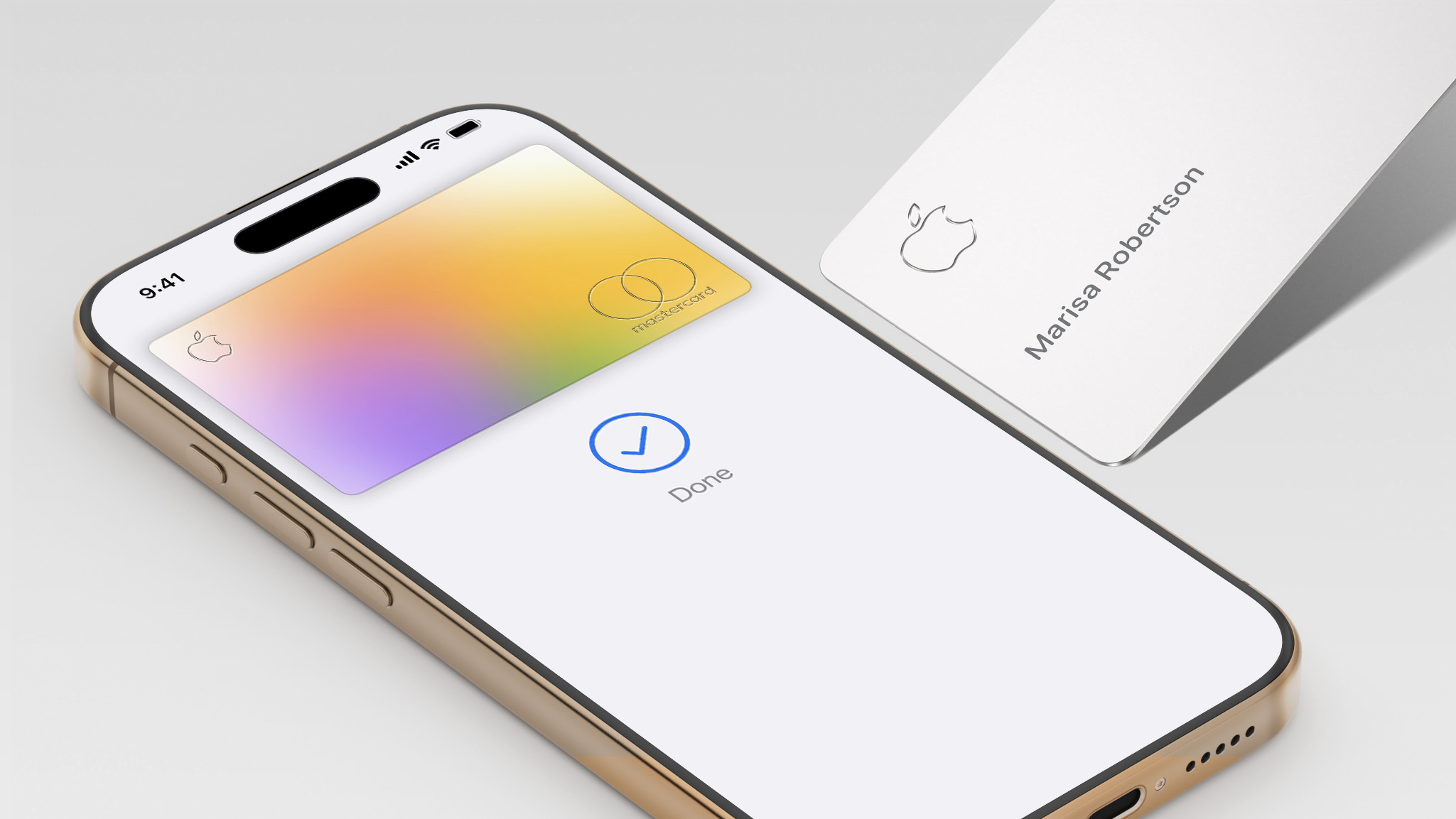
Reports began circulating over two years ago that current Apple Card issuer Goldman Sachs was looking to end its partnership with Apple as part of an effort to scale back on consumer banking products amid steep losses.
According to The Wall Street Journal, Goldman Sachs is unloading its roughly $20 billion of outstanding Apple Card balances at a discount of more than $1 billion, a rare move for co-branded account deals like this. But higher-than-average delinquency rates and high exposure to subprime borrowers made it more difficult for Goldman Sachs to find a buyer.
JPMorgan Chase's interest in taking over as Apple Card issuer was reported over a year ago, and by this past summer Chase appeared to be the front-runner.
Alongside its new Apple Card partnership, JPMorgan Chase will reportedly launch a new Apple savings account, but existing users with Apple savings accounts at Goldman Sachs will not be automatically transitioned and will need to decide whether they want to stay at Goldman Sachs or open new accounts with Chase.
This article, "Apple Card Will Move From Goldman Sachs to JPMorgan Chase" first appeared on MacRumors.com
Discuss this article in our forums
Reports began circulating over two years ago that current Apple Card issuer Goldman Sachs was looking to end its partnership with Apple as part of an effort to scale back on consumer banking products amid steep losses.
According to The Wall Street Journal, Goldman Sachs is unloading its roughly $20 billion of outstanding Apple Card balances at a discount of more than $1 billion, a rare move for co-branded account deals like this. But higher-than-average delinquency rates and high exposure to subprime borrowers made it more difficult for Goldman Sachs to find a buyer.
JPMorgan Chase's interest in taking over as Apple Card issuer was reported over a year ago, and by this past summer Chase appeared to be the front-runner.
Alongside its new Apple Card partnership, JPMorgan Chase will reportedly launch a new Apple savings account, but existing users with Apple savings accounts at Goldman Sachs will not be automatically transitioned and will need to decide whether they want to stay at Goldman Sachs or open new accounts with Chase.
Tags: Apple Card, Chase
This article, "Apple Card Will Move From Goldman Sachs to JPMorgan Chase" first appeared on MacRumors.com
Discuss this article in our forums
Recommended Comments
Join the conversation
You can post now and register later. If you have an account, sign in now to post with your account.