_811205.png)
_e196d8.png)
_32b3d9.png)
_1c53fe.png)

iOS 27 will include a nice quality-of-life improvement for those who frequently split bills with friends and family, allowing them to easily take a photo of a receipt and generate payment requests for different people, according to Bloomberg's Mark Gurman.
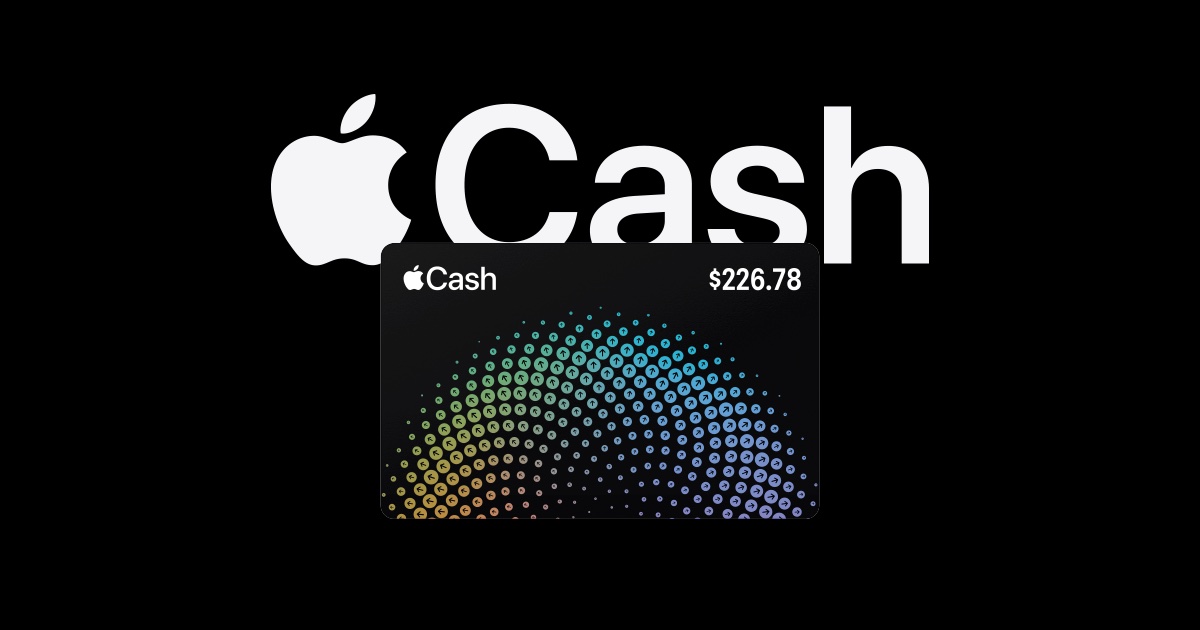
The feature will be tied to the peer-to-peer Apple Cash feature in the Wallet app, which lets users easily send money to other people and even make purchases.Gurman says that Apple is intending to announce the new feature "as early as next week" at WWDC, and it should be included in the upcoming iOS 27 release. Notably, Apple Cash is currently only available in the United States.
The bill-splitting feature will be available through the Wallet and Messages apps, and users will be able to approve payments from an Apple Watch.
This functionality isn't the only Apple Wallet improvement coming iOS 27, as the update will also bring the ability to let users create their own digital passes by scanning items like movie tickets, concert passes, and gym membership cards.
This article, "Apple Cash in iOS 27 Will Help You Split Bills With Just a Photo" first appeared on MacRumors.com
Discuss this article in our forums
The feature will be tied to the peer-to-peer Apple Cash feature in the Wallet app, which lets users easily send money to other people and even make purchases.Gurman says that Apple is intending to announce the new feature "as early as next week" at WWDC, and it should be included in the upcoming iOS 27 release. Notably, Apple Cash is currently only available in the United States.
The bill-splitting feature will be available through the Wallet and Messages apps, and users will be able to approve payments from an Apple Watch.
This functionality isn't the only Apple Wallet improvement coming iOS 27, as the update will also bring the ability to let users create their own digital passes by scanning items like movie tickets, concert passes, and gym membership cards.
Related Roundup: iOS 27
This article, "Apple Cash in iOS 27 Will Help You Split Bills With Just a Photo" first appeared on MacRumors.com
Discuss this article in our forums
Recommended Comments
Join the conversation
You can post now and register later. If you have an account, sign in now to post with your account.