_811205.png)
_e196d8.png)
_32b3d9.png)
_1c53fe.png)

Apple considered launching a HomePod with a camera and additional sensors years before the upcoming "HomePad" device, Bloomberg's Mark Gurman reports.
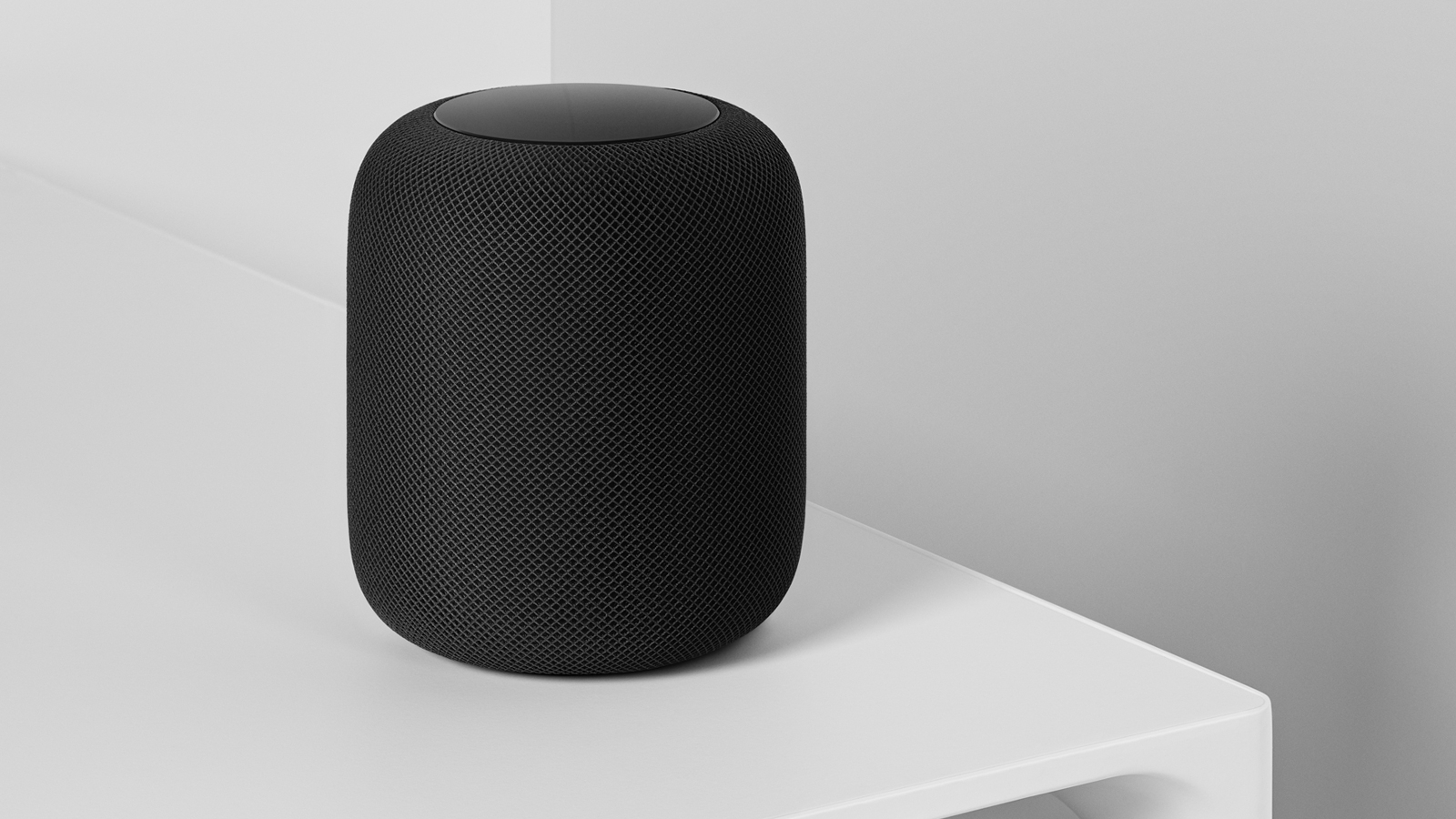
In a detailed profile of Apple's hardware engineering chief John Ternus, Gurman revealed that Apple considered adding a camera and a more advanced array of sensors to the original HomePod, which was announced in 2017. Ternus apparently believed that the additional capabilities would push up development costs and decided to cancel the features as a result.
Ternus was said to be reluctant to invest deeply in smart home devices when the first leading products from Amazon and Google arrived on the market around a decade ago. He subsequently took "some responsibility" for Apple falling behind in the smart home category.
Now, Ternus is leading Apple's efforts to re-establish itself in the smart home market with three new products, including an AI-powered smart home hub with facial recognition (J490), a small sensor for managing home security (J450), and a robotic device (J595). The smart home hub, dubbed "HomePad" in some reports, is expected to launch in the fall of 2026.
This article, "Apple Considered Adding a Camera to the HomePod Years Ago" first appeared on MacRumors.com
Discuss this article in our forums
In a detailed profile of Apple's hardware engineering chief John Ternus, Gurman revealed that Apple considered adding a camera and a more advanced array of sensors to the original HomePod, which was announced in 2017. Ternus apparently believed that the additional capabilities would push up development costs and decided to cancel the features as a result.
Ternus was said to be reluctant to invest deeply in smart home devices when the first leading products from Amazon and Google arrived on the market around a decade ago. He subsequently took "some responsibility" for Apple falling behind in the smart home category.
Now, Ternus is leading Apple's efforts to re-establish itself in the smart home market with three new products, including an AI-powered smart home hub with facial recognition (J490), a small sensor for managing home security (J450), and a robotic device (J595). The smart home hub, dubbed "HomePad" in some reports, is expected to launch in the fall of 2026.
Related Roundup: HomePod
Buyer's Guide: HomePod (Neutral)
This article, "Apple Considered Adding a Camera to the HomePod Years Ago" first appeared on MacRumors.com
Discuss this article in our forums
Recommended Comments
Join the conversation
You can post now and register later. If you have an account, sign in now to post with your account.