_811205.png)
_e196d8.png)
_32b3d9.png)
_1c53fe.png)

Apple is continuing to improve the AI Support Assistant that it is testing in the Apple Support app, introducing new functionality in the latest update.

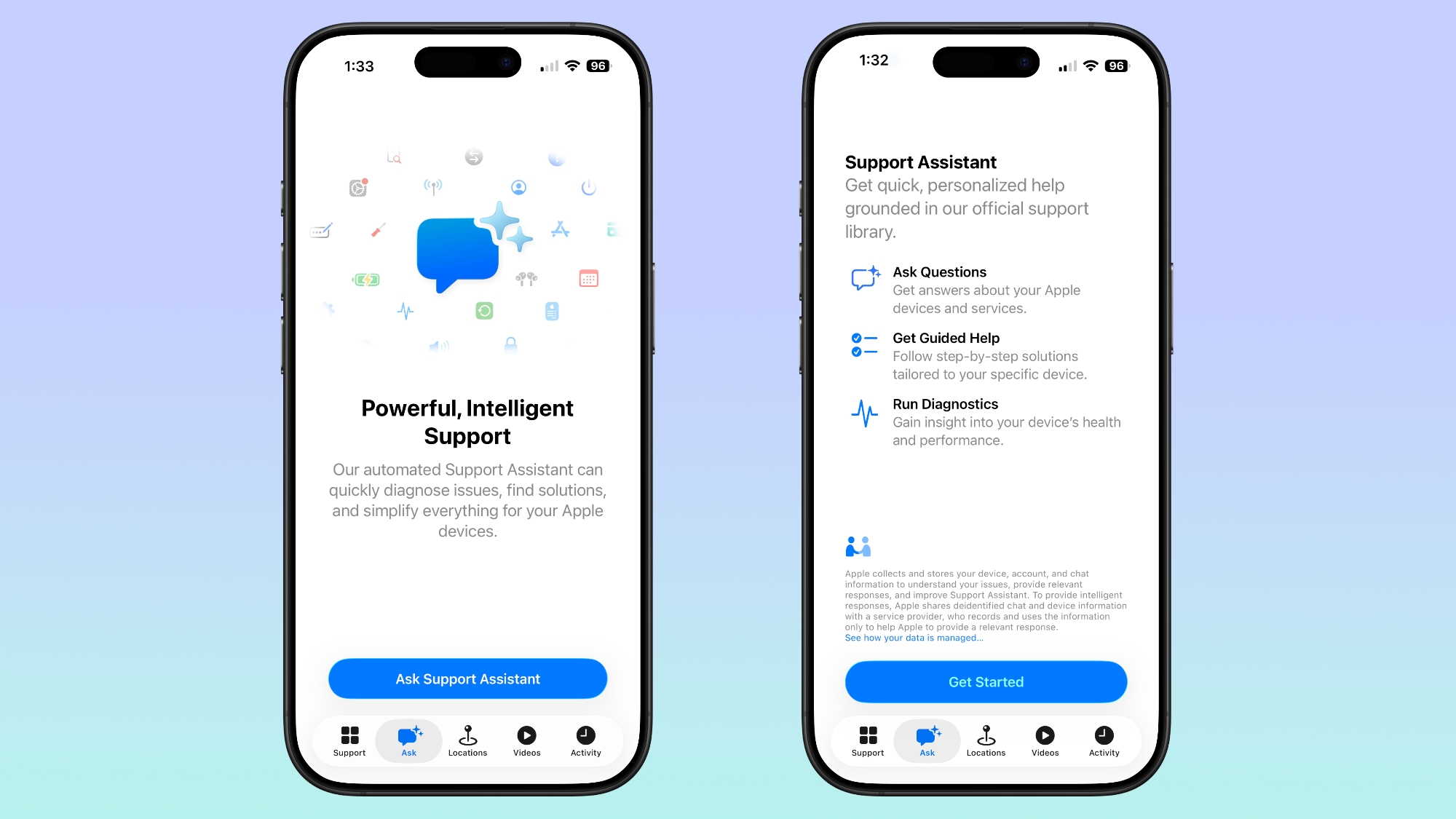
In addition to answering questions about Apple devices and services and providing device-specific help, Apple says the Support Assistant is able to help run diagnostics to show details about a device's health and performance.
The Apple Support app now has a more informative interface for the Support Assistant, and the tab for accessing the feature has an updated "Ask" label with a new icon instead of a "Chat" label. Apple is no longer calling the Support Assistant an "Early Preview," suggesting it is now available in a more official capacity.
Despite the update, the Support Assistant remains limited, and it is not yet available to all users. It's possible that Apple has expanded the feature to a larger number of testers, but not everyone will see it yet.
Apple began testing the Support Assistant last August. The tool uses AI to answer questions related to Apple support, and it is able to walk users through step-by-step solutions for common problems.
If the Support Assistant is unable to solve a problem, users are able to escalate a request to Apple's support staff for further help.
This article, "Apple Continues Improving Apple Support App's AI Assistant" first appeared on MacRumors.com
Discuss this article in our forums
In addition to answering questions about Apple devices and services and providing device-specific help, Apple says the Support Assistant is able to help run diagnostics to show details about a device's health and performance.
The Apple Support app now has a more informative interface for the Support Assistant, and the tab for accessing the feature has an updated "Ask" label with a new icon instead of a "Chat" label. Apple is no longer calling the Support Assistant an "Early Preview," suggesting it is now available in a more official capacity.
Despite the update, the Support Assistant remains limited, and it is not yet available to all users. It's possible that Apple has expanded the feature to a larger number of testers, but not everyone will see it yet.
Apple began testing the Support Assistant last August. The tool uses AI to answer questions related to Apple support, and it is able to walk users through step-by-step solutions for common problems.
If the Support Assistant is unable to solve a problem, users are able to escalate a request to Apple's support staff for further help.
Tag: Apple Support
This article, "Apple Continues Improving Apple Support App's AI Assistant" first appeared on MacRumors.com
Discuss this article in our forums
Recommended Comments
Join the conversation
You can post now and register later. If you have an account, sign in now to post with your account.