_811205.png)
_e196d8.png)
_32b3d9.png)
_1c53fe.png)

Back in March with the release of macOS Tahoe 26.4, Apple introduced a new security popup that warns Mac users when they paste a command into the Terminal app that could be harmful. Apple has now published a support document explaining why the popup warning appears.
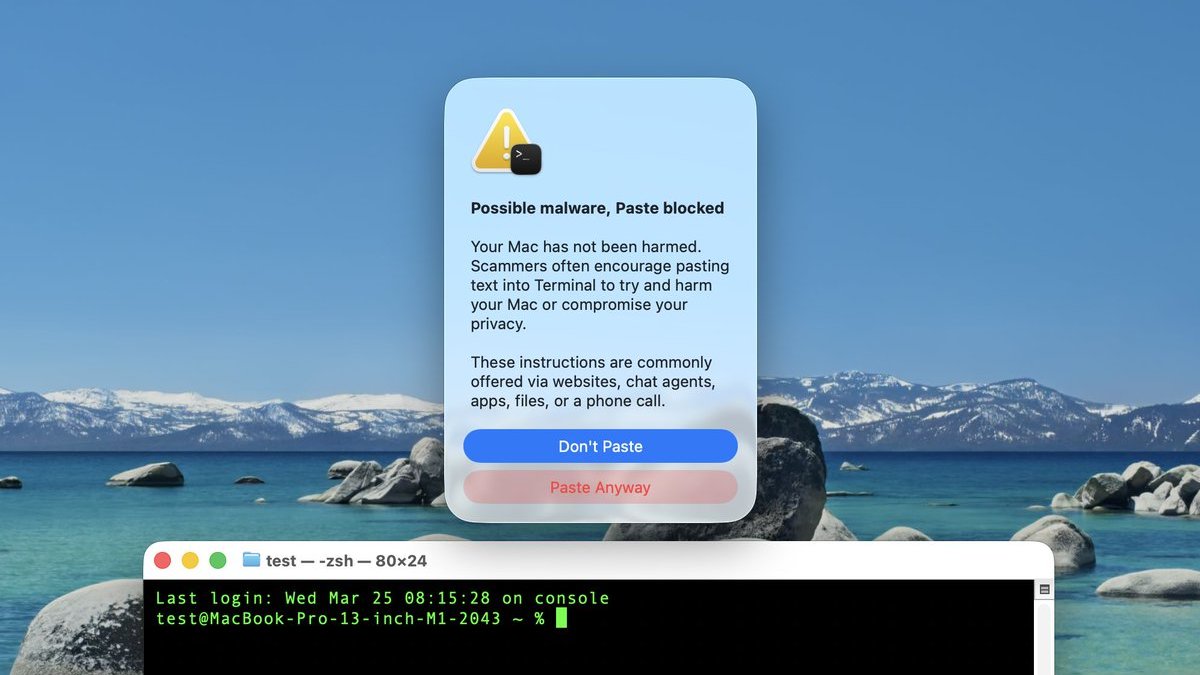
The warning says the following when it appears:
In a document titled "If your Mac blocks a Terminal command paste or script," spotted by 9to5Mac, Apple explains that the alert appears if you don't regularly use Terminal and you copied the command from somewhere like a website, chat agent, or messaging or email app.
"Scammers use these channels to instruct people to paste malicious commands into Terminal to harm your Mac or compromise your privacy," says Apple. "This alert helps make sure that you aren't tricked into running a command that you didn't expect."
The document also mentions two other types of Terminal-related alerts that are more proactive. If a "Malware Detected, Paste Blocked" or "Malicious Script Blocked" alert appears, macOS has detected a command or script that contains known malware and has blocked it, according to Apple. In such cases, no "Paste Anyway" option is provided.
Apple says that if you believe the command or script was mistakenly blocked, it could be because a website that it tries to access was incorrectly reported as deceptive. In that case, users can report the error.
This article, "Apple Details Terminal Anti-Scam Warning in macOS" first appeared on MacRumors.com
Discuss this article in our forums
Screenshot via "Mr. Macintosh"
The warning says the following when it appears:
Possible malware, Paste blockedThere is a "Paste Anyway" option for users to proceed if they wish.
Your Mac has not been harmed.
Scammers often encourage pasting text into Terminal to try and harm your Mac or compromise your privacy.
These instructions are commonly offered via websites, chat agents, apps, files, or a phone call.
In a document titled "If your Mac blocks a Terminal command paste or script," spotted by 9to5Mac, Apple explains that the alert appears if you don't regularly use Terminal and you copied the command from somewhere like a website, chat agent, or messaging or email app.
"Scammers use these channels to instruct people to paste malicious commands into Terminal to harm your Mac or compromise your privacy," says Apple. "This alert helps make sure that you aren't tricked into running a command that you didn't expect."
The document also mentions two other types of Terminal-related alerts that are more proactive. If a "Malware Detected, Paste Blocked" or "Malicious Script Blocked" alert appears, macOS has detected a command or script that contains known malware and has blocked it, according to Apple. In such cases, no "Paste Anyway" option is provided.
Apple says that if you believe the command or script was mistakenly blocked, it could be because a website that it tries to access was incorrectly reported as deceptive. In that case, users can report the error.
This article, "Apple Details Terminal Anti-Scam Warning in macOS" first appeared on MacRumors.com
Discuss this article in our forums
Recommended Comments
Join the conversation
You can post now and register later. If you have an account, sign in now to post with your account.