_811205.png)
_e196d8.png)
_32b3d9.png)
_1c53fe.png)

Apple today said that hypertension notifications are now available for Apple Watch and iPhone users in Australia, Malaysia, Colombia, Indonesia, South Korea, Brazil, and Turkey.
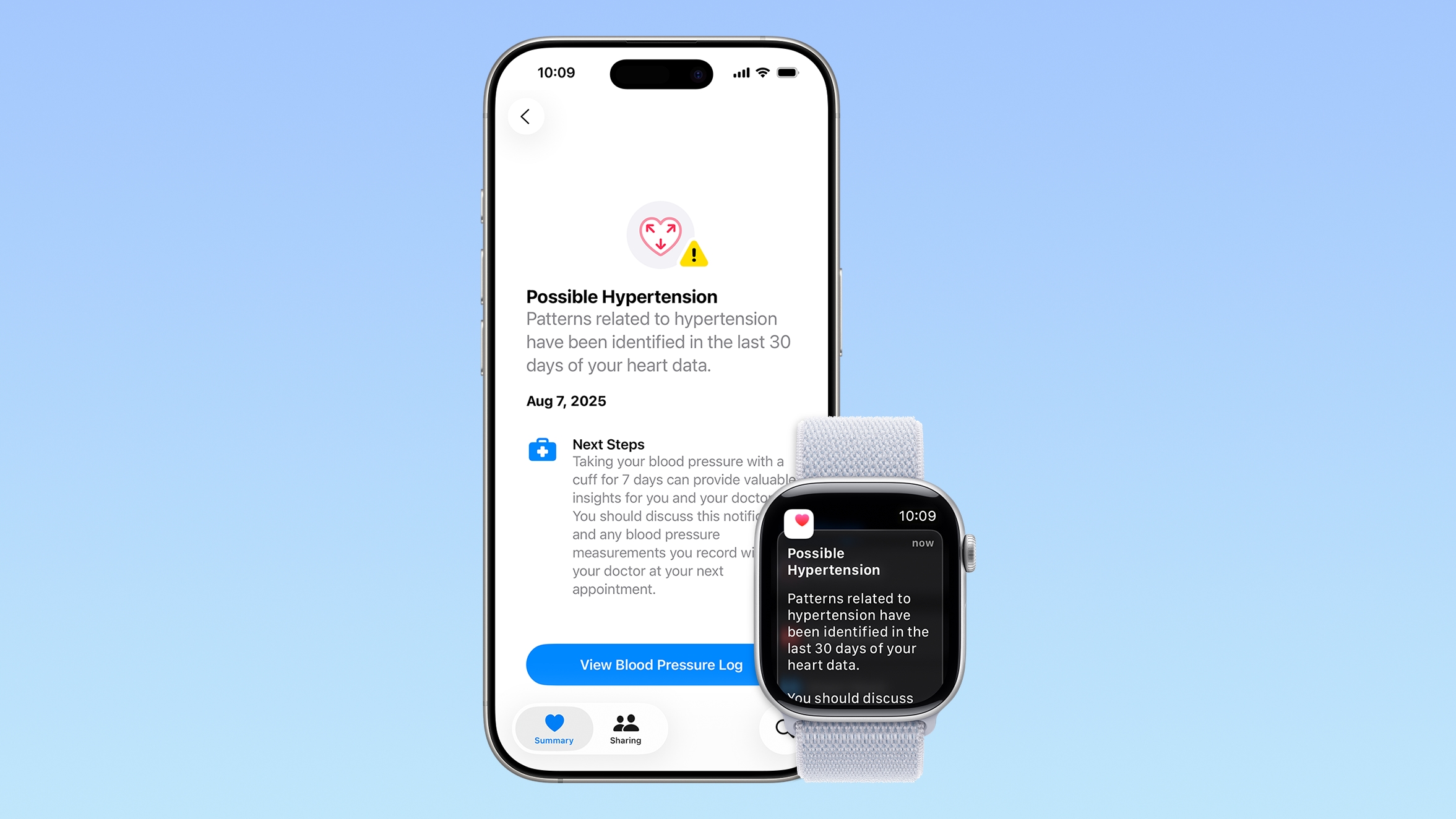
Introduced last September, the hypertension detection feature uses the health sensors on the Apple Watch and custom-designed algorithms to determine if a user seems to be regularly experiencing high blood pressure. If hypertension is detected over a 30-day period, the Apple Watch is able to send an alert suggesting that the user opt in to more frequent blood pressure monitoring with the guidance of a doctor.
According to Apple, hypertension is the leading modifiable risk factor for heart attack, stroke, and kidney disease, impacting 1.4 billion adults globally. Hypertension does not have visible symptoms in most cases, so it can go undiagnosed.
Apple Watch owners in the countries where Apple has added support can set up hypertension alerts in the Health app.
Hypertension alerts are available with the Apple Watch Series 9 and later and the Apple Watch Ultra 2 and later.
This article, "Apple Expands Apple Watch Hypertension Notifications to Six More Countries" first appeared on MacRumors.com
Discuss this article in our forums
Introduced last September, the hypertension detection feature uses the health sensors on the Apple Watch and custom-designed algorithms to determine if a user seems to be regularly experiencing high blood pressure. If hypertension is detected over a 30-day period, the Apple Watch is able to send an alert suggesting that the user opt in to more frequent blood pressure monitoring with the guidance of a doctor.
According to Apple, hypertension is the leading modifiable risk factor for heart attack, stroke, and kidney disease, impacting 1.4 billion adults globally. Hypertension does not have visible symptoms in most cases, so it can go undiagnosed.
Apple Watch owners in the countries where Apple has added support can set up hypertension alerts in the Health app.
Hypertension alerts are available with the Apple Watch Series 9 and later and the Apple Watch Ultra 2 and later.
This article, "Apple Expands Apple Watch Hypertension Notifications to Six More Countries" first appeared on MacRumors.com
Discuss this article in our forums
Recommended Comments
Join the conversation
You can post now and register later. If you have an account, sign in now to post with your account.