_811205.png)
_e196d8.png)
_32b3d9.png)
_1c53fe.png)

Apple today unveiled significant upgrades to Visual Intelligence, including a new Siri mode in the Camera app that can analyze real-world objects and take actions directly from what the iPhone sees.
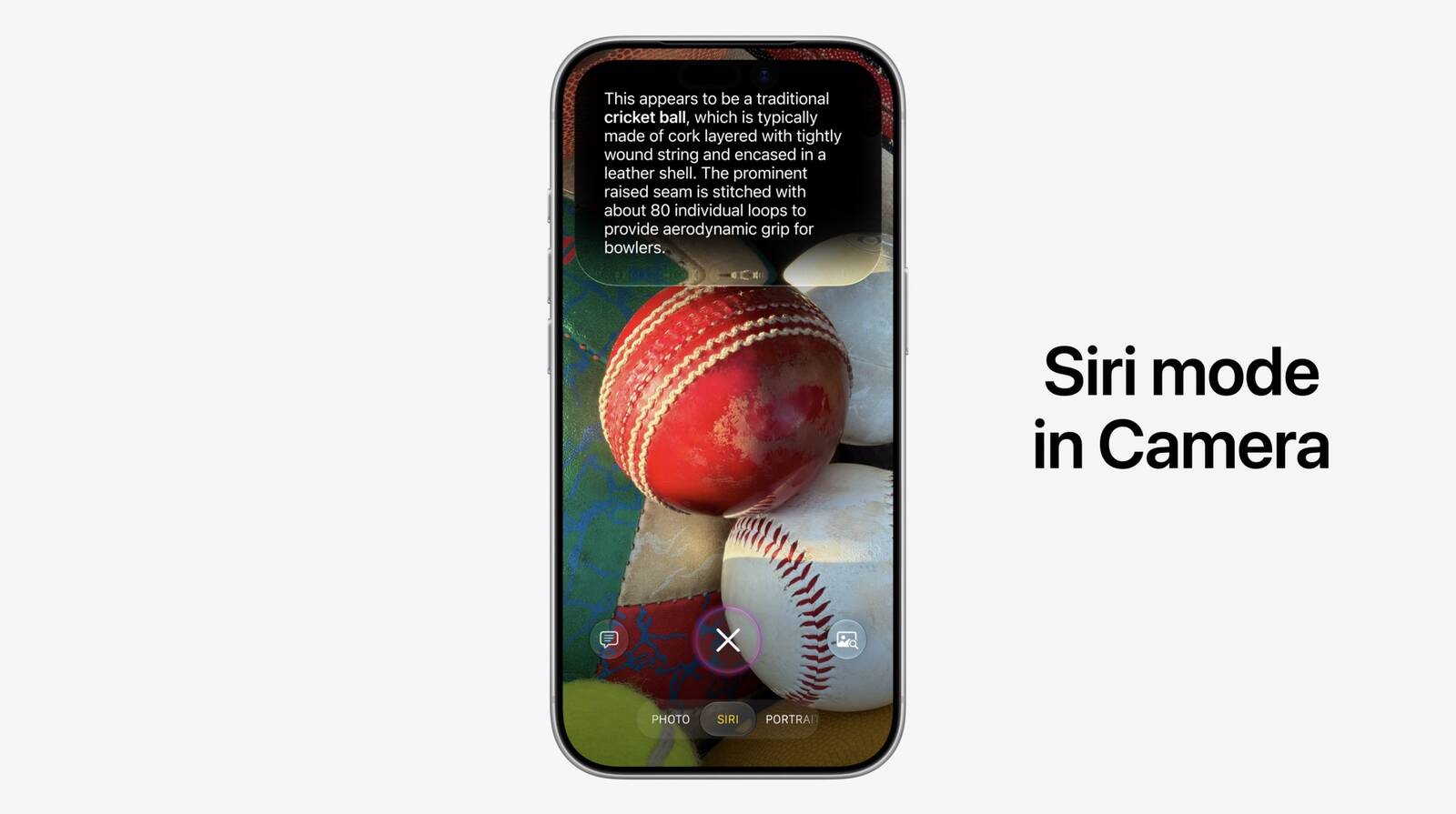
Apple's vice president of software engineering Sebastien Marineau-Mes detailed the enhancements during today's WWDC keynote, explaining that the new Siri mode in Camera uses image understanding powered by Apple's foundational models to interpret what the camera is pointed at and surface contextually relevant actions.
One of the headline use cases is bill splitting. Users can aim their iPhone camera at a restaurant check and immediately divide the total between friends, with Apple Cash integration allowing payments to be sent on the spot. Apple also demoed pointing the camera at a plate of food to receive nutritional insights.
Visual Intelligence is also coming to visionOS, bringing the same capability to Apple's spatial computing platform. Siri can recognize real-world objects in a user's environment and surface relevant information about them on demand.
This article, "Apple Expands Visual Intelligence With Bill Splitting, Nutrition Insights, and visionOS Support" first appeared on MacRumors.com
Discuss this article in our forums
Apple's vice president of software engineering Sebastien Marineau-Mes detailed the enhancements during today's WWDC keynote, explaining that the new Siri mode in Camera uses image understanding powered by Apple's foundational models to interpret what the camera is pointed at and surface contextually relevant actions.
One of the headline use cases is bill splitting. Users can aim their iPhone camera at a restaurant check and immediately divide the total between friends, with Apple Cash integration allowing payments to be sent on the spot. Apple also demoed pointing the camera at a plate of food to receive nutritional insights.
Visual Intelligence is also coming to visionOS, bringing the same capability to Apple's spatial computing platform. Siri can recognize real-world objects in a user's environment and surface relevant information about them on demand.
Related Roundup: Apple Vision Pro
Buyer's Guide: Vision Pro (Neutral)
Related Forum: Apple Vision Pro
This article, "Apple Expands Visual Intelligence With Bill Splitting, Nutrition Insights, and visionOS Support" first appeared on MacRumors.com
Discuss this article in our forums
Recommended Comments
Join the conversation
You can post now and register later. If you have an account, sign in now to post with your account.