_811205.png)
_e196d8.png)
_32b3d9.png)
_1c53fe.png)

Apple today announced a series of Apple Intelligence improvements coming to Mail, Messages, Files, and system-wide text input as part of iOS 27 and its other major platform updates.
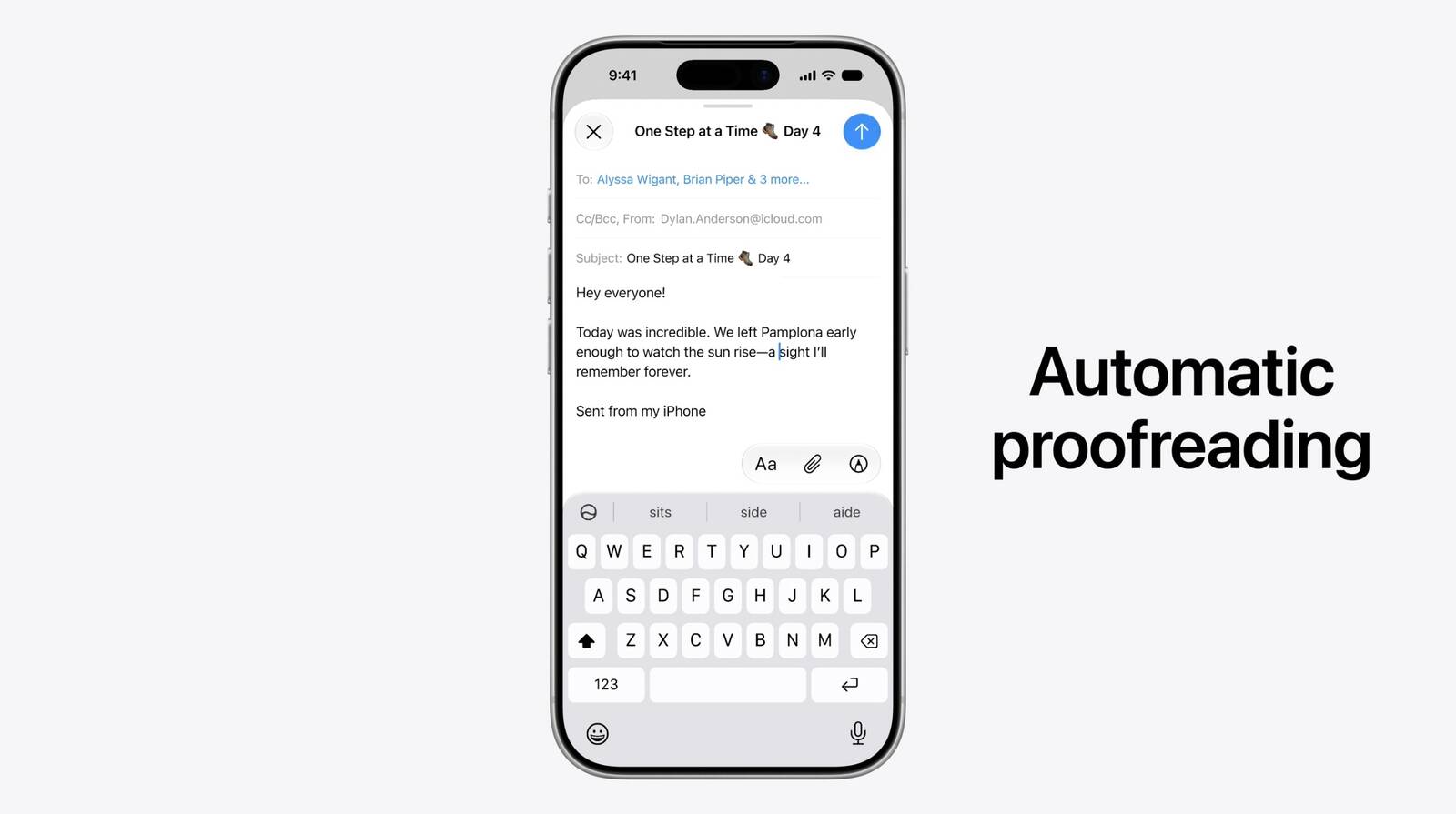
The updates include automatic proofreading, which surfaces spelling and grammar suggestions as users type across the system. Apple is also introducing intelligent file and folder naming suggestions based on content.
Two enhancements come specifically to Mail and Messages. Apple's composition assistant will now adapt to how a user typically communicates with different contacts, tailoring its suggestions to match individual conversational styles. Smart Reply, which proposes quick responses to incoming messages, has also been updated to draw on a user's personalized writing style rather than offering generic reply options.
This article, "Apple Intelligence Gains Smarter Writing Tools in iOS 27" first appeared on MacRumors.com
Discuss this article in our forums
The updates include automatic proofreading, which surfaces spelling and grammar suggestions as users type across the system. Apple is also introducing intelligent file and folder naming suggestions based on content.
Two enhancements come specifically to Mail and Messages. Apple's composition assistant will now adapt to how a user typically communicates with different contacts, tailoring its suggestions to match individual conversational styles. Smart Reply, which proposes quick responses to incoming messages, has also been updated to draw on a user's personalized writing style rather than offering generic reply options.
Related Roundup: iOS 27
Tag: Apple Intelligence
This article, "Apple Intelligence Gains Smarter Writing Tools in iOS 27" first appeared on MacRumors.com
Discuss this article in our forums
Recommended Comments
Join the conversation
You can post now and register later. If you have an account, sign in now to post with your account.