_811205.png)
_e196d8.png)
_32b3d9.png)
_1c53fe.png)

Apple today announced a set of new communication-focused Apple Intelligence features, including contextual suggestions in Messages and a Call Context tool that surfaces relevant information from Mail when a user phones a business.
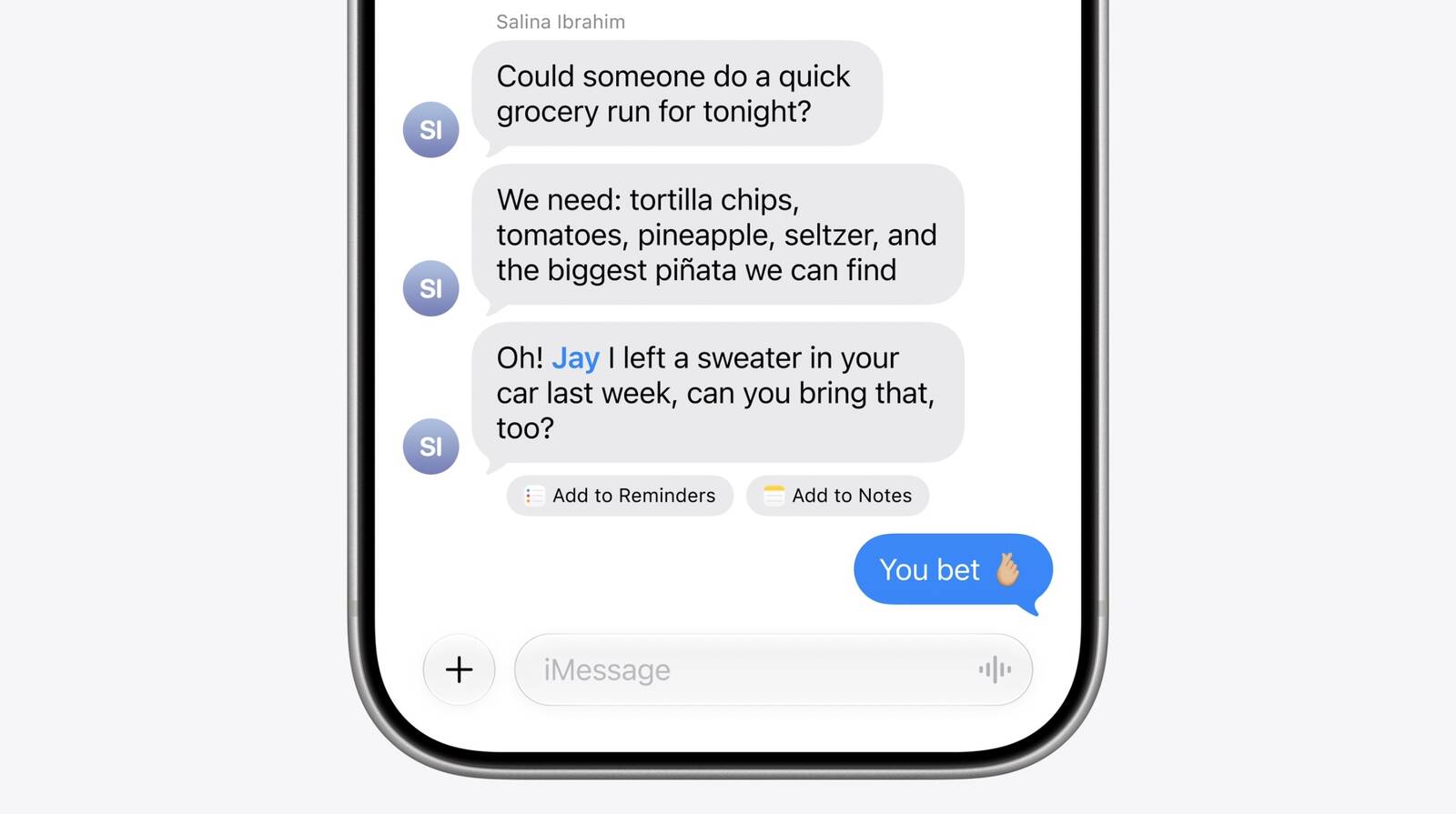
The new Messages features offer one-tap suggestions based on the content of a conversation. If a contact asks for photos, Messages can surface a suggestion to search the library, recognizing keywords, locations, and people to find the best matches. Messages can also prompt users to create a reminder or a note directly from the conversation thread. Smart Reply in both Messages and Mail can now draw on a user's personalized writing style, and suggestions in Mail gain the ability to take action with third-party apps.
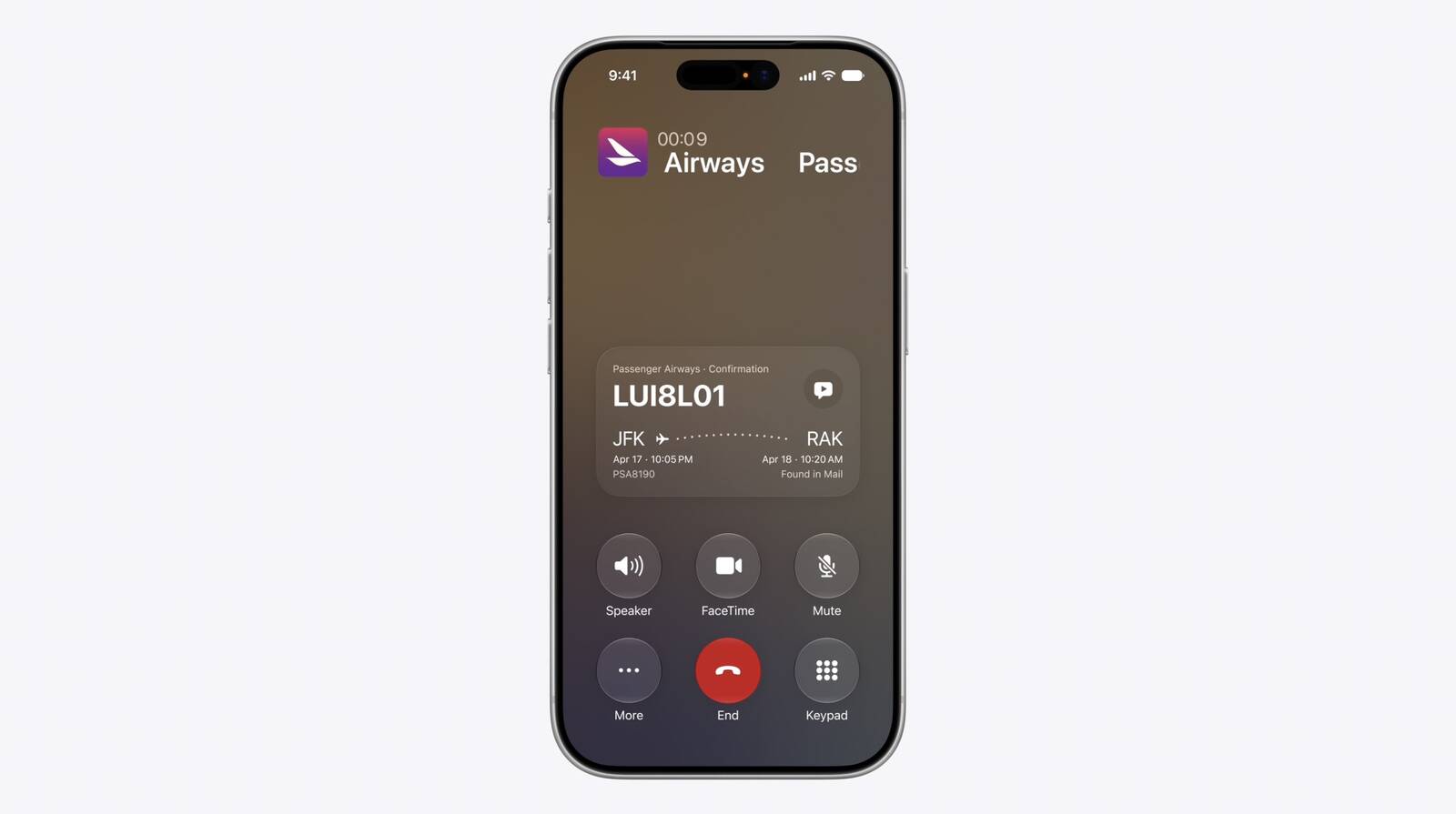
The other headline feature is Call Context, which proactively surfaces relevant information when a user places a call to a business. If someone calls an airline to change a flight, for example, the Phone app can automatically find the relevant confirmation code or reservation number from Mail and display it during the call. Apple says Call Context looks only at who the user is calling and not at the call audio itself. The feature runs entirely on device, meaning no data is shared with Apple or any third party.
This article, "Apple Intelligence Introduces Contextual Call and Messages Features" first appeared on MacRumors.com
Discuss this article in our forums
The new Messages features offer one-tap suggestions based on the content of a conversation. If a contact asks for photos, Messages can surface a suggestion to search the library, recognizing keywords, locations, and people to find the best matches. Messages can also prompt users to create a reminder or a note directly from the conversation thread. Smart Reply in both Messages and Mail can now draw on a user's personalized writing style, and suggestions in Mail gain the ability to take action with third-party apps.
The other headline feature is Call Context, which proactively surfaces relevant information when a user places a call to a business. If someone calls an airline to change a flight, for example, the Phone app can automatically find the relevant confirmation code or reservation number from Mail and display it during the call. Apple says Call Context looks only at who the user is calling and not at the call audio itself. The feature runs entirely on device, meaning no data is shared with Apple or any third party.
Tags: Apple Intelligence, Messages
This article, "Apple Intelligence Introduces Contextual Call and Messages Features" first appeared on MacRumors.com
Discuss this article in our forums
Recommended Comments
Join the conversation
You can post now and register later. If you have an account, sign in now to post with your account.