_811205.png)
_e196d8.png)
_32b3d9.png)
_1c53fe.png)

Apple today announced the launch of a new subscription option for App Store developers: monthly subscriptions with a 12-month commitment. The new option allows developers to offer subscribers discounted pricing typically associated with an annual subscription but paid on a monthly basis to keep payments more affordable.
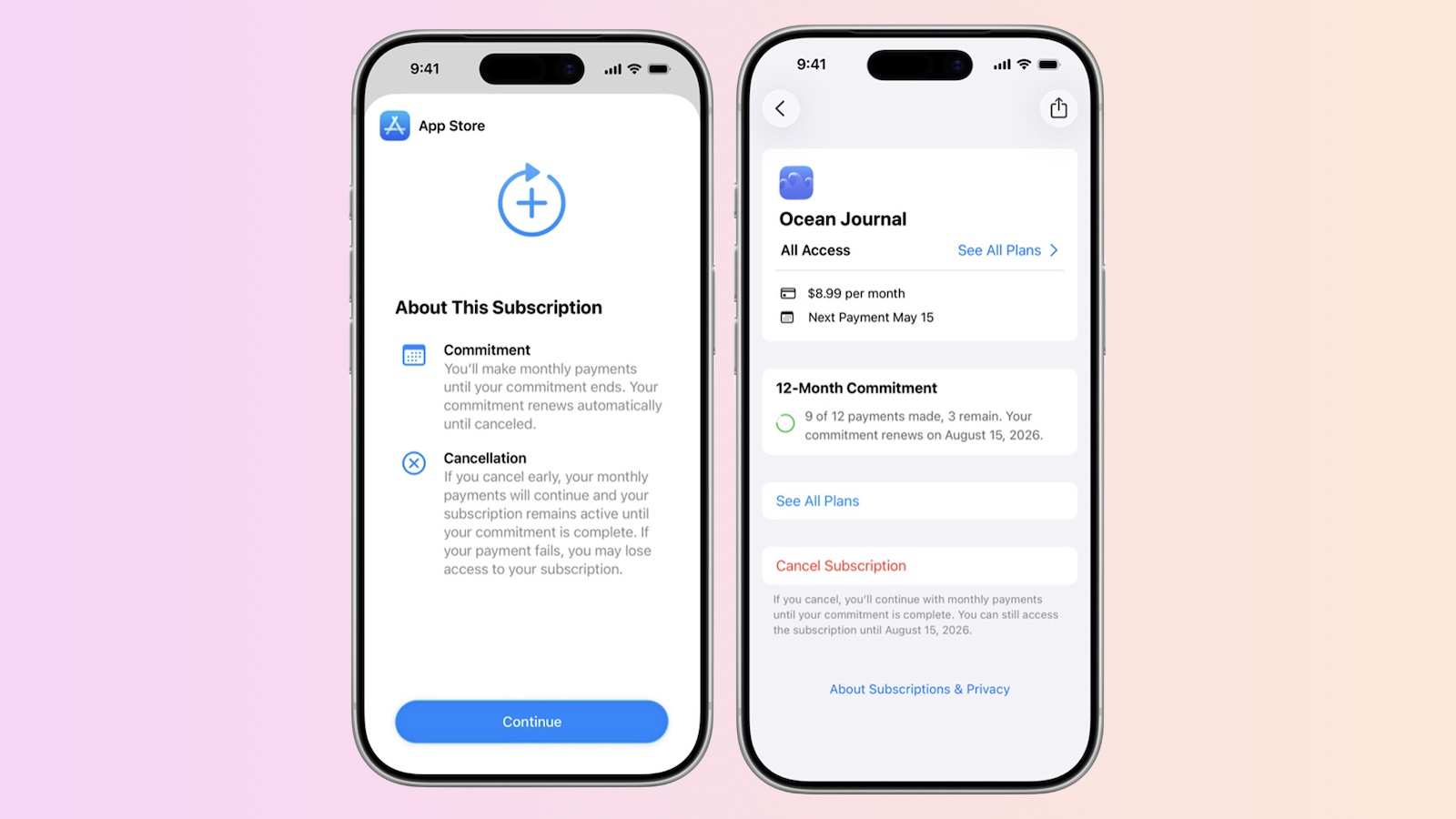
Developers can begin creating these new subscription types in App Store Connect and testing them in Xcode starting today, and they will go live to users on iOS 26.4 and equivalent versions for other platforms next month alongside the launch of iOS 26.5 and related updates.
Notably, it appears the United States and Singapore will be excluded from these subscriptions for the time being, and there's no word on when they might roll out in these markets.
This article, "Apple Introduces App Store Monthly Subscriptions With 12-Month Commitment" first appeared on MacRumors.com
Discuss this article in our forums
This new payment option allows you to offer subscribers more affordable options. People can cancel their subscription at any time, which will prevent the subscription from renewing after they've completed their agreed-to payments to fulfill their commitment.Apple says that the new feature provides transparency to users by allowing them to easily view the number of completed and remaining payments they've made toward their annual commitment. Apple will also send email and optional push notifications ahead of renewals.
Developers can begin creating these new subscription types in App Store Connect and testing them in Xcode starting today, and they will go live to users on iOS 26.4 and equivalent versions for other platforms next month alongside the launch of iOS 26.5 and related updates.
Notably, it appears the United States and Singapore will be excluded from these subscriptions for the time being, and there's no word on when they might roll out in these markets.
Tag: App Store
This article, "Apple Introduces App Store Monthly Subscriptions With 12-Month Commitment" first appeared on MacRumors.com
Discuss this article in our forums
Recommended Comments
Join the conversation
You can post now and register later. If you have an account, sign in now to post with your account.