_811205.png)
_e196d8.png)
_32b3d9.png)
_1c53fe.png)

Following the latest update of Apple's Invites app, hosts can now manually edit the guest list to update guest responses and adjust the number of additional guests.
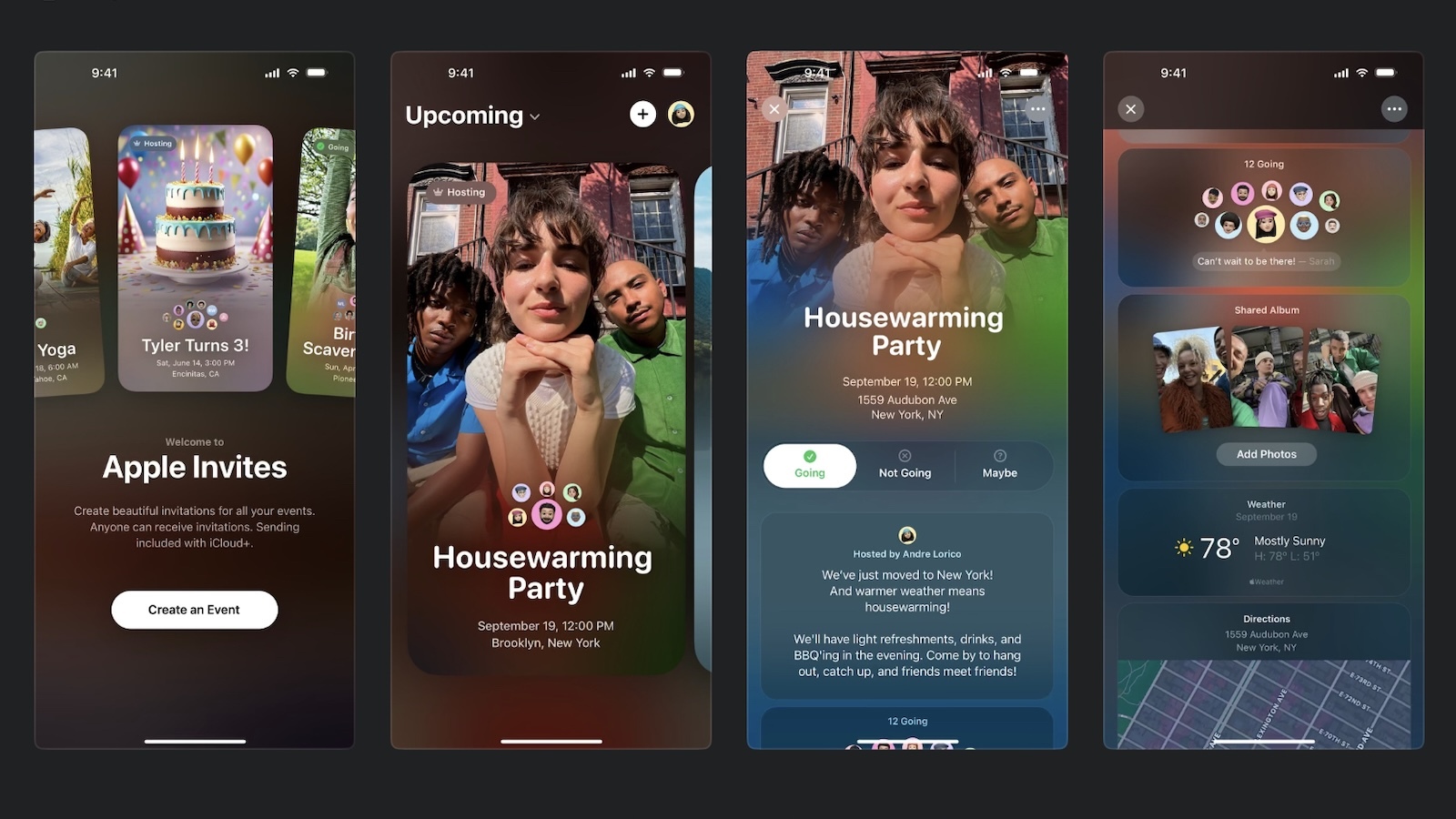
This v1.8.0 update appears to have focused on delivering a more streamlined experience for managing and sharing events. Within Messages, a new Invites iMessage app allows users to quickly share an existing invite without needing to leave the conversation.
Elsewhere, the dashboard has been expanded with an All Events view, bringing both upcoming and past events into a single, unified interface. Sharing options have also been improved for hosts, who can now generate and download an image of their invite card.
Additionally, music integration has been enhanced through the Apple Music Shared Playlist feature, which now provides personalised playlist suggestions based on listening habits.
Finally, hosts can now specify a time zone for their event, and the update also contains bug fixes and performance improvements.
Apple Invites is available on the iPhone, and on the web at iCloud.com/invites. Guests can RSVP in the iPhone app, or on the web from any device.
This article, "Apple Invites App for iPhone Updated – Here's What's New" first appeared on MacRumors.com
Discuss this article in our forums
This v1.8.0 update appears to have focused on delivering a more streamlined experience for managing and sharing events. Within Messages, a new Invites iMessage app allows users to quickly share an existing invite without needing to leave the conversation.
Elsewhere, the dashboard has been expanded with an All Events view, bringing both upcoming and past events into a single, unified interface. Sharing options have also been improved for hosts, who can now generate and download an image of their invite card.
Additionally, music integration has been enhanced through the Apple Music Shared Playlist feature, which now provides personalised playlist suggestions based on listening habits.
Finally, hosts can now specify a time zone for their event, and the update also contains bug fixes and performance improvements.
Apple Invites is available on the iPhone, and on the web at iCloud.com/invites. Guests can RSVP in the iPhone app, or on the web from any device.
Tag: Apple Invites
This article, "Apple Invites App for iPhone Updated – Here's What's New" first appeared on MacRumors.com
Discuss this article in our forums
Recommended Comments
Join the conversation
You can post now and register later. If you have an account, sign in now to post with your account.