_811205.png)
_e196d8.png)
_32b3d9.png)
_1c53fe.png)

In his Power On newsletter today, Bloomberg's Mark Gurman said the latest internal version of iOS 27 does not have major Liquid Glass design changes, but there might be a new system-wide setting for precisely adjusting the look of the interface.
iOS 26.1 lets you choose between "Clear" and "Tinted" options for Liquid Glass, with the "Tinted" look adding more opacity to user interface elements. And with iOS 27, which is expected to be released later this year, Apple might go even further.
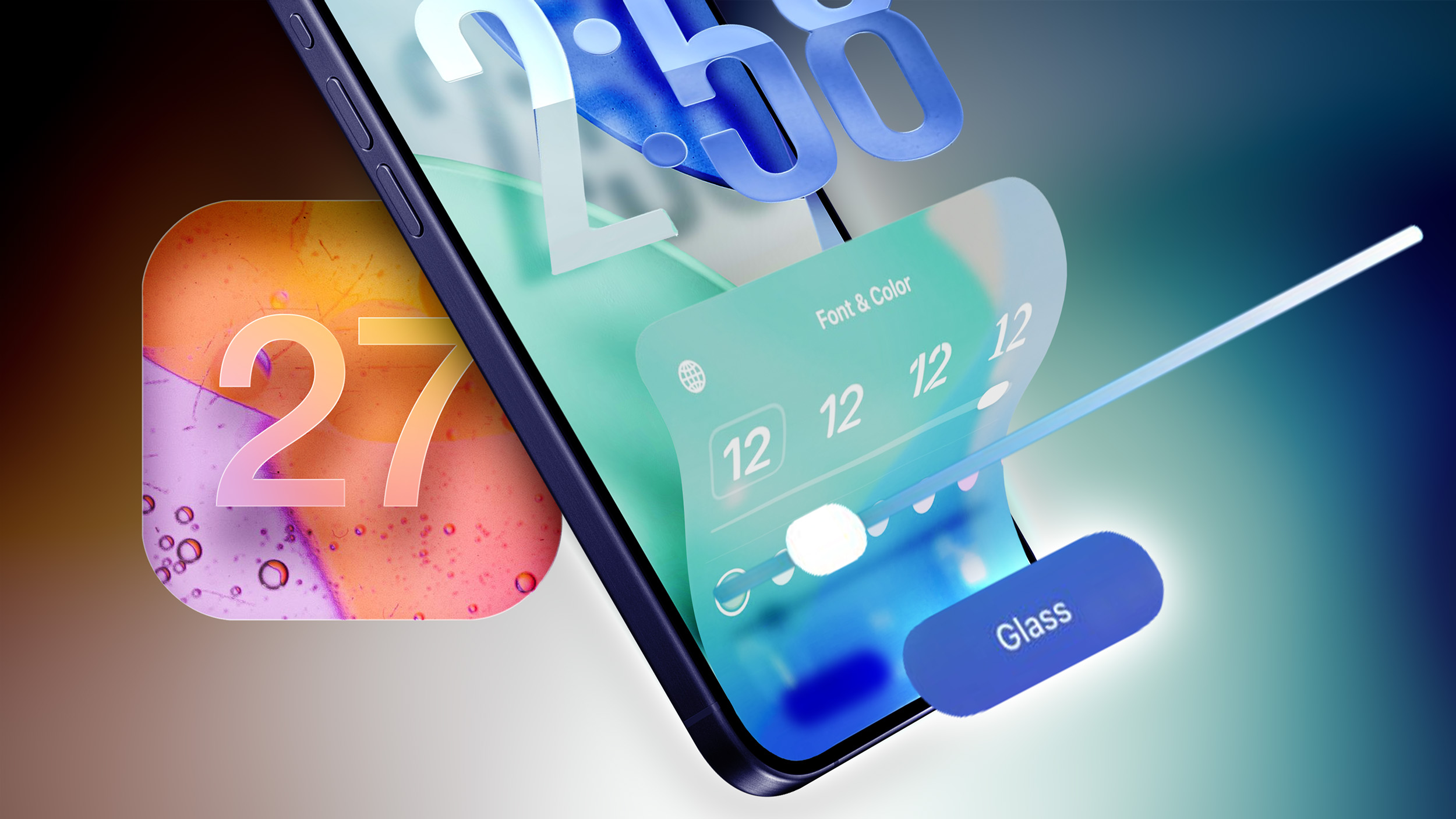
iOS 26.2 introduced a slider that allows you to manually adjust the opacity of Liquid Glass, but only for the Lock Screen's clock. Starting with iOS 27, Gurman said the setting might be expanded to the entire operating system.
Apple was initially working on a system-wide Liquid Glass slider for iOS 26, but it ran into engineering challenges when trying to extend it across the entire system, according to Gurman. However, he said Apple could go back to the drawing board and manage to get the system-wide slider working in an iOS 27 version.
"Apple is trying again now for iOS 27," said Gurman, in a social media post referring to the system-wide Liquid Glass slider. "TBD if it lands."
iOS 27 beta testing should begin in June, ahead of a September release.

This article, "Apple is 'Trying' to Add a Useful New Setting to iOS 27" first appeared on MacRumors.com
Discuss this article in our forums
iOS 26.1 lets you choose between "Clear" and "Tinted" options for Liquid Glass, with the "Tinted" look adding more opacity to user interface elements. And with iOS 27, which is expected to be released later this year, Apple might go even further.
iOS 26.2 introduced a slider that allows you to manually adjust the opacity of Liquid Glass, but only for the Lock Screen's clock. Starting with iOS 27, Gurman said the setting might be expanded to the entire operating system.
Apple was initially working on a system-wide Liquid Glass slider for iOS 26, but it ran into engineering challenges when trying to extend it across the entire system, according to Gurman. However, he said Apple could go back to the drawing board and manage to get the system-wide slider working in an iOS 27 version.
"Apple is trying again now for iOS 27," said Gurman, in a social media post referring to the system-wide Liquid Glass slider. "TBD if it lands."
iOS 27 beta testing should begin in June, ahead of a September release.
Related Roundup: iOS 27
Tag: Mark Gurman
This article, "Apple is 'Trying' to Add a Useful New Setting to iOS 27" first appeared on MacRumors.com
Discuss this article in our forums
Recommended Comments
Join the conversation
You can post now and register later. If you have an account, sign in now to post with your account.