_811205.png)
_e196d8.png)
_32b3d9.png)
_1c53fe.png)

Apple today debuted a new Sales Coach app for the iPhone and the iPad, replacing the former SEED app. Designed for Apple Store and Apple Authorized Service Provider (AASP) employees, Sales Coach provides training resources and information useful for Apple device sales.
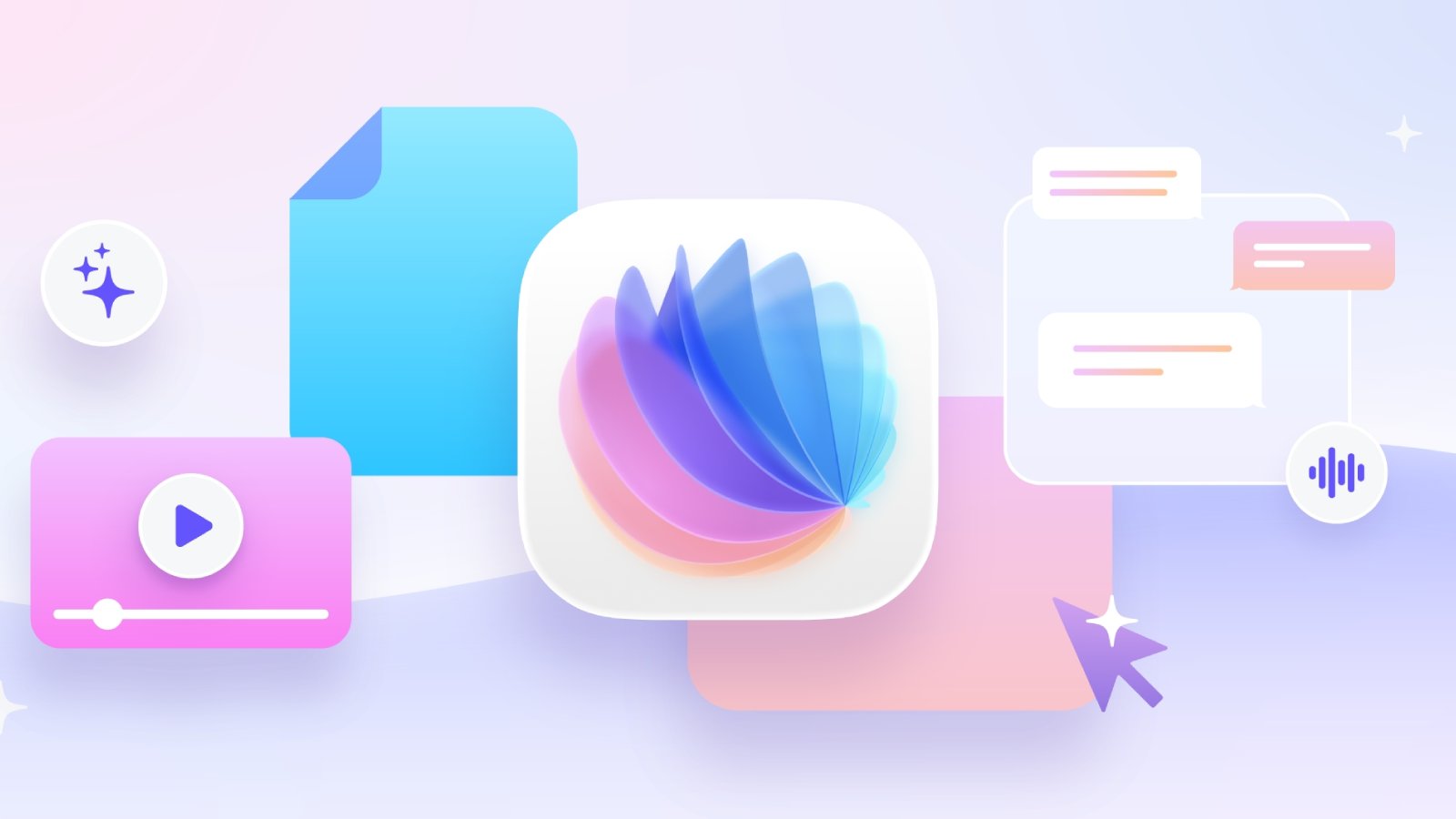
Sales Coach is available for Apple Store and AASP employees worldwide, and Apple has released it as an update to the former SEED app. Those who have the SEED app will see it change to Sales Coach when installing the latest update. Sales Coach is not a publicly available app.
Compared to the SEED app, Sales Coach adopts Apple's updated Liquid Glass design, and it will include a new AI chatbot that will answer product-related questions. The chatbot can be accessed through an upcoming "Ask" tab, and it is similar to the chatbot in the Apple Support app. Employees will be able to get instant information on specific iPhone capabilities, details on how different software features work, and more, across all of Apple's products.
Apple doesn't appear to have rolled out the chatbot just yet, but we learned about it when we we first shared details about the Sales Coach app earlier this month. Sales Coach is also available on the web at salescoach.apple.com.
This article, "Apple Launches New 'Sales Coach' App" first appeared on MacRumors.com
Discuss this article in our forums
Sales Coach is available for Apple Store and AASP employees worldwide, and Apple has released it as an update to the former SEED app. Those who have the SEED app will see it change to Sales Coach when installing the latest update. Sales Coach is not a publicly available app.
Compared to the SEED app, Sales Coach adopts Apple's updated Liquid Glass design, and it will include a new AI chatbot that will answer product-related questions. The chatbot can be accessed through an upcoming "Ask" tab, and it is similar to the chatbot in the Apple Support app. Employees will be able to get instant information on specific iPhone capabilities, details on how different software features work, and more, across all of Apple's products.
Apple doesn't appear to have rolled out the chatbot just yet, but we learned about it when we we first shared details about the Sales Coach app earlier this month. Sales Coach is also available on the web at salescoach.apple.com.
This article, "Apple Launches New 'Sales Coach' App" first appeared on MacRumors.com
Discuss this article in our forums
Recommended Comments
Join the conversation
You can post now and register later. If you have an account, sign in now to post with your account.