_811205.png)
_e196d8.png)
_32b3d9.png)
_1c53fe.png)

Apple has announced the availability of Tap to Pay on iPhone in Hong Kong, allowing independent sellers, small merchants, and large retailers in the region to use iPhones as a payment terminal.
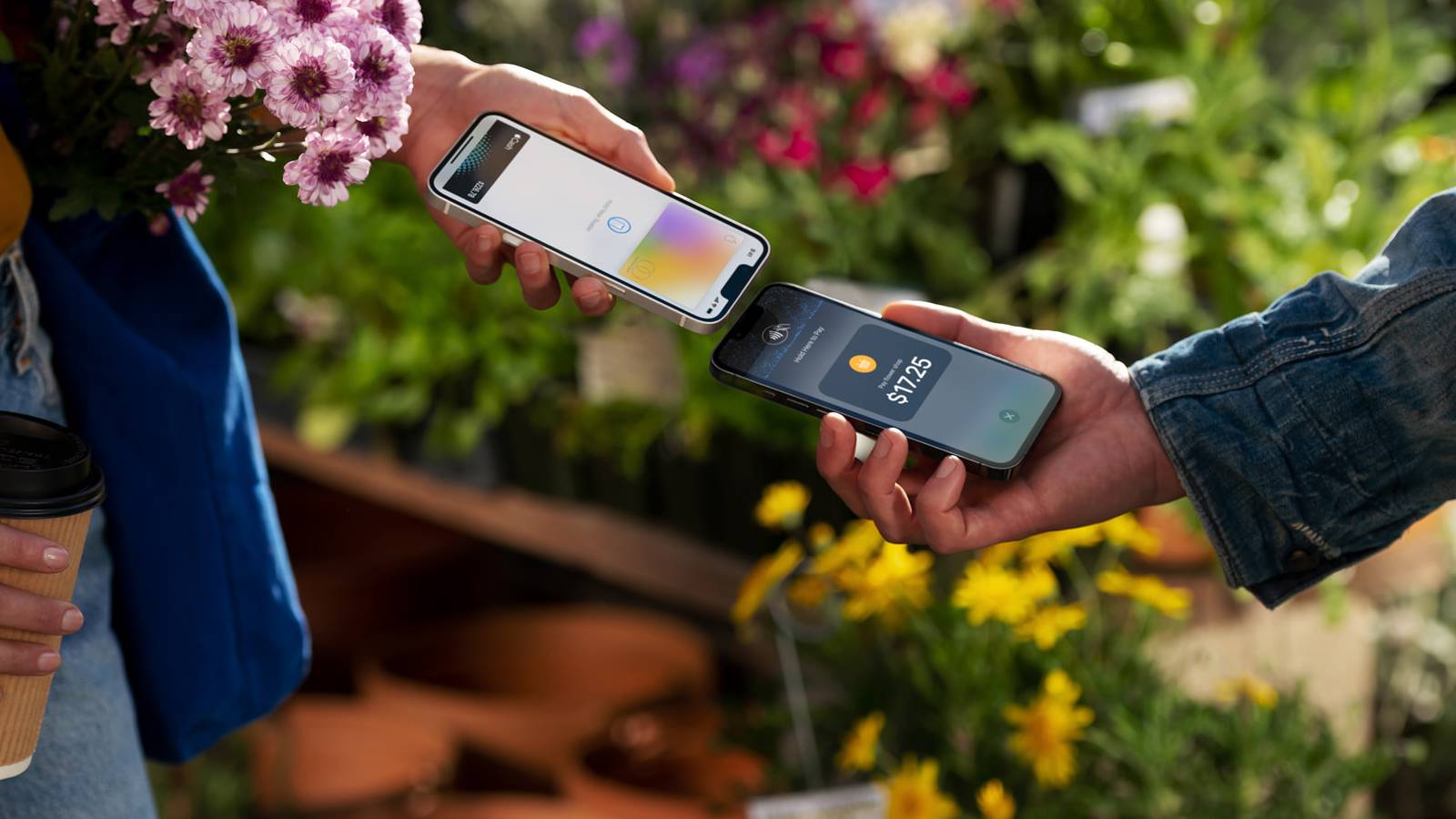
Tap to Pay allows iPhones to accept payments via Apple Pay, contactless credit and debit cards, and other digital wallets. All transactions are encrypted, and Apple has no information about what is purchased or the person who made the purchase.
No additional hardware or credit card machine is required to use Tap to Pay on iPhone. The feature uses NFC technology to securely authenticate the contactless payments, plus the feature also supports PIN entry, which includes accessibility options.
From today, Adyen, Global Payments, KPay, and SoéPay are the first payment platforms in Hong Kong to offer Tap to Pay on iPhone. Apple says the rollout cuts across key sectors, including taxi, retail, food and beverage, and professional services.
Tap to Pay on iPhone launched in February 2022 in the United States, and since then, Apple has expanded it to more than 50 countries and regions around the world.
This article, "Apple Launches Tap to Pay on iPhone in Hong Kong" first appeared on MacRumors.com
Discuss this article in our forums
Tap to Pay allows iPhones to accept payments via Apple Pay, contactless credit and debit cards, and other digital wallets. All transactions are encrypted, and Apple has no information about what is purchased or the person who made the purchase.
No additional hardware or credit card machine is required to use Tap to Pay on iPhone. The feature uses NFC technology to securely authenticate the contactless payments, plus the feature also supports PIN entry, which includes accessibility options.
From today, Adyen, Global Payments, KPay, and SoéPay are the first payment platforms in Hong Kong to offer Tap to Pay on iPhone. Apple says the rollout cuts across key sectors, including taxi, retail, food and beverage, and professional services.
Tap to Pay on iPhone launched in February 2022 in the United States, and since then, Apple has expanded it to more than 50 countries and regions around the world.
Tags: Hong Kong, Tap to Pay on iPhone
This article, "Apple Launches Tap to Pay on iPhone in Hong Kong" first appeared on MacRumors.com
Discuss this article in our forums
Recommended Comments
Join the conversation
You can post now and register later. If you have an account, sign in now to post with your account.