_811205.png)
_e196d8.png)
_32b3d9.png)
_1c53fe.png)

Apple is planning to introduce ads to the Apple Maps app in the near future, and the iOS 26.5 beta lays the groundwork for the feature.
Code in the update says the following: "Maps may show local ads based on your approximate location, current search terms, or view of the map while you search."
Apple also says that a user's location and ads interacted with in Apple Maps are not linked to an Apple account to protect user privacy. Apple does not plan to collect or store Maps app data, or share it with third parties.
Last week, Apple said that ads are coming to the Apple Maps app for iPhone and iPad in the U.S. and Canada "this summer."
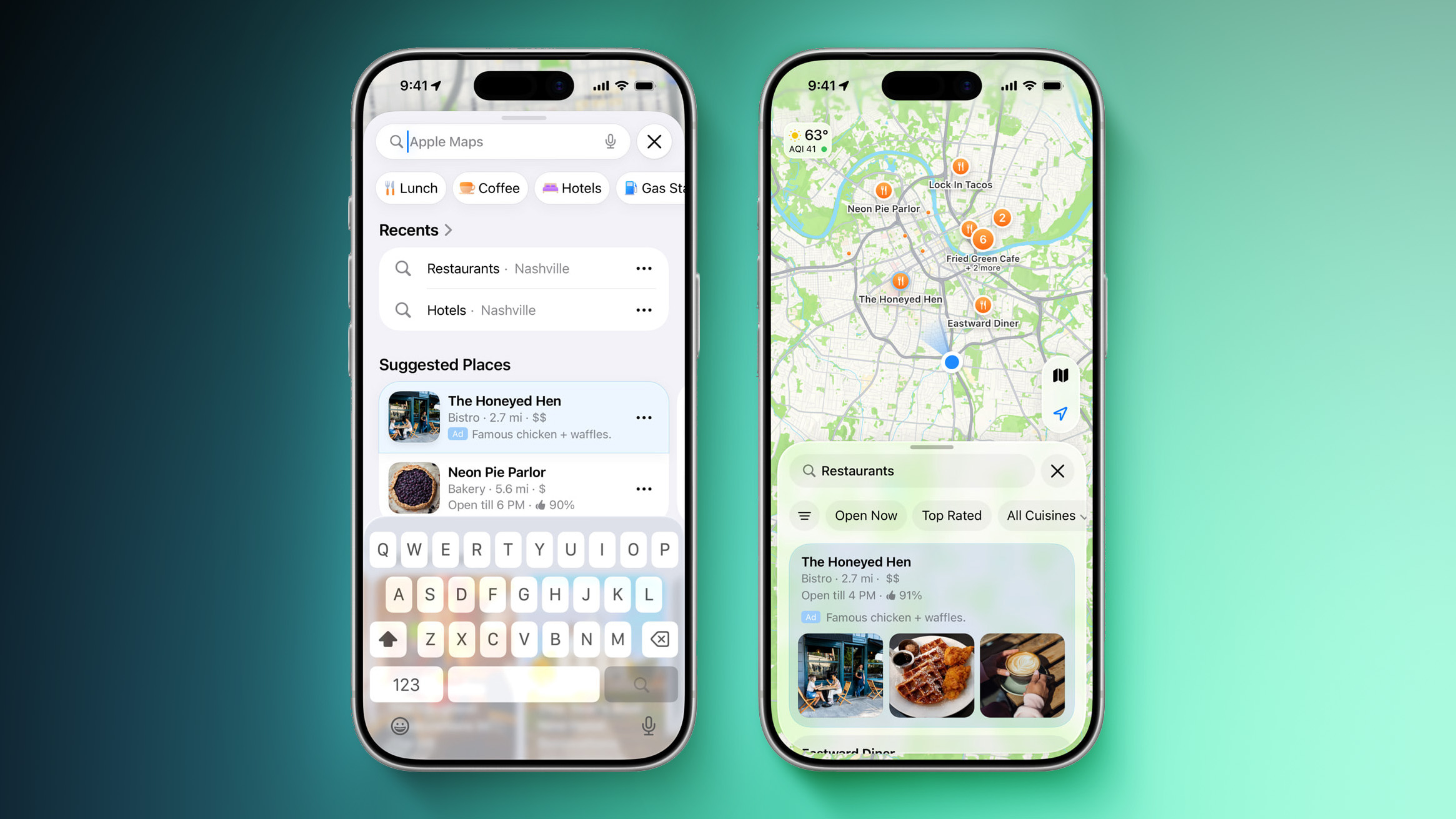
Businesses in the U.S. and Canada will be able to show ads in search results and at the top of a "Suggested Places" section in the app, which is new in iOS 26.5. Suggested Places displays recommendations for locations to visit based on trending places nearby, recent searches, and more.
Ads in the Maps app will have a clear "Ad" label, much like the ads shown in the App Store search results.
This article, "Apple Lays Groundwork for Ads in Maps With iOS 26.5" first appeared on MacRumors.com
Discuss this article in our forums
Code in the update says the following: "Maps may show local ads based on your approximate location, current search terms, or view of the map while you search."
Apple also says that a user's location and ads interacted with in Apple Maps are not linked to an Apple account to protect user privacy. Apple does not plan to collect or store Maps app data, or share it with third parties.
Last week, Apple said that ads are coming to the Apple Maps app for iPhone and iPad in the U.S. and Canada "this summer."
Businesses in the U.S. and Canada will be able to show ads in search results and at the top of a "Suggested Places" section in the app, which is new in iOS 26.5. Suggested Places displays recommendations for locations to visit based on trending places nearby, recent searches, and more.
Ads in the Maps app will have a clear "Ad" label, much like the ads shown in the App Store search results.
Tag: Apple Maps
Related Forum: iOS 26
This article, "Apple Lays Groundwork for Ads in Maps With iOS 26.5" first appeared on MacRumors.com
Discuss this article in our forums
Recommended Comments
Join the conversation
You can post now and register later. If you have an account, sign in now to post with your account.