_811205.png)
_e196d8.png)
_32b3d9.png)
_1c53fe.png)

When promoting the MacBook Neo, Apple found a surprise hit with a tiny anthropomorphized version of the Mac Finder icon, which people have taken to calling Little Finder Guy. Little Finder Guy starred in some of Apple's early March TikTok videos, and Apple is now targeting Finder fans with a trio of new videos.
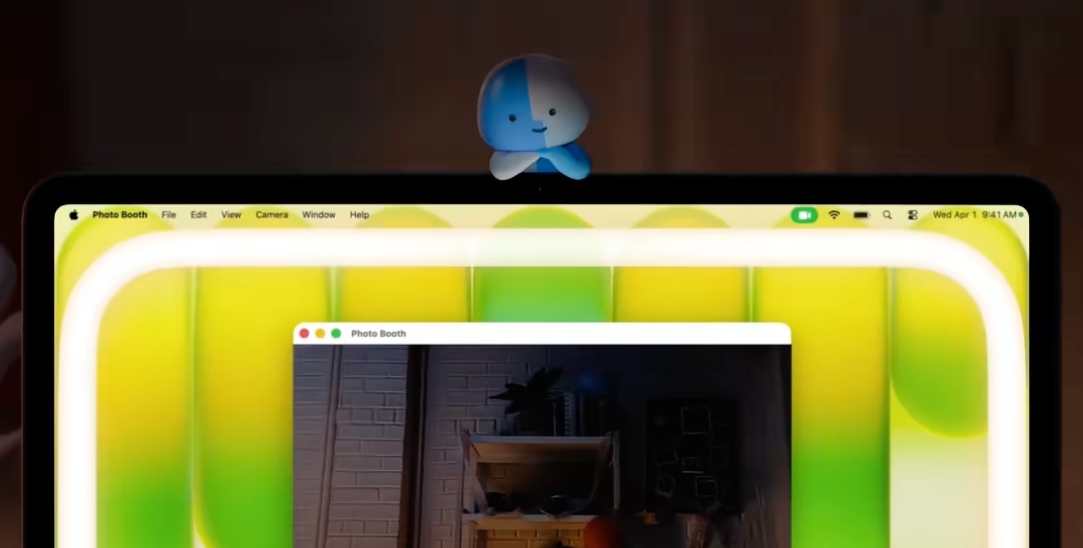
Three tutorials on Apple's TikTok account star Little Finder Guy. Videos feature Stacks on the Mac desktop, ring light for video apps, and dictation. The tutorials are all shown on the MacBook Neo, and each one includes Little Finder Guy.
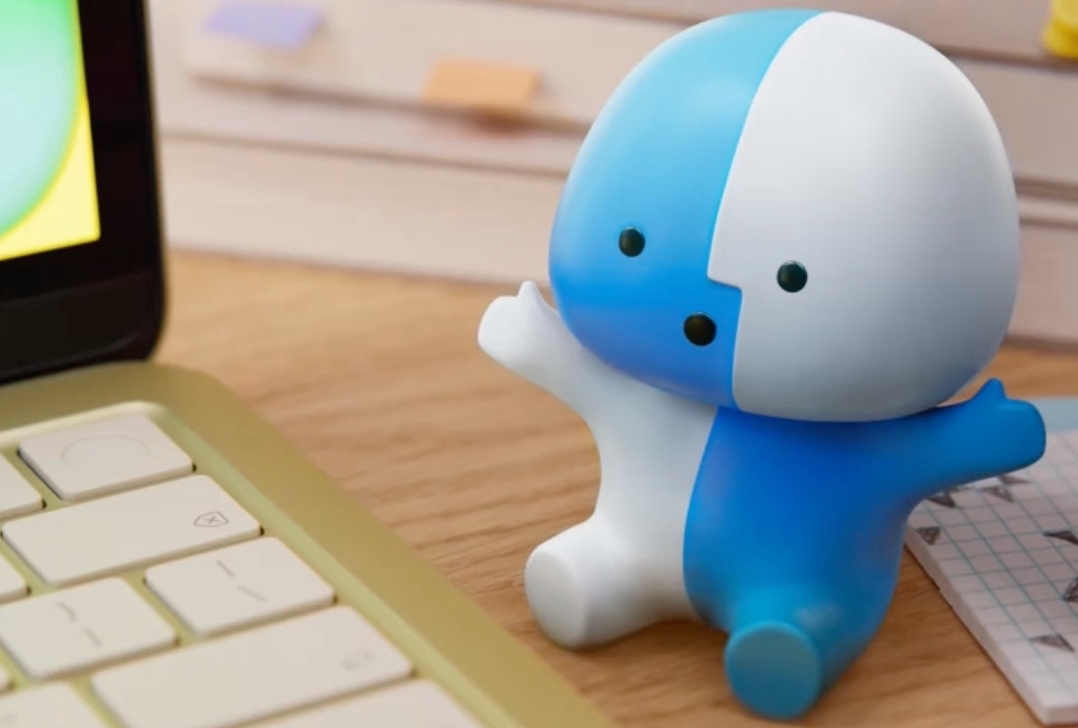
Most of the comments on the videos are about Apple's new Finder mascot. Stephen Hackett of 512 Pixels has created a .3mf file for 3D printing a Little Finder Guy for those that have a printer available.

Android has long had a 3D mascot that's a hybrid between a bug and a droid, which Google calls The Bot, so now there is an Apple equivalent.
This article, "Apple Leans Into Little Finder Guy With New TikTok Videos" first appeared on MacRumors.com
Discuss this article in our forums
Three tutorials on Apple's TikTok account star Little Finder Guy. Videos feature Stacks on the Mac desktop, ring light for video apps, and dictation. The tutorials are all shown on the MacBook Neo, and each one includes Little Finder Guy.
Most of the comments on the videos are about Apple's new Finder mascot. Stephen Hackett of 512 Pixels has created a .3mf file for 3D printing a Little Finder Guy for those that have a printer available.
Android has long had a 3D mascot that's a hybrid between a bug and a droid, which Google calls The Bot, so now there is an Apple equivalent.
This article, "Apple Leans Into Little Finder Guy With New TikTok Videos" first appeared on MacRumors.com
Discuss this article in our forums
Recommended Comments
Join the conversation
You can post now and register later. If you have an account, sign in now to post with your account.