_811205.png)
_e196d8.png)
_32b3d9.png)
_1c53fe.png)

Paul Meade, who oversees development on the Vision Pro and Apple's upcoming smart glasses, is leaving Apple for OpenAI, reports Bloomberg.
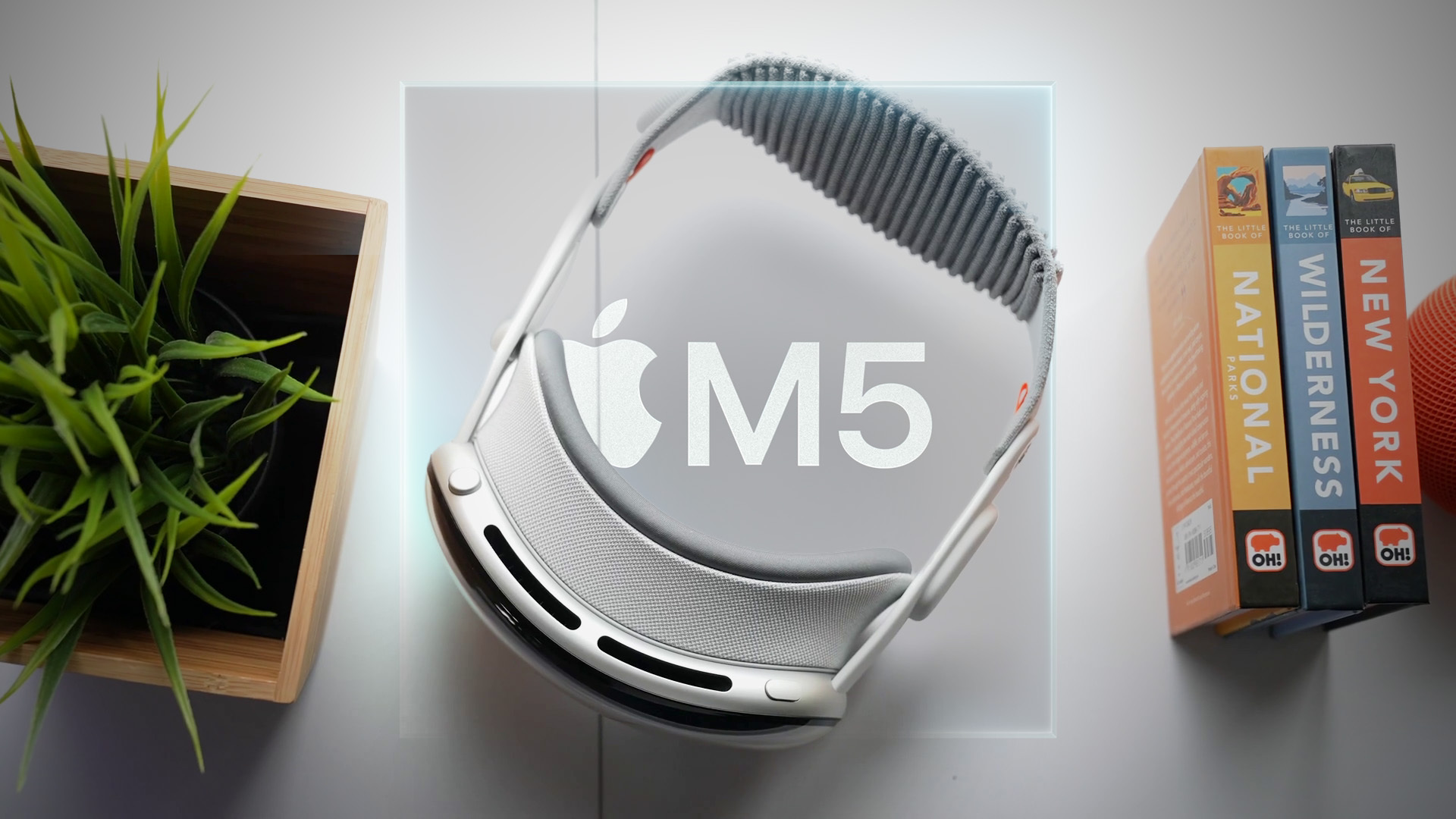
Meade took over leadership of Apple's Vision Products Group when Vision Pro chief Mike Rockwell took over Siri's AI upgrade. He was previously leading the Vision Pro hardware engineering team, and before that, he was on the iPad and iPhone teams. Meade has been at Apple since 2010, and working in the Vision Products Group since 2017.
More recently, Meade was overseeing the development of the AI smart glasses that Apple has in the works to compete with the Meta Ray-Bans, and also leading the team working on future augmented reality glasses.
Meade is leaving Apple by next week and will join OpenAI's hardware unit to work on AI devices. Fletcher Rothkopf, who heads up product design function for the Vision Pro and smart glasses, will take over for Meade. Meade's decision to leave is a result of executive changes at Apple as John Ternus prepares to take over as CEO. Apple chip lead Johny Srouji is taking Ternus's role as chief hardware officer, and the reorganization has upset some hardware executives.
Former Apple employees Jony Ive, Tang Tan, and Evans Hankey are also at OpenAI, among others.
This article, "Apple Loses Another Top Executive to OpenAI" first appeared on MacRumors.com
Discuss this article in our forums
Meade took over leadership of Apple's Vision Products Group when Vision Pro chief Mike Rockwell took over Siri's AI upgrade. He was previously leading the Vision Pro hardware engineering team, and before that, he was on the iPad and iPhone teams. Meade has been at Apple since 2010, and working in the Vision Products Group since 2017.
More recently, Meade was overseeing the development of the AI smart glasses that Apple has in the works to compete with the Meta Ray-Bans, and also leading the team working on future augmented reality glasses.
Meade is leaving Apple by next week and will join OpenAI's hardware unit to work on AI devices. Fletcher Rothkopf, who heads up product design function for the Vision Pro and smart glasses, will take over for Meade. Meade's decision to leave is a result of executive changes at Apple as John Ternus prepares to take over as CEO. Apple chip lead Johny Srouji is taking Ternus's role as chief hardware officer, and the reorganization has upset some hardware executives.
Former Apple employees Jony Ive, Tang Tan, and Evans Hankey are also at OpenAI, among others.
Tag: OpenAI
This article, "Apple Loses Another Top Executive to OpenAI" first appeared on MacRumors.com
Discuss this article in our forums
Recommended Comments
Join the conversation
You can post now and register later. If you have an account, sign in now to post with your account.