_811205.png)
_e196d8.png)
_32b3d9.png)
_1c53fe.png)

With the second beta of iOS 26.5, Apple is continuing to prepare for ads in the Apple Maps app. There's a new splash screen in the app that says it will display ads based on approximate location, current search terms, or a view of the map when searching. Ads will also be shown in the "Suggested Places" section that was added in the first beta.
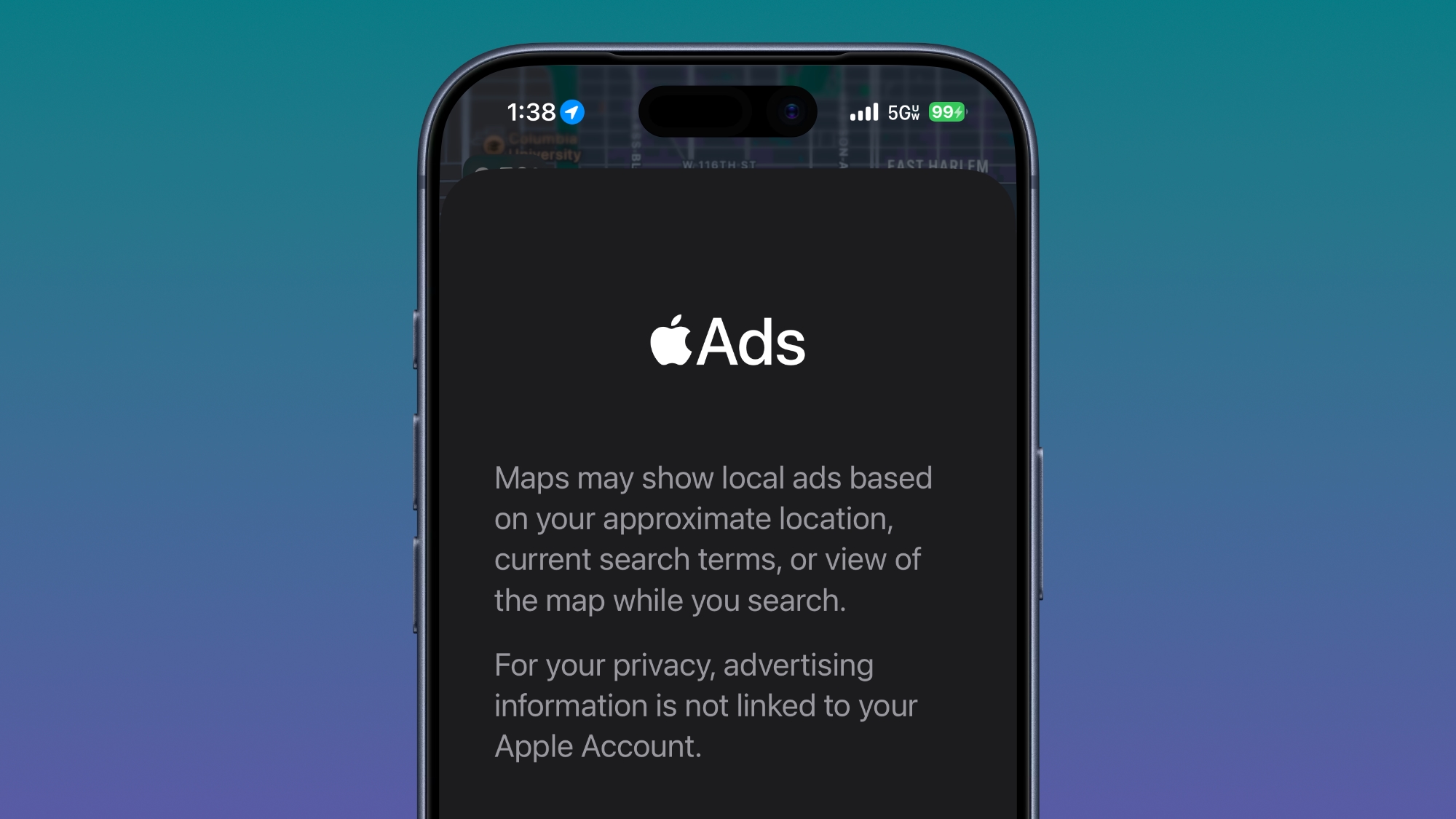
Apple says that advertising information is not linked to an Apple Account to preserve user privacy, so ads viewed and interacted with will not be associated with an Apple Account. Data is not collected or stored by Apple and not shared with third parties, according to Apple.
Signs of ads in the Maps app were spotted in the first beta, but iOS 26.5 testers could start seeing ads with the second beta. It's not yet clear if Apple has just implemented the splash screen, or if ads are going to begin showing up in the near future.
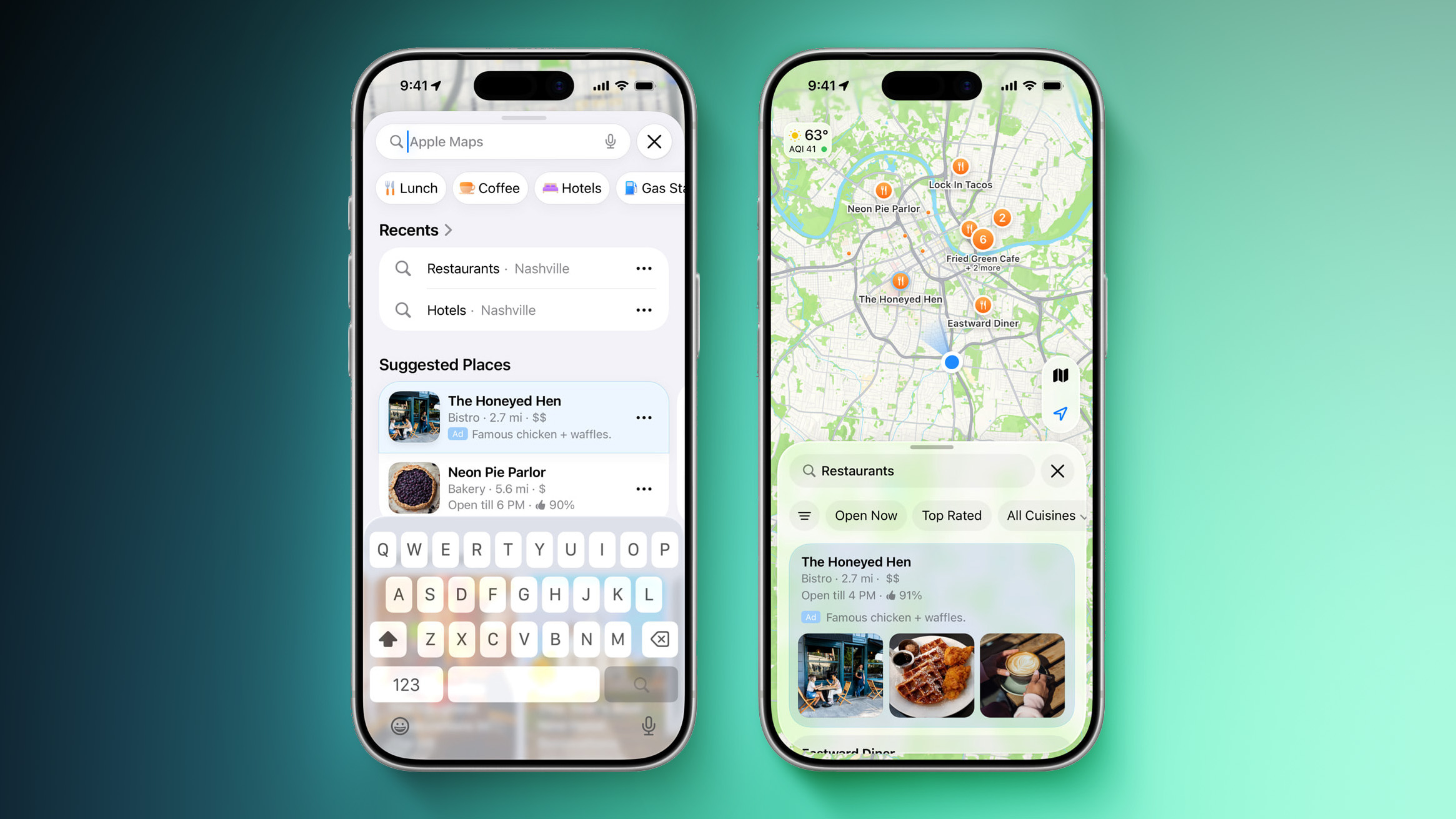
Apple announced plans to introduce ads for the Maps app back in March, with ads set to roll out to the public "this summer." Apple plans to include ads in the Maps app on iPhone, iPad, and Mac in the United States and Canada.
Ads in Apple Maps will have an "Ad" label, much like ads in the App Store.
This article, "Apple Maps Ads Move Closer to Launch With iOS 26.5 Beta 2" first appeared on MacRumors.com
Discuss this article in our forums
Apple says that advertising information is not linked to an Apple Account to preserve user privacy, so ads viewed and interacted with will not be associated with an Apple Account. Data is not collected or stored by Apple and not shared with third parties, according to Apple.
Signs of ads in the Maps app were spotted in the first beta, but iOS 26.5 testers could start seeing ads with the second beta. It's not yet clear if Apple has just implemented the splash screen, or if ads are going to begin showing up in the near future.
Apple announced plans to introduce ads for the Maps app back in March, with ads set to roll out to the public "this summer." Apple plans to include ads in the Maps app on iPhone, iPad, and Mac in the United States and Canada.
Ads in Apple Maps will have an "Ad" label, much like ads in the App Store.
Tag: Apple Maps
Related Forum: iOS 26
This article, "Apple Maps Ads Move Closer to Launch With iOS 26.5 Beta 2" first appeared on MacRumors.com
Discuss this article in our forums
Recommended Comments
Join the conversation
You can post now and register later. If you have an account, sign in now to post with your account.