_811205.png)
_e196d8.png)
_32b3d9.png)
_1c53fe.png)

Apple today announced that the Passwords app can now automatically update weak and compromised passwords using Apple Intelligence and Safari to take action on a user's behalf.
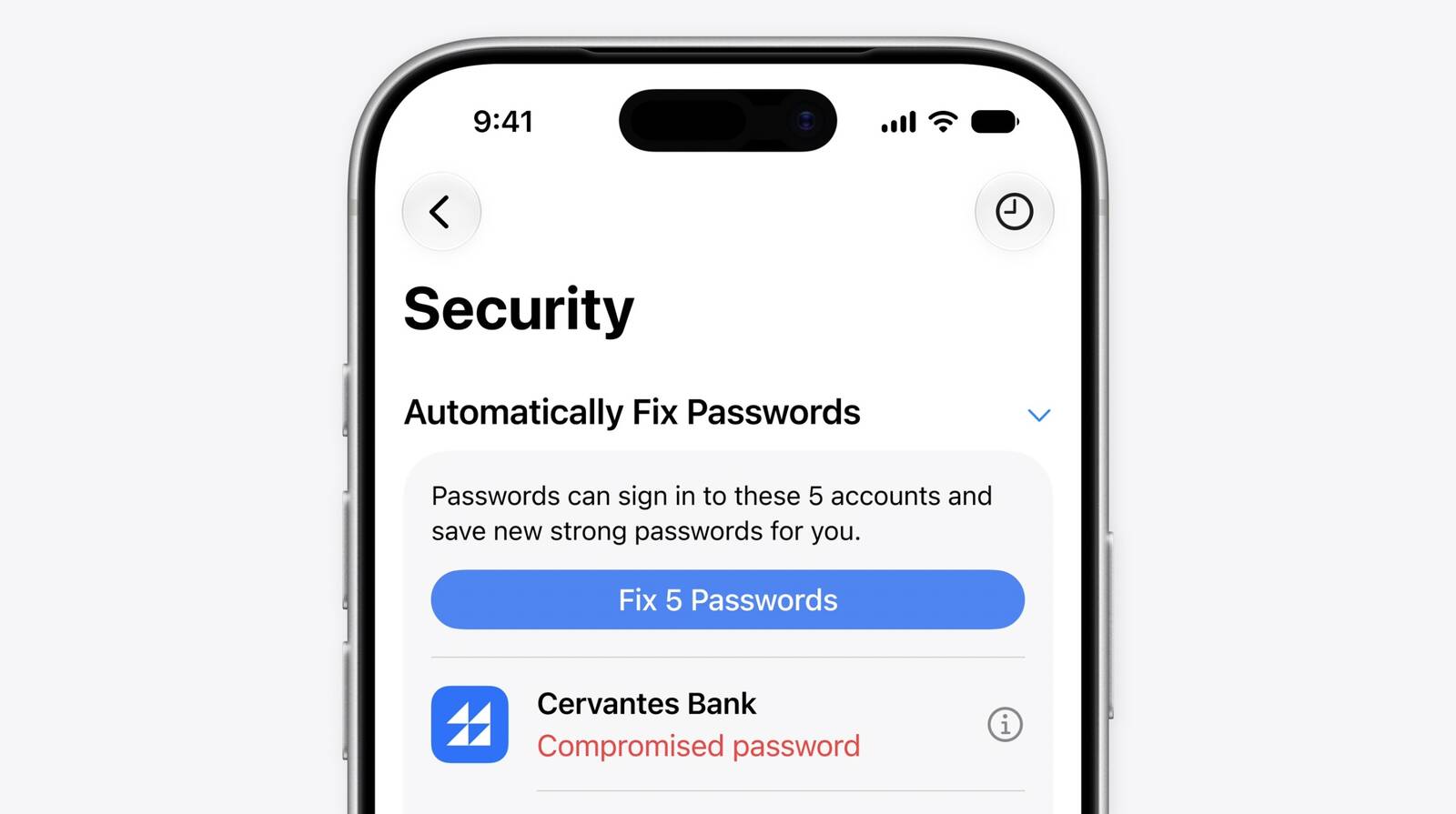
The feature builds on Passwords' existing ability to flag weak or compromised credentials. While the app has long been able to alert users to security issues, acting on those alerts required manually visiting each site and changing passwords individually. The new capability removes that friction by automating the process end-to-end in the background.
Apple describes the system as agentic, with Apple Intelligence and Safari securely navigating through websites, signing in, and upgrading accounts to strong passwords without the user needing to intervene beyond an initial tap. The feature displays as a Live Activity when active.
This article, "Apple Passwords Can Now Automatically Fix Weak and Compromised Passwords With Agentic AI" first appeared on MacRumors.com
Discuss this article in our forums
The feature builds on Passwords' existing ability to flag weak or compromised credentials. While the app has long been able to alert users to security issues, acting on those alerts required manually visiting each site and changing passwords individually. The new capability removes that friction by automating the process end-to-end in the background.
Apple describes the system as agentic, with Apple Intelligence and Safari securely navigating through websites, signing in, and upgrading accounts to strong passwords without the user needing to intervene beyond an initial tap. The feature displays as a Live Activity when active.
Tag: Apple Intelligence
This article, "Apple Passwords Can Now Automatically Fix Weak and Compromised Passwords With Agentic AI" first appeared on MacRumors.com
Discuss this article in our forums
Recommended Comments
Join the conversation
You can post now and register later. If you have an account, sign in now to post with your account.