_811205.png)
_e196d8.png)
_32b3d9.png)
_1c53fe.png)

Apple has stopped signing several older versions of iOS for a group of legacy iPhone and iPad models, cutting off the paths to reinstall or downgrade the affected software.
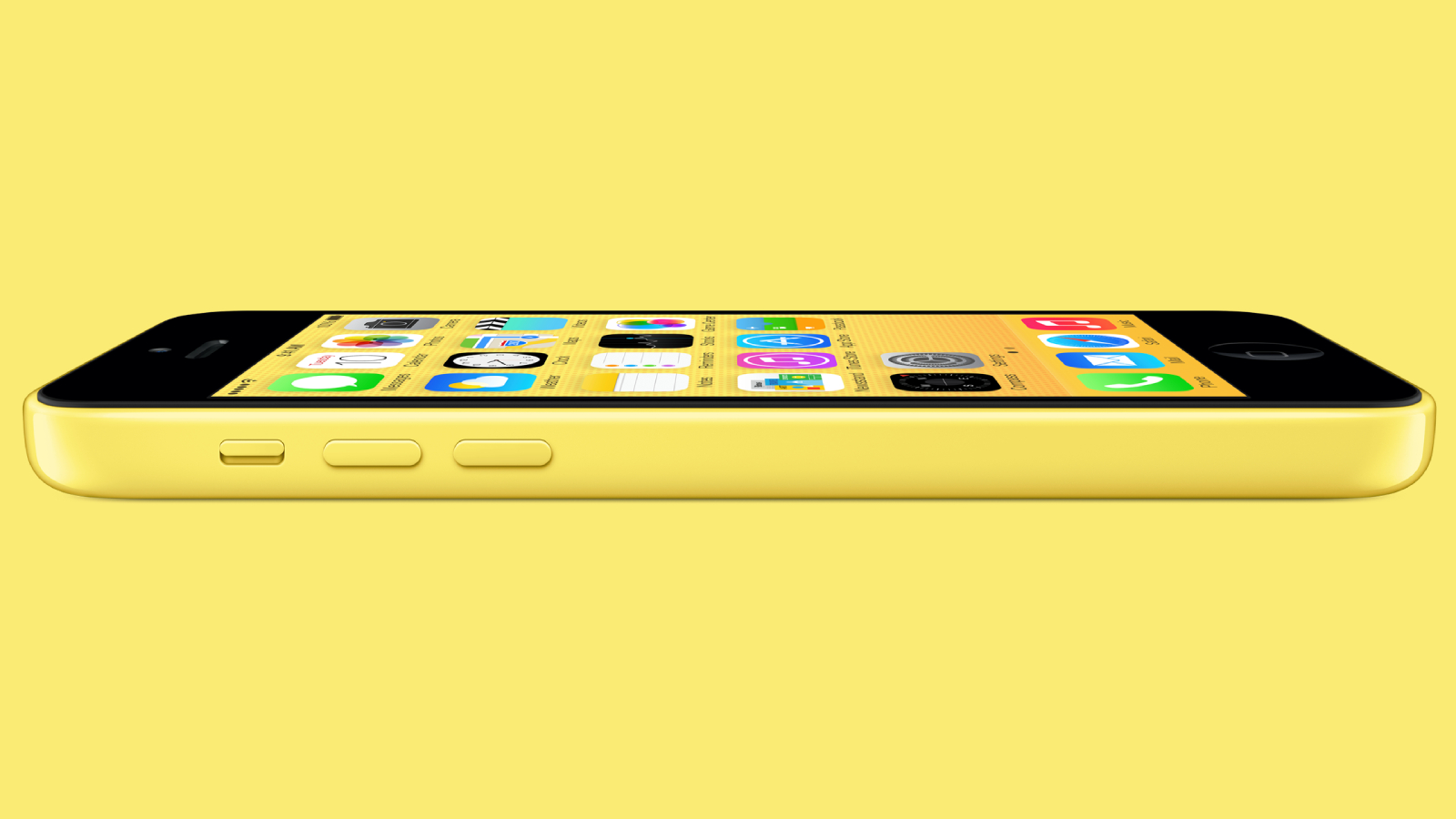
Apple will no longer validate over-the-air (OTA) or direct IPSW installs of the builds in question. Once a version is unsigned, there is no longer a way to restore or install it through Finder or iTunes.
The change is narrower than a typical signing update. Apple has not stopped signing the iOS versions themselves. Instead, it has ended signing for the baseband firmware, the low-level software that runs each device's cellular modem, tied to those releases.
The affected releases span iOS 6 through iOS 10. The full set of devices and versions that can no longer be restored is as follows:
iPhone 4 (CDMA): iOS 7.1.2 IPSW installs
iPhone 4S: iOS 6.1.3 and iOS 8.4.1 OTA installs, plus iOS 9.3.5 and iOS 9.3.6 IPSW installs
iPhone 5 (GSM and CDMA): iOS 8.4.1 OTA installs, plus iOS 10.3.3 and iOS 10.3.4 IPSW installs
iPhone 5c (GSM and CDMA): iOS 10.3.3 IPSW installs
iPad 2 (Wi-Fi + 3G, CDMA): iOS 6.1.3 and iOS 8.4.1 OTA installs, plus iOS 9.3.5 and iOS 9.3.6 IPSW installs
iPad 3rd generation (GSM and CDMA): iOS 8.4.1 OTA installs, plus iOS 9.3.5 and iOS 9.3.6 IPSW installs
iPad 4th generation (Wi-Fi + Cellular): iOS 8.4.1 OTA installs, plus iOS 10.3.3 and iOS 10.3.4 IPSW installs
iPad mini (Wi-Fi + Cellular): iOS 8.4.1 OTA installs, plus iOS 9.3.5 and iOS 9.3.6 IPSW installs
Tellingly, every model caught up in the change is a cellular variant. Wi-Fi-only iPads are untouched, since they carry no cellular modem and therefore there is no baseband to sign in the first place.
The oldest hardware on the list is the CDMA iPhone 4, which never advanced beyond iOS 7.1.2, while the newest builds affected are iOS 10.3.3 and iOS 10.3.4 on the iPhone 5 and the fourth-generation iPad.
For context, Apple did not separate iOS and iPadOS until iPadOS 13, so these much earlier iPad releases were all running iOS at the time.
One of the more interesting entries is the OTA version of iOS 8.4.1, which Apple had kept signing to serve as a stepping stone. Certain devices had to pass through iOS 8.4.1 on the way to iOS 9, and the same signed build gave owners a route back if they wanted to revert. That fallback now disappears for nearly every device on the list, from the iPhone 4S up to the iPhone 5.
A device that is already up and running on its current firmware carries on as normal, but owners lose the fallback of a fresh install should that firmware ever break. It also shuts the door on restores for anyone holding onto old hardware to test apps, check compatibility, or preserve software.
Signing changes like this usually target the latest releases instead, often landing within days of a significant security patch for a current version of iOS or iPadOS. Pulling signatures for decade-old builds on aging devices is rarer, and it touches only a tiny fraction of users in 2026, since everything on the list is more than ten years old.
This article, "Apple Pulls Ability to Restore iPhone 5c, iPad Mini, and More" first appeared on MacRumors.com
Discuss this article in our forums
Apple will no longer validate over-the-air (OTA) or direct IPSW installs of the builds in question. Once a version is unsigned, there is no longer a way to restore or install it through Finder or iTunes.
The change is narrower than a typical signing update. Apple has not stopped signing the iOS versions themselves. Instead, it has ended signing for the baseband firmware, the low-level software that runs each device's cellular modem, tied to those releases.
The affected releases span iOS 6 through iOS 10. The full set of devices and versions that can no longer be restored is as follows:
iPhone 4 (CDMA): iOS 7.1.2 IPSW installs
iPhone 4S: iOS 6.1.3 and iOS 8.4.1 OTA installs, plus iOS 9.3.5 and iOS 9.3.6 IPSW installs
iPhone 5 (GSM and CDMA): iOS 8.4.1 OTA installs, plus iOS 10.3.3 and iOS 10.3.4 IPSW installs
iPhone 5c (GSM and CDMA): iOS 10.3.3 IPSW installs
iPad 2 (Wi-Fi + 3G, CDMA): iOS 6.1.3 and iOS 8.4.1 OTA installs, plus iOS 9.3.5 and iOS 9.3.6 IPSW installs
iPad 3rd generation (GSM and CDMA): iOS 8.4.1 OTA installs, plus iOS 9.3.5 and iOS 9.3.6 IPSW installs
iPad 4th generation (Wi-Fi + Cellular): iOS 8.4.1 OTA installs, plus iOS 10.3.3 and iOS 10.3.4 IPSW installs
iPad mini (Wi-Fi + Cellular): iOS 8.4.1 OTA installs, plus iOS 9.3.5 and iOS 9.3.6 IPSW installs
Tellingly, every model caught up in the change is a cellular variant. Wi-Fi-only iPads are untouched, since they carry no cellular modem and therefore there is no baseband to sign in the first place.
The oldest hardware on the list is the CDMA iPhone 4, which never advanced beyond iOS 7.1.2, while the newest builds affected are iOS 10.3.3 and iOS 10.3.4 on the iPhone 5 and the fourth-generation iPad.
For context, Apple did not separate iOS and iPadOS until iPadOS 13, so these much earlier iPad releases were all running iOS at the time.
One of the more interesting entries is the OTA version of iOS 8.4.1, which Apple had kept signing to serve as a stepping stone. Certain devices had to pass through iOS 8.4.1 on the way to iOS 9, and the same signed build gave owners a route back if they wanted to revert. That fallback now disappears for nearly every device on the list, from the iPhone 4S up to the iPhone 5.
A device that is already up and running on its current firmware carries on as normal, but owners lose the fallback of a fresh install should that firmware ever break. It also shuts the door on restores for anyone holding onto old hardware to test apps, check compatibility, or preserve software.
Signing changes like this usually target the latest releases instead, often landing within days of a significant security patch for a current version of iOS or iPadOS. Pulling signatures for decade-old builds on aging devices is rarer, and it touches only a tiny fraction of users in 2026, since everything on the list is more than ten years old.
Buyer's Guide: iPad (Don't Buy), iPad Mini (Don't Buy)
This article, "Apple Pulls Ability to Restore iPhone 5c, iPad Mini, and More" first appeared on MacRumors.com
Discuss this article in our forums
Recommended Comments
Join the conversation
You can post now and register later. If you have an account, sign in now to post with your account.