_811205.png)
_e196d8.png)
_32b3d9.png)
_1c53fe.png)

No, you aren't going crazy – Apple has quietly made a backend change to the App Store app in iOS that switches the location of the Updates tab and renames it to make it more prominent.

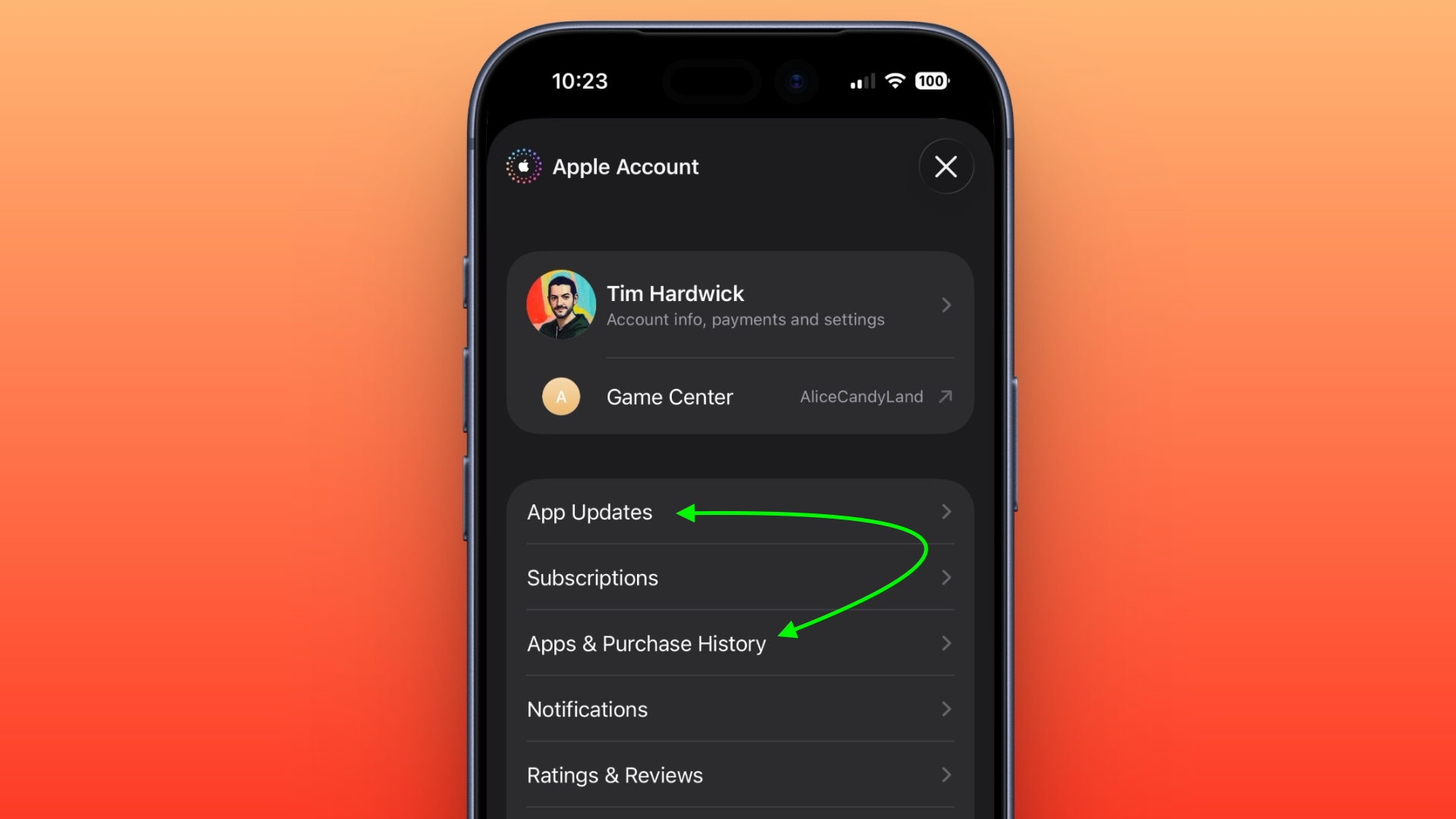
In the App Store app, you can see the change by tapping your profile picture in the top-right corner. The "Apps & Purchase History" tab used to be at the top the list, but it has switched places with "Updates," which is now called "App Updates."
The change was made by Apple without issuing a software update and is evident on both iOS 26.4.1 and the iOS 26.5 beta.
There's actually a faster way to access the App Updates page in iOS 26.4 that was recently highlighted by Daring Fireball's John Gruber: Simply long-press on the App Store app on your Home Screen and you can jump straight to it from the contextual menu.
This article, "Apple Quietly Tweaked the iOS App Store App – Here's What's Changed" first appeared on MacRumors.com
Discuss this article in our forums
In the App Store app, you can see the change by tapping your profile picture in the top-right corner. The "Apps & Purchase History" tab used to be at the top the list, but it has switched places with "Updates," which is now called "App Updates."
The change was made by Apple without issuing a software update and is evident on both iOS 26.4.1 and the iOS 26.5 beta.
There's actually a faster way to access the App Updates page in iOS 26.4 that was recently highlighted by Daring Fireball's John Gruber: Simply long-press on the App Store app on your Home Screen and you can jump straight to it from the contextual menu.
Tag: App Store
This article, "Apple Quietly Tweaked the iOS App Store App – Here's What's Changed" first appeared on MacRumors.com
Discuss this article in our forums
Recommended Comments
Join the conversation
You can post now and register later. If you have an account, sign in now to post with your account.