_811205.png)
_e196d8.png)
_32b3d9.png)
_1c53fe.png)

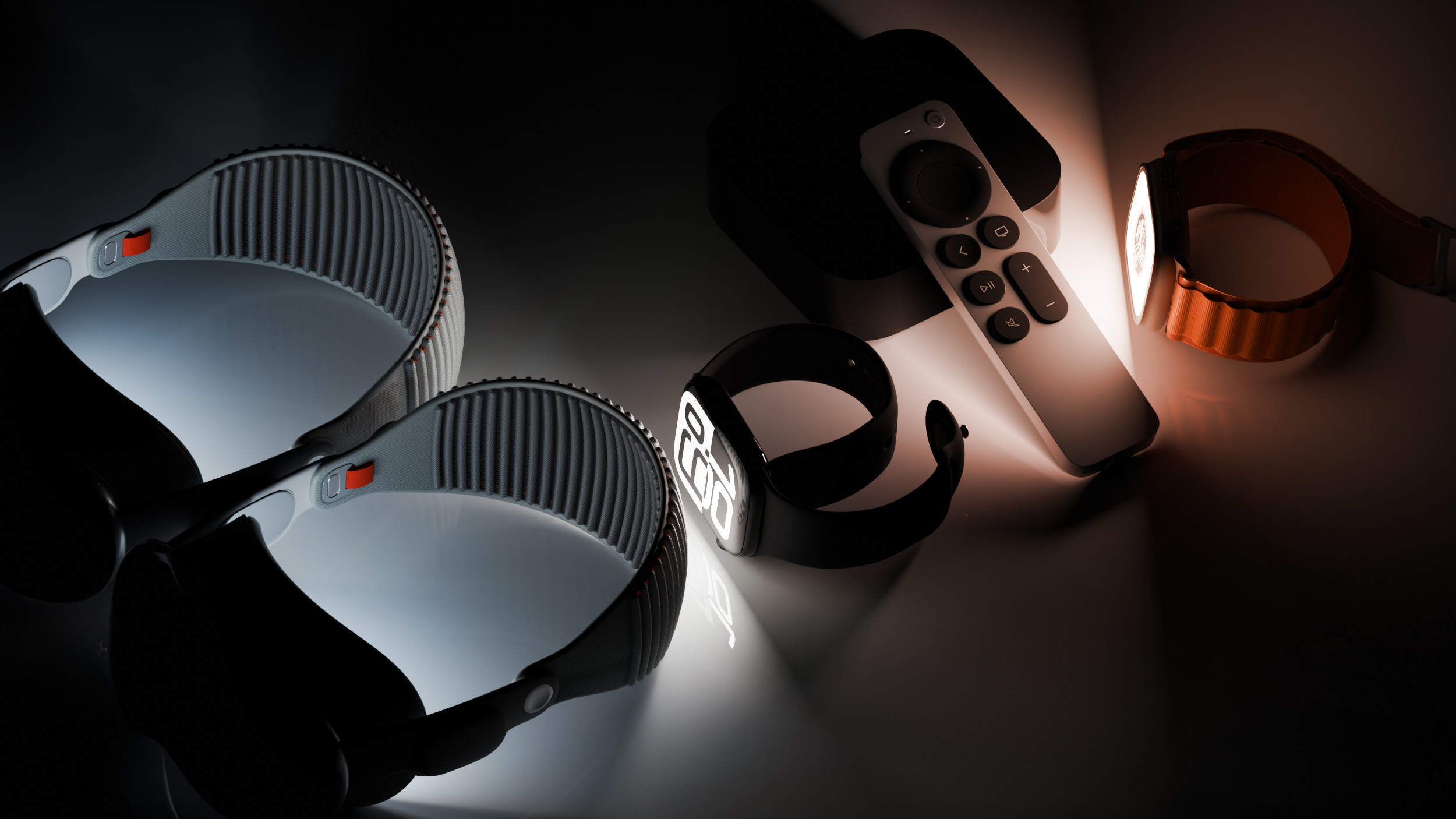
Apple today provided developers with the fourth betas of upcoming watchOS 26.4 and visionOS 26.4 betas for testing purposes. The software comes a week after Apple released the third betas.
The software updates are available through the Settings app on each device, and because these are developer betas, a free developer account is required.
watchOS 26.4 adds a new Average Bedtime metric to the sleep features that sync to the health app, so you can better keep an eye on how bedtime impacts overall sleep quality.
tvOS 26.4 eliminates the iTunes Movies and iTunes TV Shows apps on the Apple TV. These apps haven't worked for some time and have directed users to the Apple TV app for purchases, but Apple is finally phasing them out entirely. Apple also added a Continuous Audio Connection option for HDMI output.
visionOS 26.4 includes support for foveated streaming for apps and games. Foveated streaming allows video to be streamed to the precise area where a user is looking, and peripheral areas are compressed. It allows for higher visual quality and lower latency.
This article, "Apple Releases Fourth watchOS 26.4, tvOS 26.4 and visionOS 26.4 Betas" first appeared on MacRumors.com
Discuss this article in our forums
The software updates are available through the Settings app on each device, and because these are developer betas, a free developer account is required.
watchOS 26.4 adds a new Average Bedtime metric to the sleep features that sync to the health app, so you can better keep an eye on how bedtime impacts overall sleep quality.
tvOS 26.4 eliminates the iTunes Movies and iTunes TV Shows apps on the Apple TV. These apps haven't worked for some time and have directed users to the Apple TV app for purchases, but Apple is finally phasing them out entirely. Apple also added a Continuous Audio Connection option for HDMI output.
visionOS 26.4 includes support for foveated streaming for apps and games. Foveated streaming allows video to be streamed to the precise area where a user is looking, and peripheral areas are compressed. It allows for higher visual quality and lower latency.
Buyer's Guide: Apple TV (Don't Buy), Vision Pro (Buy Now)
This article, "Apple Releases Fourth watchOS 26.4, tvOS 26.4 and visionOS 26.4 Betas" first appeared on MacRumors.com
Discuss this article in our forums
Recommended Comments
Join the conversation
You can post now and register later. If you have an account, sign in now to post with your account.