_811205.png)
_e196d8.png)
_32b3d9.png)
_1c53fe.png)

Apple today released iPadOS 26.2, the second major update to the iPadOS 26 operating system released in September. iPadOS 26.2 comes a month after iPadOS 26.1.
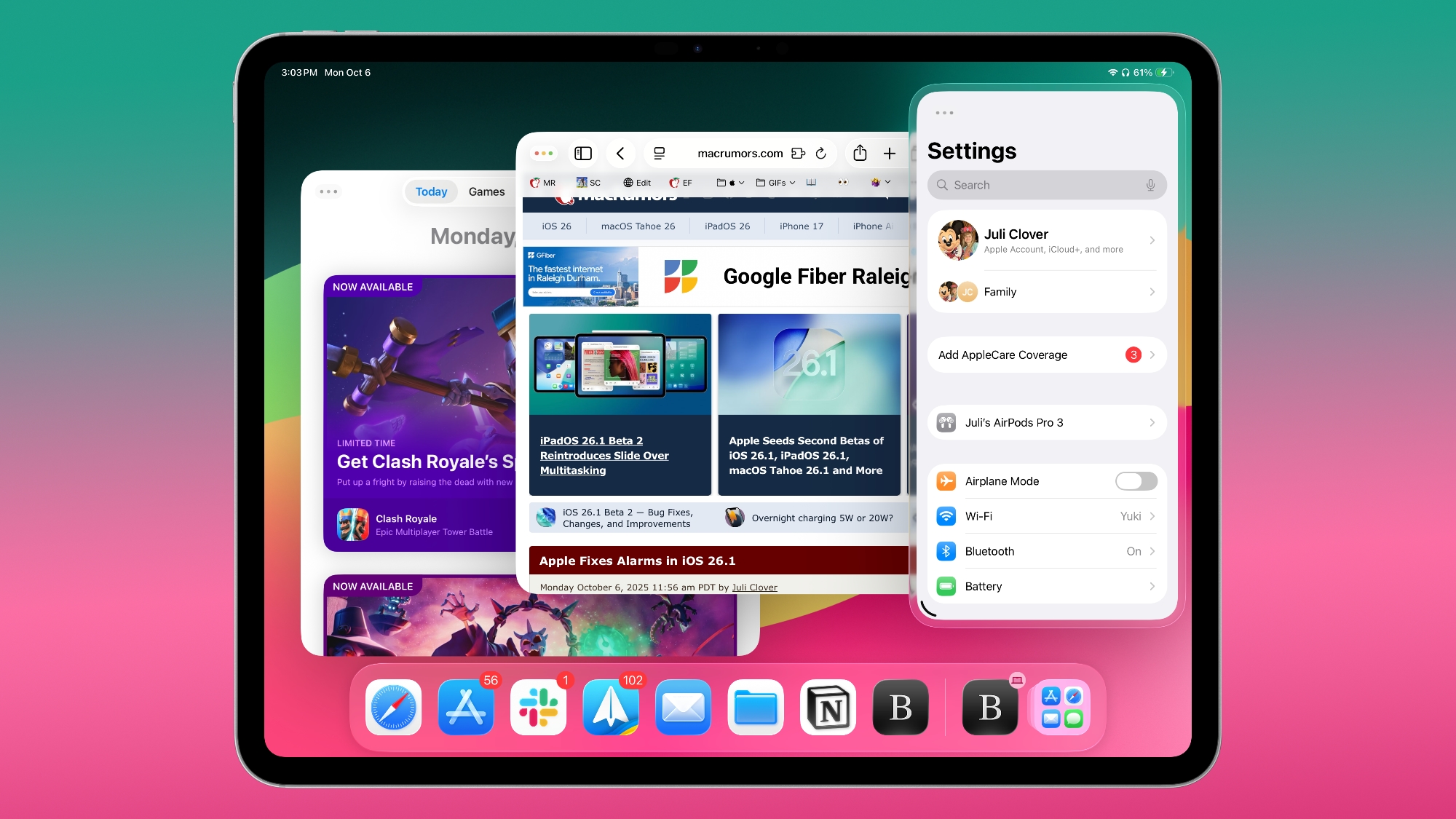
The new software can be downloaded on eligible iPads over-the-air by going to Settings > General > Software Update.
iPadOS 26.2 continues with the multitasking improvements that were added with iPadOS 26.1. You can now drag and drop apps from the Dock, Spotlight Search, or the App Library to different multitasking views, including Slide Over.
Apps can be dragged to the far left or far right to enter Slide Over mode, or to the left or right to enter a tiled view. There's also an option to drag an app to the middle to open up a larger or smaller window, with visual indicators to make it simple. It's an easier way to manipulate apps than the prior controls accessible through the window buttons.
More info on iPadOS 26 is available in our roundup.
This article, "Apple Releases iPadOS 26.2 With Multitasking Improvements" first appeared on MacRumors.com
Discuss this article in our forums
The new software can be downloaded on eligible iPads over-the-air by going to Settings > General > Software Update.
iPadOS 26.2 continues with the multitasking improvements that were added with iPadOS 26.1. You can now drag and drop apps from the Dock, Spotlight Search, or the App Library to different multitasking views, including Slide Over.
Apps can be dragged to the far left or far right to enter Slide Over mode, or to the left or right to enter a tiled view. There's also an option to drag an app to the middle to open up a larger or smaller window, with visual indicators to make it simple. It's an easier way to manipulate apps than the prior controls accessible through the window buttons.
More info on iPadOS 26 is available in our roundup.
Related Forum: iOS 26
This article, "Apple Releases iPadOS 26.2 With Multitasking Improvements" first appeared on MacRumors.com
Discuss this article in our forums
Recommended Comments
Join the conversation
You can post now and register later. If you have an account, sign in now to post with your account.