_811205.png)
_e196d8.png)
_32b3d9.png)
_1c53fe.png)

Apple today released new firmware for the Magic Keyboards designed for the iPad Pro and iPad Air. The firmware for the M4/M5 iPad Pro model has a version number of 1872.544.772, up from the prior 0680.0220.0301 firmware, while the firmware for the M3 iPad Air model has a version number of 1024.320.771, up from 0350.0135.0303.
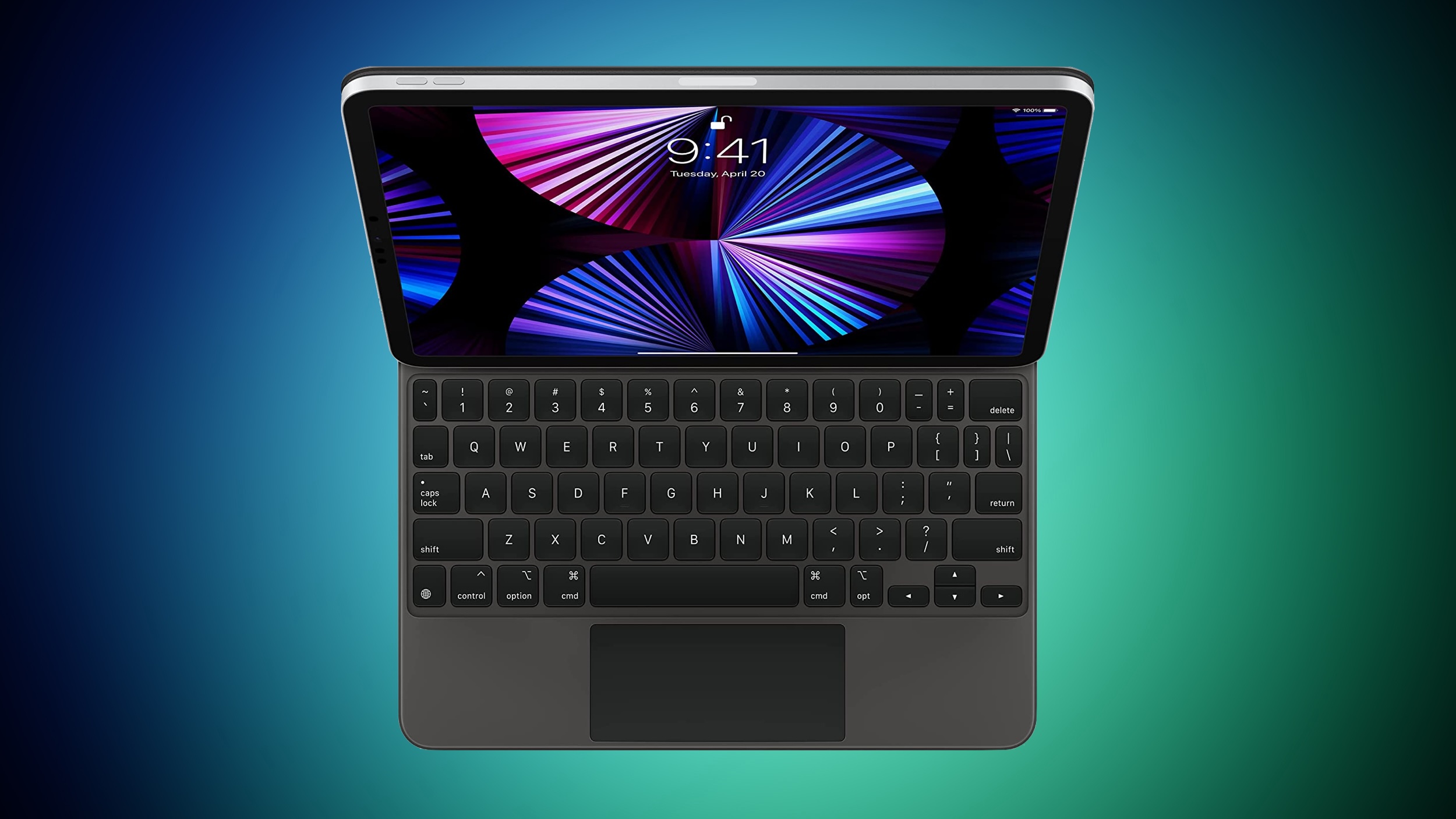
The new firmware is available for both the 11-inch and 13-inch iPad Pro Magic Keyboard options that Apple sells for the M4 and M5 iPad Pro models, as well as the version that Apple sells for the M3 iPad Air.
Apple overhauled the Magic Keyboard in May 2024 alongside the launch of the M4 iPad Pro. The updated keyboard has the same floating cantilevered design as the prior version, but it includes a dedicated row of function keys, along with a larger glass trackpad.
Magic Keyboard firmware updates are infrequent, and there is no method for manually refreshing the software. New firmware is installed automatically when the keyboard is attached to an iPad Pro that is connected to the internet.
You can check the firmware version of your Magic Keyboard by opening up the Settings app and going to General > About > Magic Keyboard.
This article, "Apple Releases New Firmware for iPad Pro and iPad Air Magic Keyboards" first appeared on MacRumors.com
Discuss this article in our forums
The new firmware is available for both the 11-inch and 13-inch iPad Pro Magic Keyboard options that Apple sells for the M4 and M5 iPad Pro models, as well as the version that Apple sells for the M3 iPad Air.
Apple overhauled the Magic Keyboard in May 2024 alongside the launch of the M4 iPad Pro. The updated keyboard has the same floating cantilevered design as the prior version, but it includes a dedicated row of function keys, along with a larger glass trackpad.
Magic Keyboard firmware updates are infrequent, and there is no method for manually refreshing the software. New firmware is installed automatically when the keyboard is attached to an iPad Pro that is connected to the internet.
You can check the firmware version of your Magic Keyboard by opening up the Settings app and going to General > About > Magic Keyboard.
Tag: Magic Keyboard
This article, "Apple Releases New Firmware for iPad Pro and iPad Air Magic Keyboards" first appeared on MacRumors.com
Discuss this article in our forums
Recommended Comments
Join the conversation
You can post now and register later. If you have an account, sign in now to post with your account.