_811205.png)
_e196d8.png)
_32b3d9.png)
_1c53fe.png)

Apple today released new firmware for the Powerbeats Pro 2 earbuds that came out earlier this year. The updated firmware has a version number of 8A359, an update to the prior 8A353 firmware that was released in September.
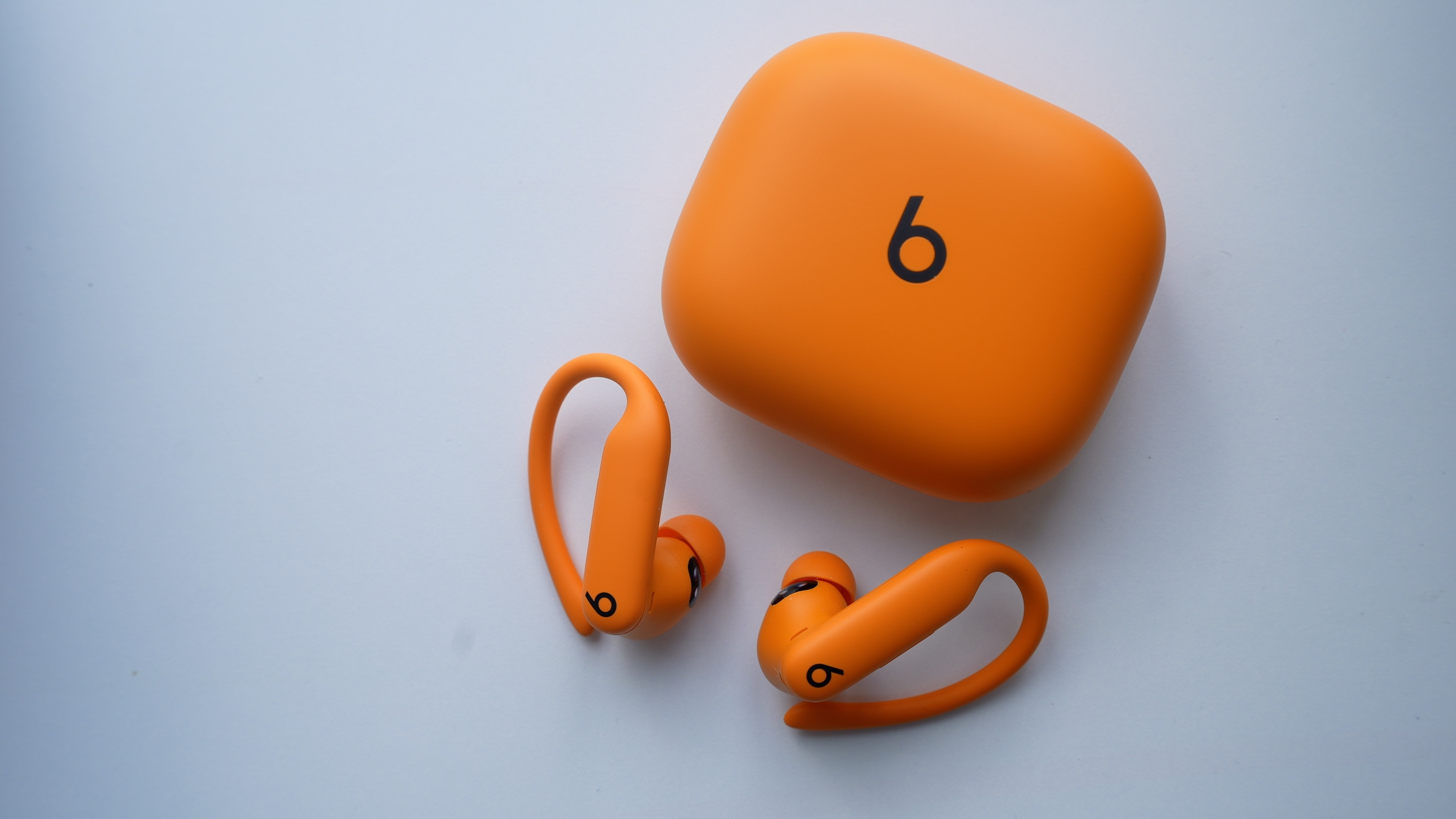
It's not clear if the updated firmware adds new functionality, but it is likely to be a bug fix and performance improvement update. The prior-generation firmware update added iOS 26 functionality to the Powerbeats Pro, introducing compatibility with the Fitness app and support for real-time performance metrics.
The Powerbeats Pro 2 were Apple's first earbuds to offer in-ear heart rate monitoring, but that capability has also now expanded to the AirPods Pro 3.
The updated firmware can be installed on the Powerbeats Pro 2 by connecting them to power and ensuring that they are in Bluetooth range of an iPhone, iPad, or Mac that's connected to Wi-Fi. Firmware can be checked on the iPhone by going to Settings > Bluetooth and tapping the Info button next to the Beats headphones in the list. Android users can download new Beats firmware through the Beats app for Android.
This article, "Apple Releases New Powerbeats Pro 2 Firmware" first appeared on MacRumors.com
Discuss this article in our forums
It's not clear if the updated firmware adds new functionality, but it is likely to be a bug fix and performance improvement update. The prior-generation firmware update added iOS 26 functionality to the Powerbeats Pro, introducing compatibility with the Fitness app and support for real-time performance metrics.
The Powerbeats Pro 2 were Apple's first earbuds to offer in-ear heart rate monitoring, but that capability has also now expanded to the AirPods Pro 3.
The updated firmware can be installed on the Powerbeats Pro 2 by connecting them to power and ensuring that they are in Bluetooth range of an iPhone, iPad, or Mac that's connected to Wi-Fi. Firmware can be checked on the iPhone by going to Settings > Bluetooth and tapping the Info button next to the Beats headphones in the list. Android users can download new Beats firmware through the Beats app for Android.
Tags: Beats, Powerbeats Pro
This article, "Apple Releases New Powerbeats Pro 2 Firmware" first appeared on MacRumors.com
Discuss this article in our forums
Recommended Comments
Join the conversation
You can post now and register later. If you have an account, sign in now to post with your account.