_811205.png)
_e196d8.png)
_32b3d9.png)
_1c53fe.png)

Apple today released tvOS 26.2, an update to the tvOS 26 operating system that came out in September. tvOS 26.2 is available on the Apple TV 4K and the Apple TV HD models, and it comes a month after Apple released tvOS 26.1.
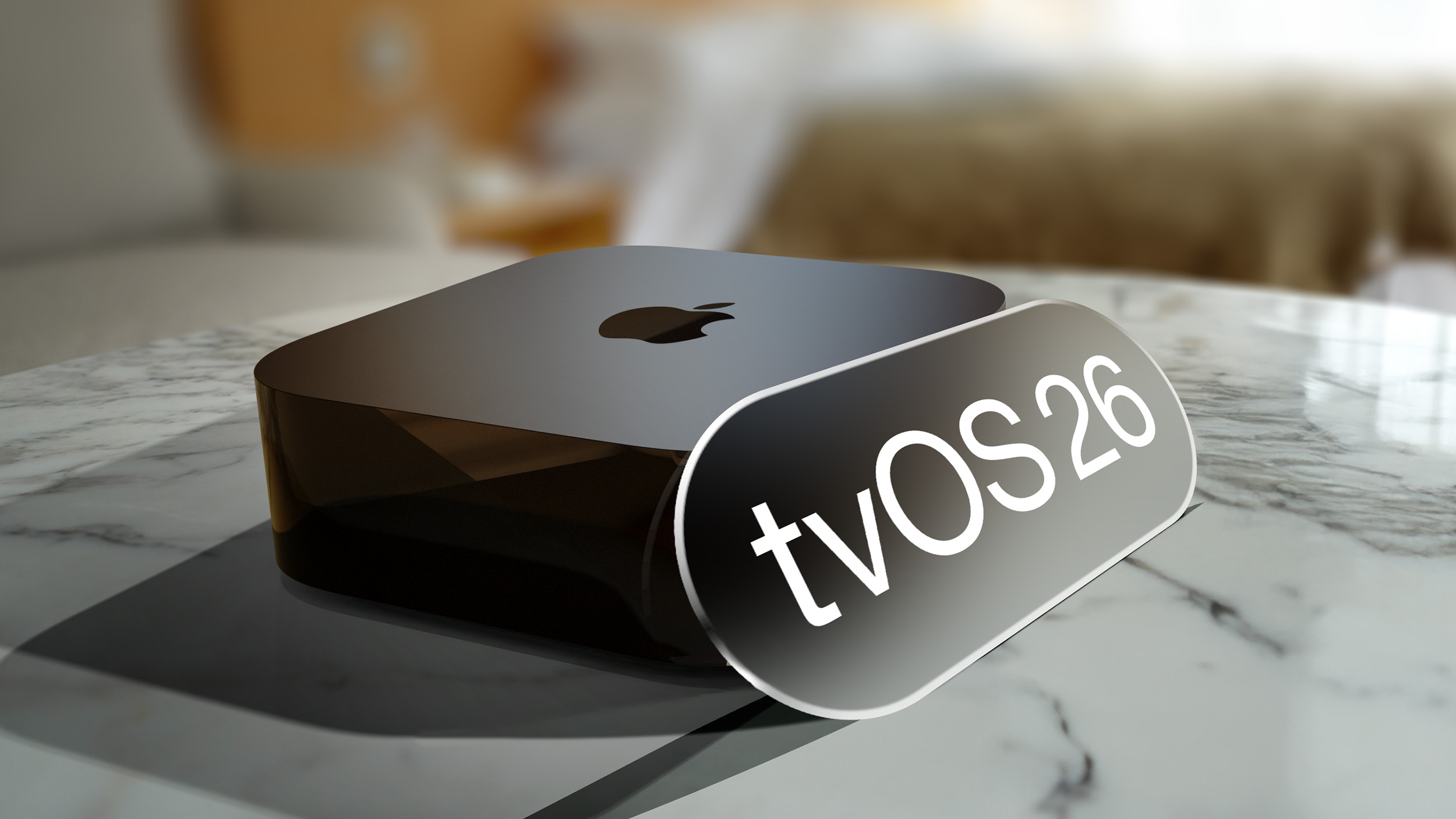
tvOS 26.2 can be downloaded using the Settings app on the Apple TV. Open up Settings and go to System > Software Update to get the new software. Apple TV owners who have automatic software updates activated will be upgraded to tvOS 26.2 automatically.
The tvOS 26.2 update changes the way that profiles work on the Apple TV, adding an option to create a profile without an Apple Account. With no need for an Apple Account, profiles can be created for guests and children.
For profiles made for children, there is an age-restricted mode that limits the content that kids can access in the Apple TV app. The Apple TV app will only show content that is appropriate for the limits that have been established for the account, and rating options include TV-G, TV-PG, TV-14, and more.
Apple shares full release notes for tvOS in its tvOS support document when new versions are released, so check that out for additional details.
This article, "Apple Releases tvOS 26.2 With New TV Profiles, Dedicated Kids Mode" first appeared on MacRumors.com
Discuss this article in our forums
tvOS 26.2 can be downloaded using the Settings app on the Apple TV. Open up Settings and go to System > Software Update to get the new software. Apple TV owners who have automatic software updates activated will be upgraded to tvOS 26.2 automatically.
The tvOS 26.2 update changes the way that profiles work on the Apple TV, adding an option to create a profile without an Apple Account. With no need for an Apple Account, profiles can be created for guests and children.
For profiles made for children, there is an age-restricted mode that limits the content that kids can access in the Apple TV app. The Apple TV app will only show content that is appropriate for the limits that have been established for the account, and rating options include TV-G, TV-PG, TV-14, and more.
Apple shares full release notes for tvOS in its tvOS support document when new versions are released, so check that out for additional details.
Related Roundup: Apple TV
Buyer's Guide: Apple TV (Don't Buy)
Related Forum: Apple TV and Home Theater
This article, "Apple Releases tvOS 26.2 With New TV Profiles, Dedicated Kids Mode" first appeared on MacRumors.com
Discuss this article in our forums
Recommended Comments
Join the conversation
You can post now and register later. If you have an account, sign in now to post with your account.