_811205.png)
_e196d8.png)
_32b3d9.png)
_1c53fe.png)

Apple today released watchOS 5.3.10 and watchOS 8.8.2 for older Apple Watch models that are not able to run the current watchOS 26 update. watchOS 5.3.10 is available for the Apple Watch Series 1, Series 2, Series 3, and Series 4, while watchOS 8.8.2 is available for the Apple Watch Series 3, Series 4, Series 5, Series 6, Series 7, and original Apple Watch SE.
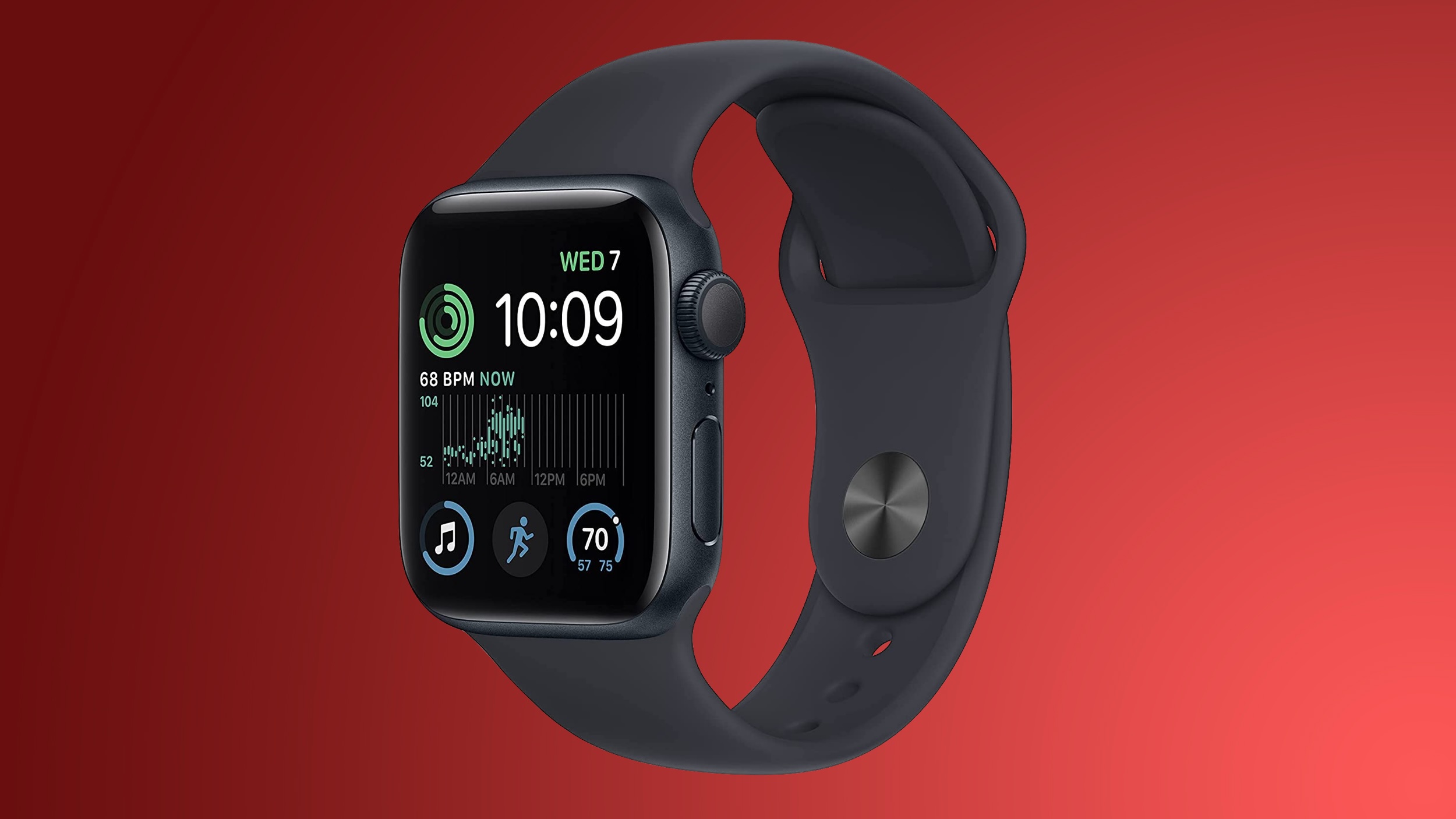
According to Apple's release notes, the updates extend the certificate that features like device activation, iMessage, and FaceTime need to function. The certificate update ensures that these apps and features will continue to work after January 2027, which is when the existing certificate was set to expire.
watchOS 8 is the final version of watchOS that's supported on the Apple Watch Series 3.
watchOS 5 is the final version of watchOS able to be installed on an Apple Watch Series 1 or Series 2 using an iPhone 5s, iPhone 6, or iPhone 6 Plus. The Series 1 and Series 2 do support watchOS 6, but installing watchOS 6 requires an iPhone 6s or later.
This article, "Apple Releases watchOS 5 and watchOS 8 Updates to Keep FaceTime and iMessage Running on Older Apple Watches" first appeared on MacRumors.com
Discuss this article in our forums
According to Apple's release notes, the updates extend the certificate that features like device activation, iMessage, and FaceTime need to function. The certificate update ensures that these apps and features will continue to work after January 2027, which is when the existing certificate was set to expire.
watchOS 8 is the final version of watchOS that's supported on the Apple Watch Series 3.
watchOS 5 is the final version of watchOS able to be installed on an Apple Watch Series 1 or Series 2 using an iPhone 5s, iPhone 6, or iPhone 6 Plus. The Series 1 and Series 2 do support watchOS 6, but installing watchOS 6 requires an iPhone 6s or later.
Related Roundup: watchOS 26
Tag: FaceTime
Related Forum: Apple Watch
This article, "Apple Releases watchOS 5 and watchOS 8 Updates to Keep FaceTime and iMessage Running on Older Apple Watches" first appeared on MacRumors.com
Discuss this article in our forums
Recommended Comments
Join the conversation
You can post now and register later. If you have an account, sign in now to post with your account.