_811205.png)
_e196d8.png)
_32b3d9.png)
_1c53fe.png)

Apple today provided developers and public beta testers with a second release candidate version of tvOS 26.2 and HomePod Software 26.2, which is based on tvOS. The second RC comes one day after the first RC and has a build number of 23K53, up from 23K51.
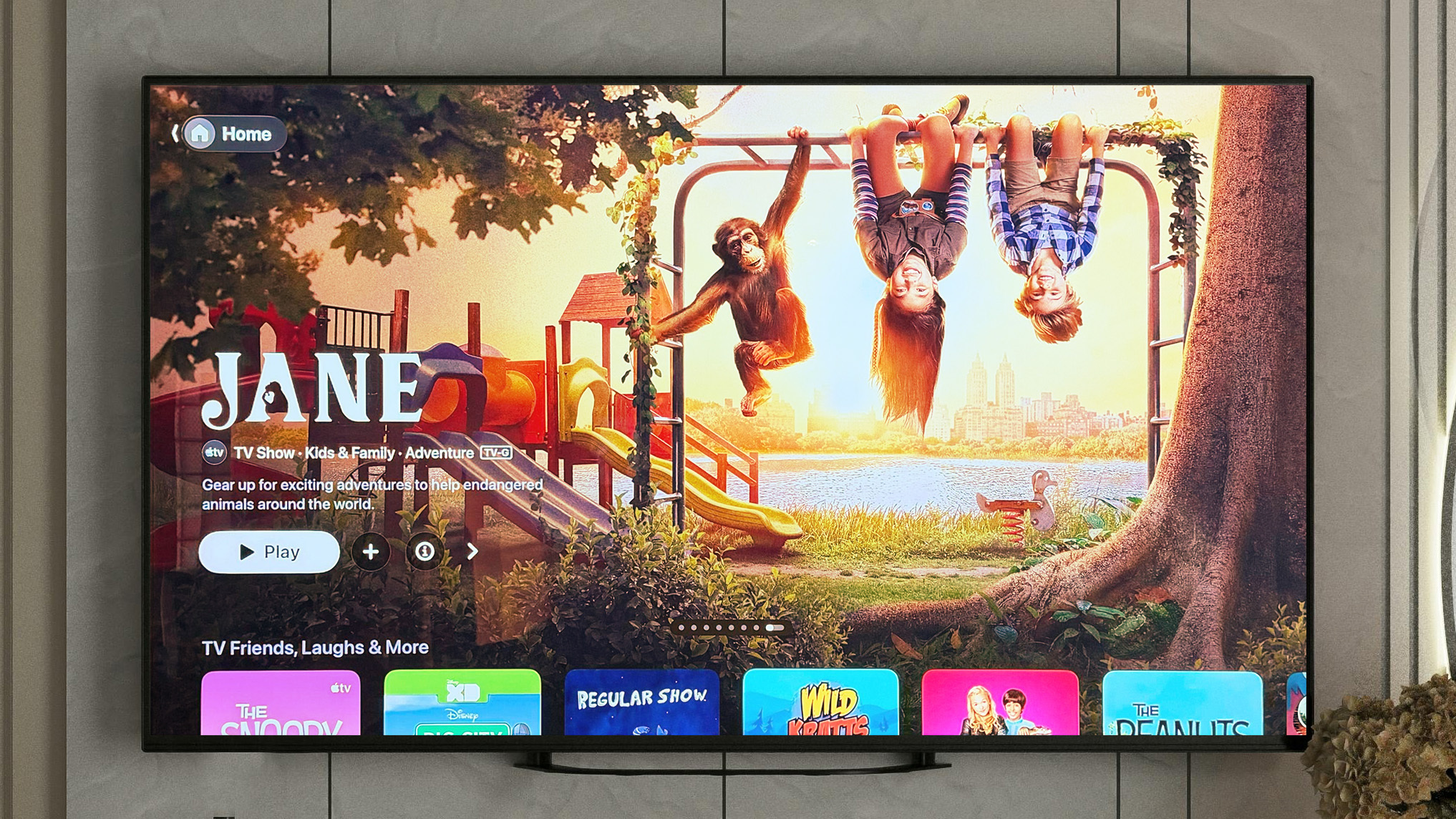
tvOS 26.2 can be downloaded through the Software Update section of the Apple TV settings app.
With tvOS 26.2, Apple is adding support for creating a profile without an Apple Account, and there is a dedicated Apple TV app kids mode that's available for children's profiles.
Apple doesn't provide beta release notes, so it's not clear what's changed between the first RC and the second RC. Typically, release candidates are updated if there is a major bug discovered during the testing period. RCs represent the final version of the software that will be released to the public.
We're expecting tvOS 26.2 and HomePod Software 26.2 to come out next week.
This article, "Apple Seeds Second tvOS 26.2 Release Candidate" first appeared on MacRumors.com
Discuss this article in our forums
tvOS 26.2 can be downloaded through the Software Update section of the Apple TV settings app.
With tvOS 26.2, Apple is adding support for creating a profile without an Apple Account, and there is a dedicated Apple TV app kids mode that's available for children's profiles.
Apple doesn't provide beta release notes, so it's not clear what's changed between the first RC and the second RC. Typically, release candidates are updated if there is a major bug discovered during the testing period. RCs represent the final version of the software that will be released to the public.
We're expecting tvOS 26.2 and HomePod Software 26.2 to come out next week.
This article, "Apple Seeds Second tvOS 26.2 Release Candidate" first appeared on MacRumors.com
Discuss this article in our forums
Recommended Comments
Join the conversation
You can post now and register later. If you have an account, sign in now to post with your account.