_811205.png)
_e196d8.png)
_32b3d9.png)
_1c53fe.png)

Apple today provided developers with the third beta of an upcoming visionOS 27 update for testing purposes, with the beta coming two weeks after Apple released the second beta.
visionOS 27 can be installed by opening the Settings app, going to Software Updates, and opting into Beta Updates.
visionOS 27 introduces Siri AI, the smarter and more capable version of Siri that's similar in capability to chatbots like ChatGPT and Claude. On the Vision Pro, Siri can answer questions about anything the wearer is looking at, and there's a new Siri orb that can be placed anywhere in wearer's virtual space.
Panorama photos can be turned into spatial environments, and there's a new Icelandic Thórsmörk environment that features dramatic mountains, valleys, and glaciers, along with the northern lights. Web Environment support allows developers to create 360-degree environments in Safari for a more native Vision Pro browsing experience.
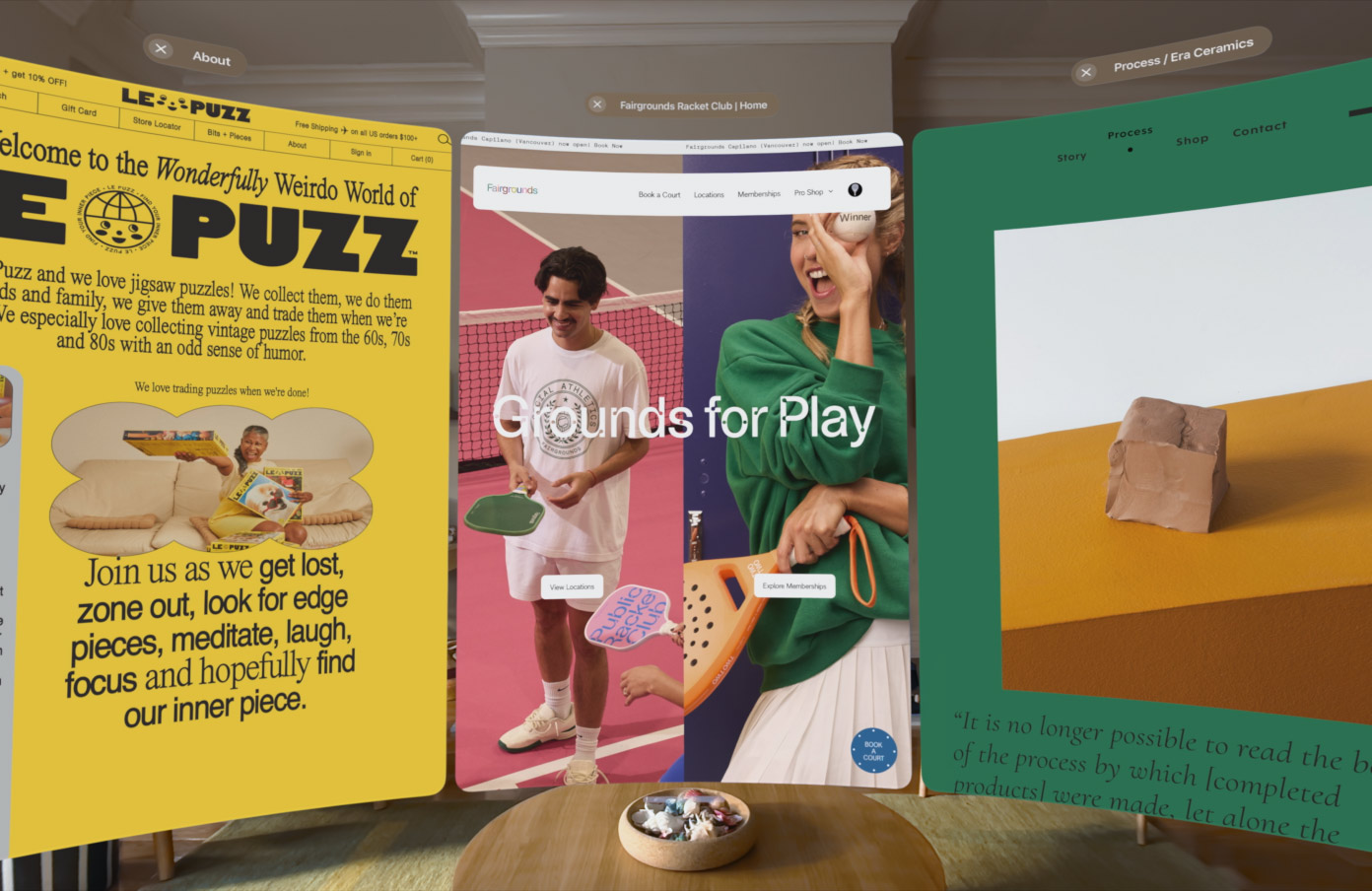
App windows are now curved to provide a more immersive workspace, and Control Center has been reorganized to make system controls easier to find. Apple added a smaller widget size, and notifications automatically expand when the wearer looks at them.
More on what's new in visionOS 27 is listed in our Vision Pro roundup.
This article, "Apple Seeds Third visionOS 27 Beta to Developers" first appeared on MacRumors.com
Discuss this article in our forums
visionOS 27 can be installed by opening the Settings app, going to Software Updates, and opting into Beta Updates.
visionOS 27 introduces Siri AI, the smarter and more capable version of Siri that's similar in capability to chatbots like ChatGPT and Claude. On the Vision Pro, Siri can answer questions about anything the wearer is looking at, and there's a new Siri orb that can be placed anywhere in wearer's virtual space.
Panorama photos can be turned into spatial environments, and there's a new Icelandic Thórsmörk environment that features dramatic mountains, valleys, and glaciers, along with the northern lights. Web Environment support allows developers to create 360-degree environments in Safari for a more native Vision Pro browsing experience.
App windows are now curved to provide a more immersive workspace, and Control Center has been reorganized to make system controls easier to find. Apple added a smaller widget size, and notifications automatically expand when the wearer looks at them.
More on what's new in visionOS 27 is listed in our Vision Pro roundup.
Related Roundup: Apple Vision Pro
Buyer's Guide: Vision Pro (Neutral)
Related Forum: Apple Vision Pro
This article, "Apple Seeds Third visionOS 27 Beta to Developers" first appeared on MacRumors.com
Discuss this article in our forums
Recommended Comments
Join the conversation
You can post now and register later. If you have an account, sign in now to post with your account.