_811205.png)
_e196d8.png)
_32b3d9.png)
_1c53fe.png)

The Studio Display XDR's medical image calibration feature received FDA clearance, which means radiologists are now able to use the display for viewing medical images.
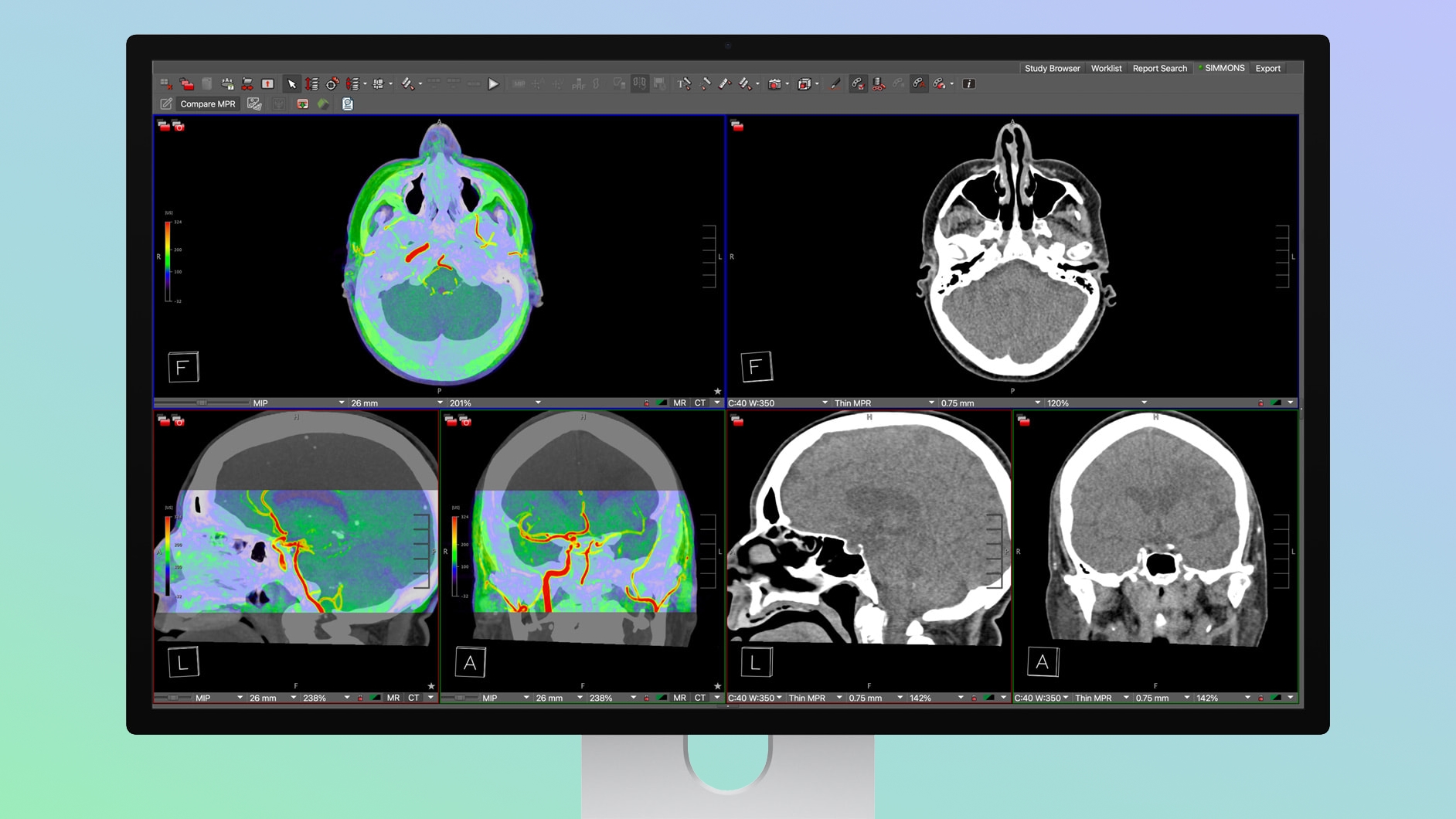
Apple marketing chief Greg Joswiak confirmed today that U.S. radiologists can connect the Studio Display XDR to a Mac running macOS 26.4 to use DICOM medical imaging presets.
The Studio Display XDR supports DICOM and has a Medical Imaging Calibrator for diagnostic radiology, so radiologists can view images without the need for a single-purpose medical imaging display. The Studio Display XDR is priced at $2,899 with a VESA mount, and it is more affordable than many specialized medical imaging monitors.
Using the Studio Display XDR for radiology requires switching from a standard viewing mode to the radiology viewing mode. Apple will need to get appropriate medical clearance in other countries to expand the radiology feature outside of the United States.
This article, "Apple Studio Display XDR Now FDA-Cleared for Diagnostic Radiology Use" first appeared on MacRumors.com
Discuss this article in our forums
Apple marketing chief Greg Joswiak confirmed today that U.S. radiologists can connect the Studio Display XDR to a Mac running macOS 26.4 to use DICOM medical imaging presets.
The Studio Display XDR supports DICOM and has a Medical Imaging Calibrator for diagnostic radiology, so radiologists can view images without the need for a single-purpose medical imaging display. The Studio Display XDR is priced at $2,899 with a VESA mount, and it is more affordable than many specialized medical imaging monitors.
Using the Studio Display XDR for radiology requires switching from a standard viewing mode to the radiology viewing mode. Apple will need to get appropriate medical clearance in other countries to expand the radiology feature outside of the United States.
Related Roundup: Studio Display
Buyer's Guide: Displays (Buy Now)
Related Forum: Mac Accessories
This article, "Apple Studio Display XDR Now FDA-Cleared for Diagnostic Radiology Use" first appeared on MacRumors.com
Discuss this article in our forums
Recommended Comments
Join the conversation
You can post now and register later. If you have an account, sign in now to post with your account.