_811205.png)
_e196d8.png)
_32b3d9.png)
_1c53fe.png)

Apple's annual developers conference WWDC returns for 2026 next week, and the company has teased the event with a new "All systems glow" tagline.
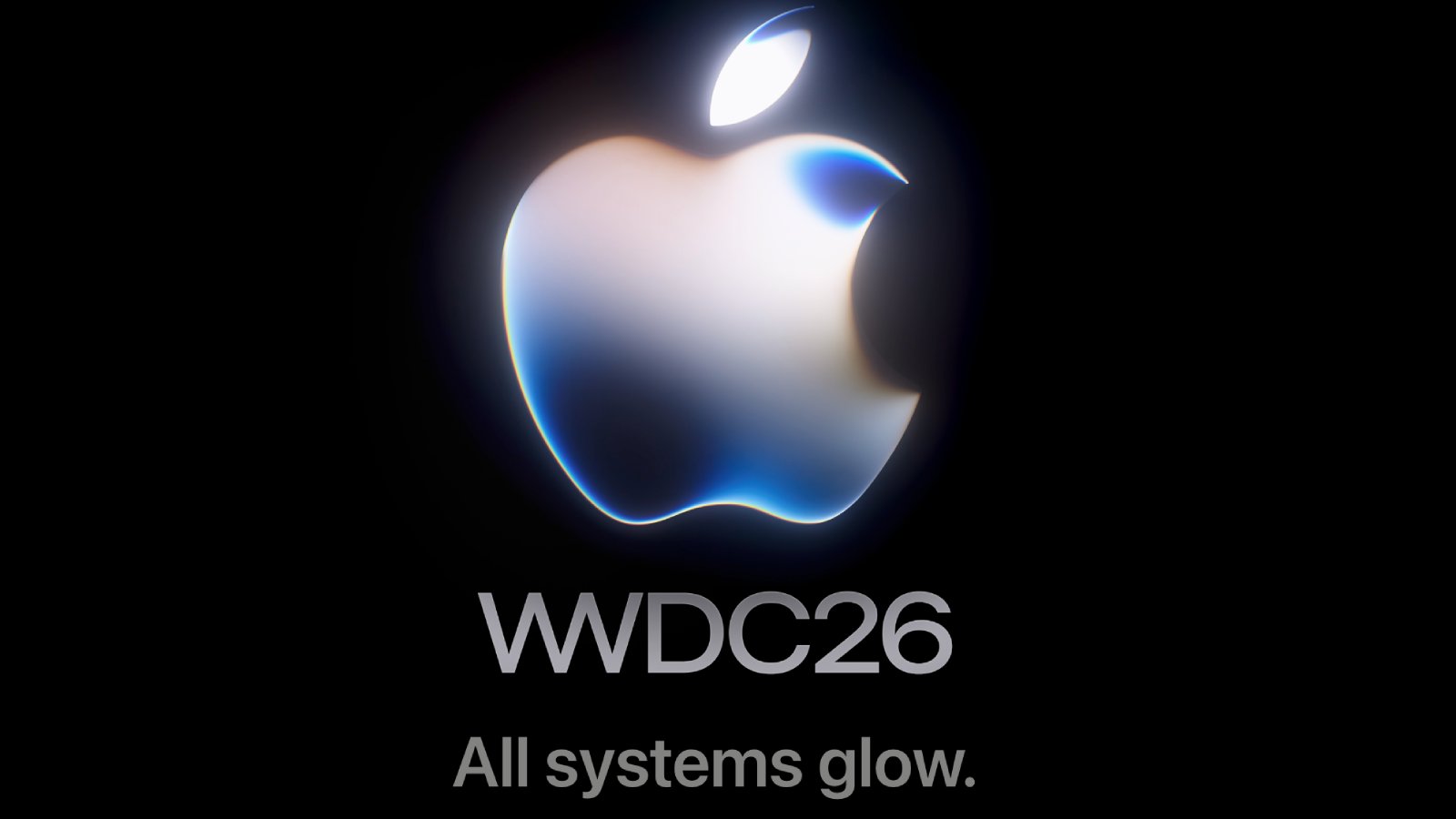
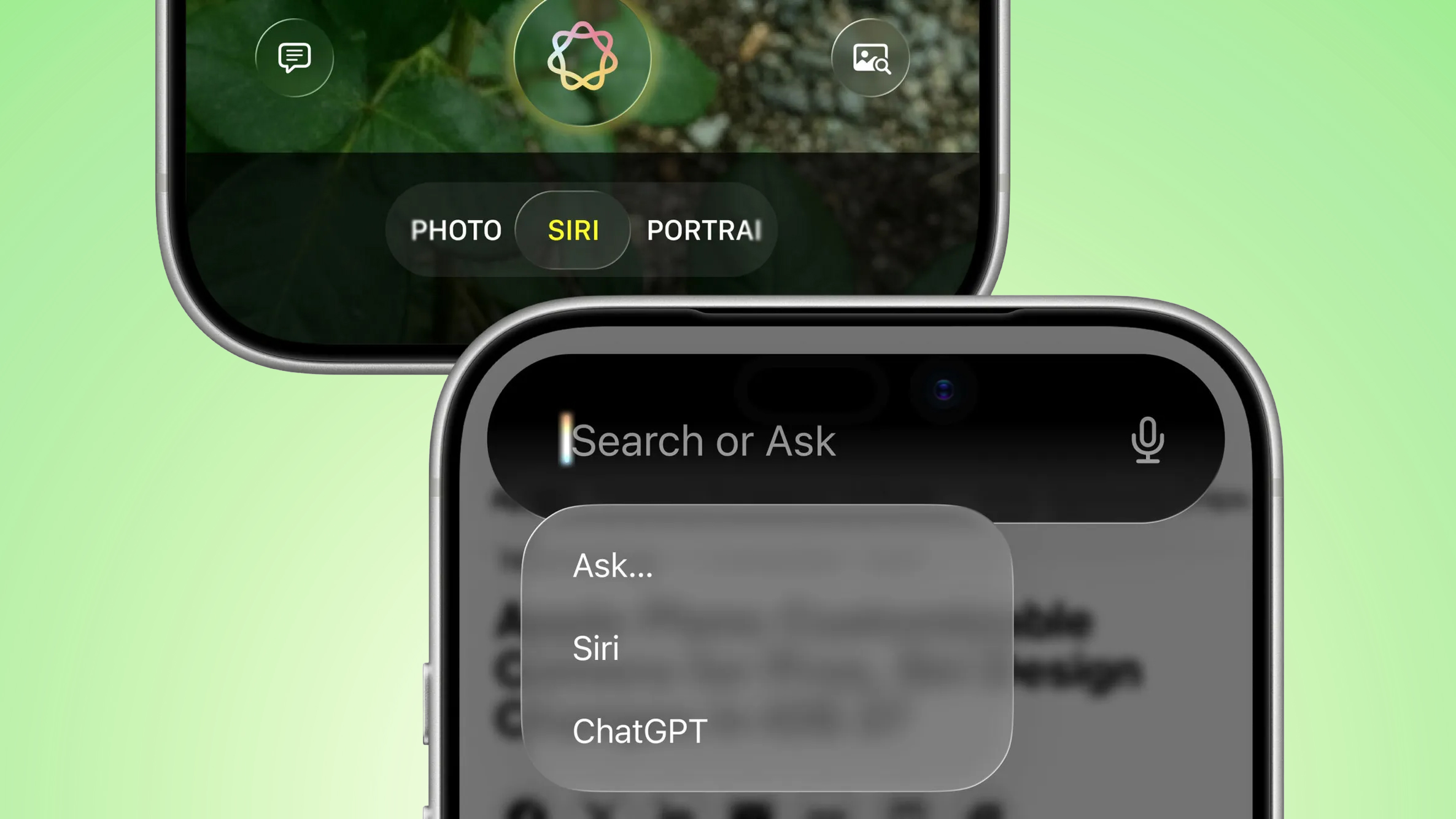
"All systems glow" is a play on the phrase "all systems go," and it likely hints at Siri's rumored new design on iOS 27. Both a dedicated Siri app and a new "Search or Ask" feature in the iPhone's Dynamic Island will reportedly have a dark color scheme with glowing elements, as shown in leaked images last week.
Apple's previous tagline for WWDC 2026 was "Coming bright up." That tagline and the graphics for the event all hint at the new Siri design as well.
WWDC 2026 kicks off with Apple's keynote on Monday, June 8 at 10 a.m. Pacific Time. The company is set to unveil iOS 27, iPadOS 27, macOS 27, watchOS 27, tvOS 27, and visionOS 27 on that day, and the conference will run through Friday, June 12, with hundreds of developer sessions to be shared online.
This article, "Apple Teases Next Week's WWDC 2026 Event: 'All Systems Glow'" first appeared on MacRumors.com
Discuss this article in our forums
"All systems glow" is a play on the phrase "all systems go," and it likely hints at Siri's rumored new design on iOS 27. Both a dedicated Siri app and a new "Search or Ask" feature in the iPhone's Dynamic Island will reportedly have a dark color scheme with glowing elements, as shown in leaked images last week.
Apple's previous tagline for WWDC 2026 was "Coming bright up." That tagline and the graphics for the event all hint at the new Siri design as well.
WWDC 2026 kicks off with Apple's keynote on Monday, June 8 at 10 a.m. Pacific Time. The company is set to unveil iOS 27, iPadOS 27, macOS 27, watchOS 27, tvOS 27, and visionOS 27 on that day, and the conference will run through Friday, June 12, with hundreds of developer sessions to be shared online.
All systems glow for a great #WWDC26 next week!
— Greg Joswiak (@gregjoz) June 1, 2026
Tune in June 8 at 10 am PT. pic.twitter.com/g6A5v5vWI4
Related Roundup: WWDC 2026
Tag: Siri
Related Forum: Apple, Inc and Tech Industry
This article, "Apple Teases Next Week's WWDC 2026 Event: 'All Systems Glow'" first appeared on MacRumors.com
Discuss this article in our forums
Recommended Comments
Join the conversation
You can post now and register later. If you have an account, sign in now to post with your account.