_811205.png)
_e196d8.png)
_32b3d9.png)
_1c53fe.png)

Apple today announced new Apple Intelligence features for the Home app, including AI-generated descriptions of HomeKit Secure Video camera clips and smarter grouping of accessory notifications.
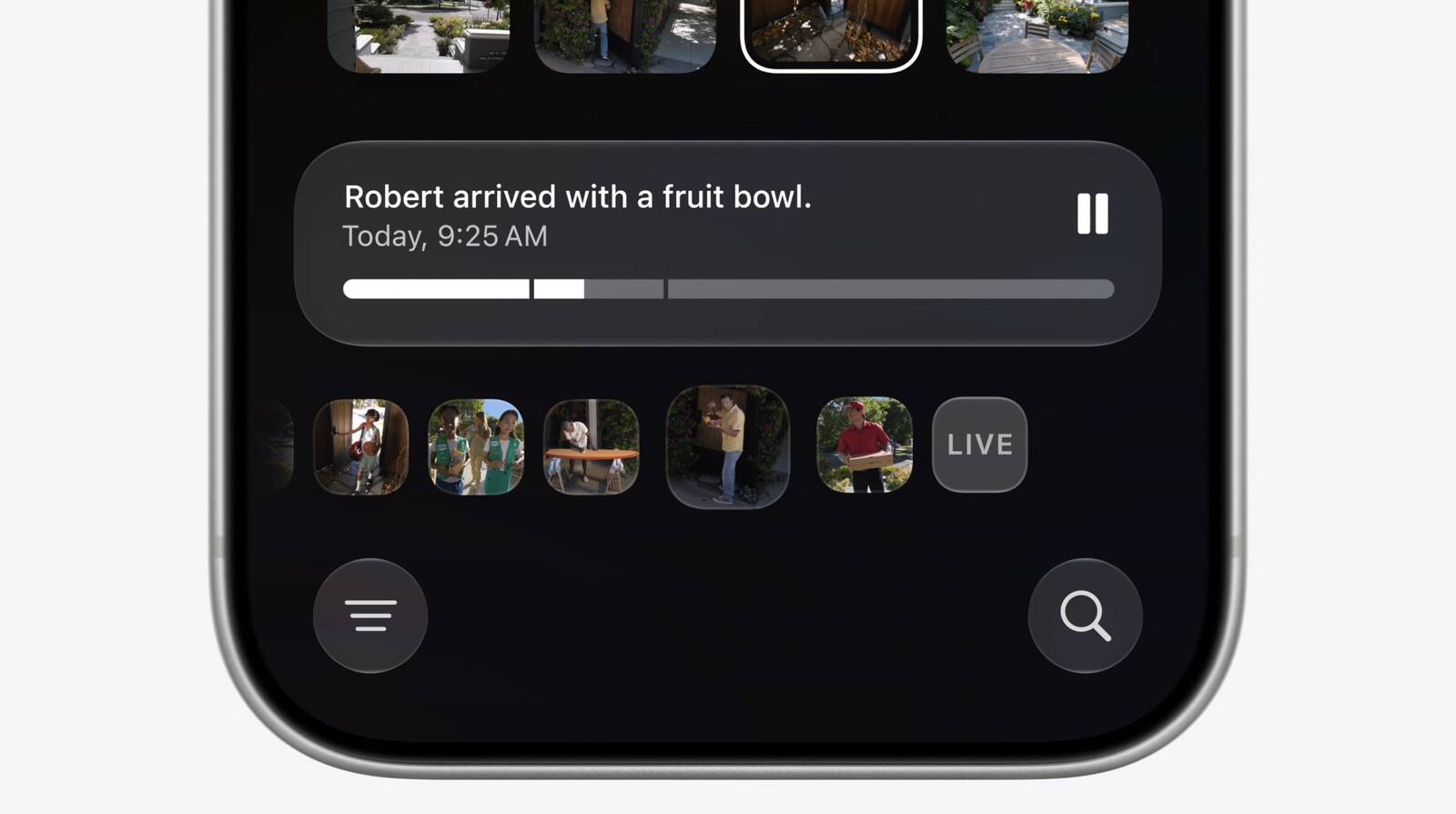
The Home app will use Apple Intelligence to analyze recorded clips from compatible cameras and generate text descriptions summarizing what happened in them. Users can search through footage to find specific events, such as a package delivery, without needing to watch each clip individually.
The app will also surface noteworthy clips at the top of the Search page, so users can quickly identify important moments. When playing a clip, the Home app can pull together footage from multiple cameras to provide a more complete picture of an event.
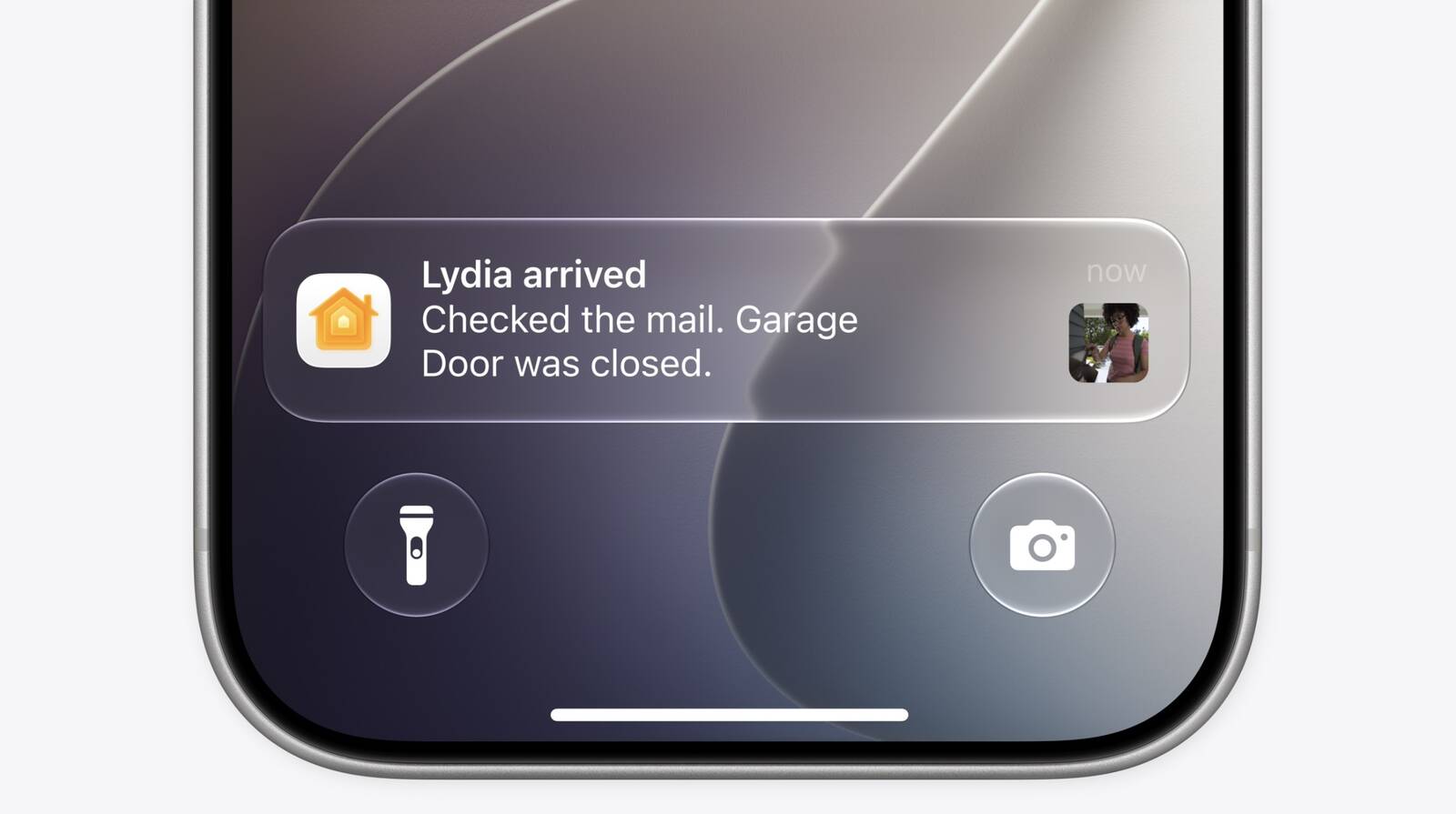
Apple Intelligence will also make accessory notifications smarter. Rather than receiving a separate alert for every triggered accessory, the Home app will understand related notifications as a single ongoing activity and deliver one notification that continues to update as the activity unfolds.
This article, "Apple to Add AI Video Descriptions and Smarter Notifications to Home App" first appeared on MacRumors.com
Discuss this article in our forums
The Home app will use Apple Intelligence to analyze recorded clips from compatible cameras and generate text descriptions summarizing what happened in them. Users can search through footage to find specific events, such as a package delivery, without needing to watch each clip individually.
The app will also surface noteworthy clips at the top of the Search page, so users can quickly identify important moments. When playing a clip, the Home app can pull together footage from multiple cameras to provide a more complete picture of an event.
Apple Intelligence will also make accessory notifications smarter. Rather than receiving a separate alert for every triggered accessory, the Home app will understand related notifications as a single ongoing activity and deliver one notification that continues to update as the activity unfolds.
Tags: Apple Home, Apple Intelligence
This article, "Apple to Add AI Video Descriptions and Smarter Notifications to Home App" first appeared on MacRumors.com
Discuss this article in our forums
Recommended Comments
Join the conversation
You can post now and register later. If you have an account, sign in now to post with your account.