_811205.png)
_e196d8.png)
_32b3d9.png)
_1c53fe.png)

Apple today announced new AI-powered photo editing tools coming to the Photos app as part of Apple Intelligence, including an upgraded Cleanup tool, a new Extend tool, and a new Spatial Reframing feature.
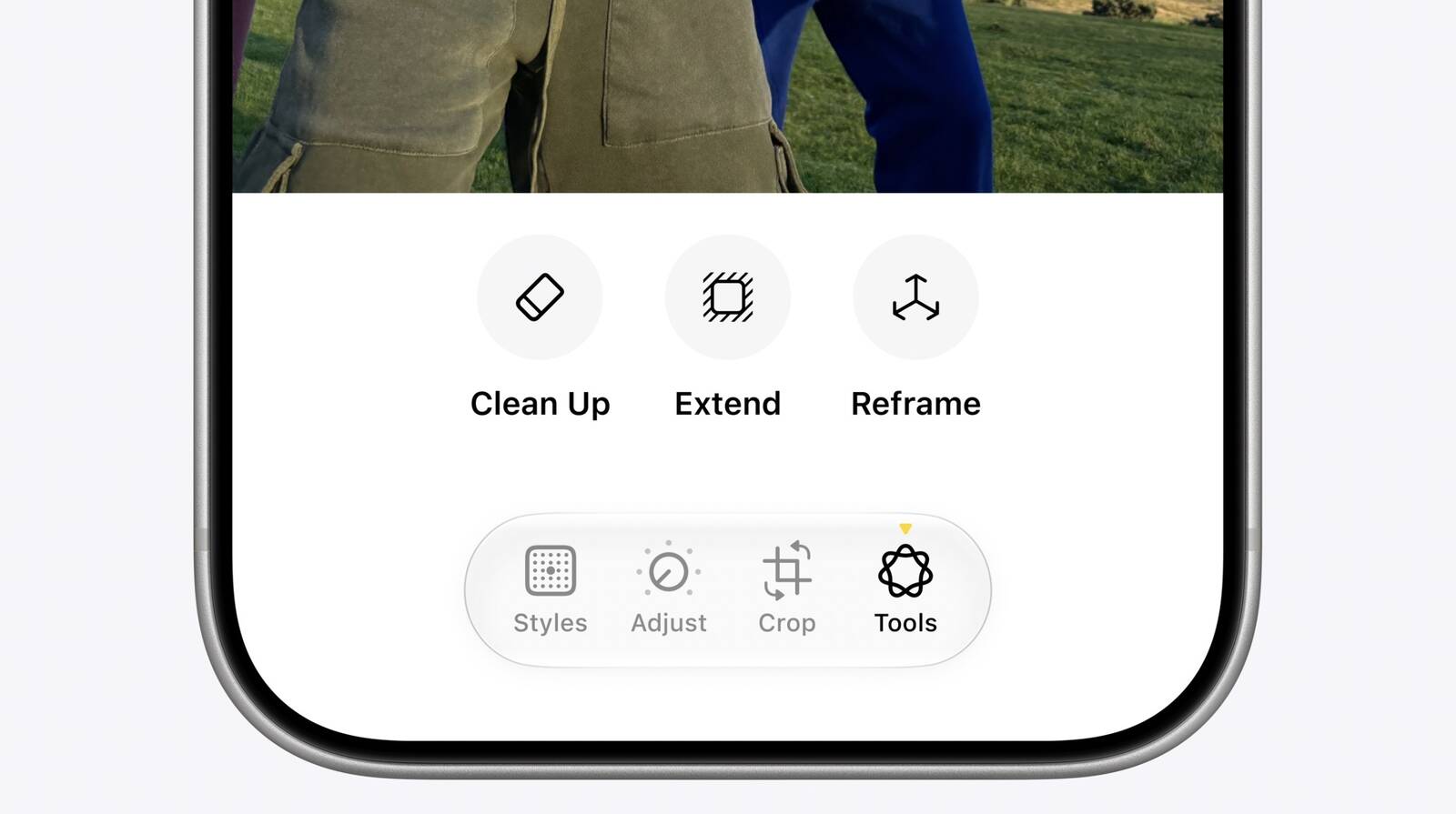
Spatial Reframing allows users to reposition the virtual camera angle of a photo after it has already been taken. By touching and dragging, users can adjust the framing and perspective of a shot, with Apple Intelligence generating new content only to fill in the gaps created by the shift in angle. It only generates new content to fill in the gaps where the perspective has shifted, ensuring the reframed photo stays consistent with the original scene.
The Cleanup tool is also receiving what Apple calls a "big upgrade," with improved ability to remove distractions from images and more realistic infill "even when the scene is complex." A new Extend tool rounds out the trio, letting users add more background space to a photo or adjust its aspect ratio.
Apple said the new tools help photographers "enhance their images in ways that respect the original moment." All three features are processed using Apple's Private Cloud Compute infrastructure, meaning the edits are handled in the cloud while Apple says user data remains protected. The new tools will work on older photos as well as images taken with non-Apple cameras.
This article, "Apple to Bring AI Reframing and Editing Tools to Photos App" first appeared on MacRumors.com
Discuss this article in our forums
Spatial Reframing allows users to reposition the virtual camera angle of a photo after it has already been taken. By touching and dragging, users can adjust the framing and perspective of a shot, with Apple Intelligence generating new content only to fill in the gaps created by the shift in angle. It only generates new content to fill in the gaps where the perspective has shifted, ensuring the reframed photo stays consistent with the original scene.
The Cleanup tool is also receiving what Apple calls a "big upgrade," with improved ability to remove distractions from images and more realistic infill "even when the scene is complex." A new Extend tool rounds out the trio, letting users add more background space to a photo or adjust its aspect ratio.
Apple said the new tools help photographers "enhance their images in ways that respect the original moment." All three features are processed using Apple's Private Cloud Compute infrastructure, meaning the edits are handled in the cloud while Apple says user data remains protected. The new tools will work on older photos as well as images taken with non-Apple cameras.
Tags: Apple Intelligence, Photos
This article, "Apple to Bring AI Reframing and Editing Tools to Photos App" first appeared on MacRumors.com
Discuss this article in our forums
Recommended Comments
Join the conversation
You can post now and register later. If you have an account, sign in now to post with your account.