_811205.png)
_e196d8.png)
_32b3d9.png)
_1c53fe.png)

Apple has inked a deal with EverPass Media to bring Apple TV sports content to EverPass customers in the United States. EverPass is a company that bundles premium sports content for restaurants, hotels, casinos, sports bars, and other businesses that want to air sporting events.
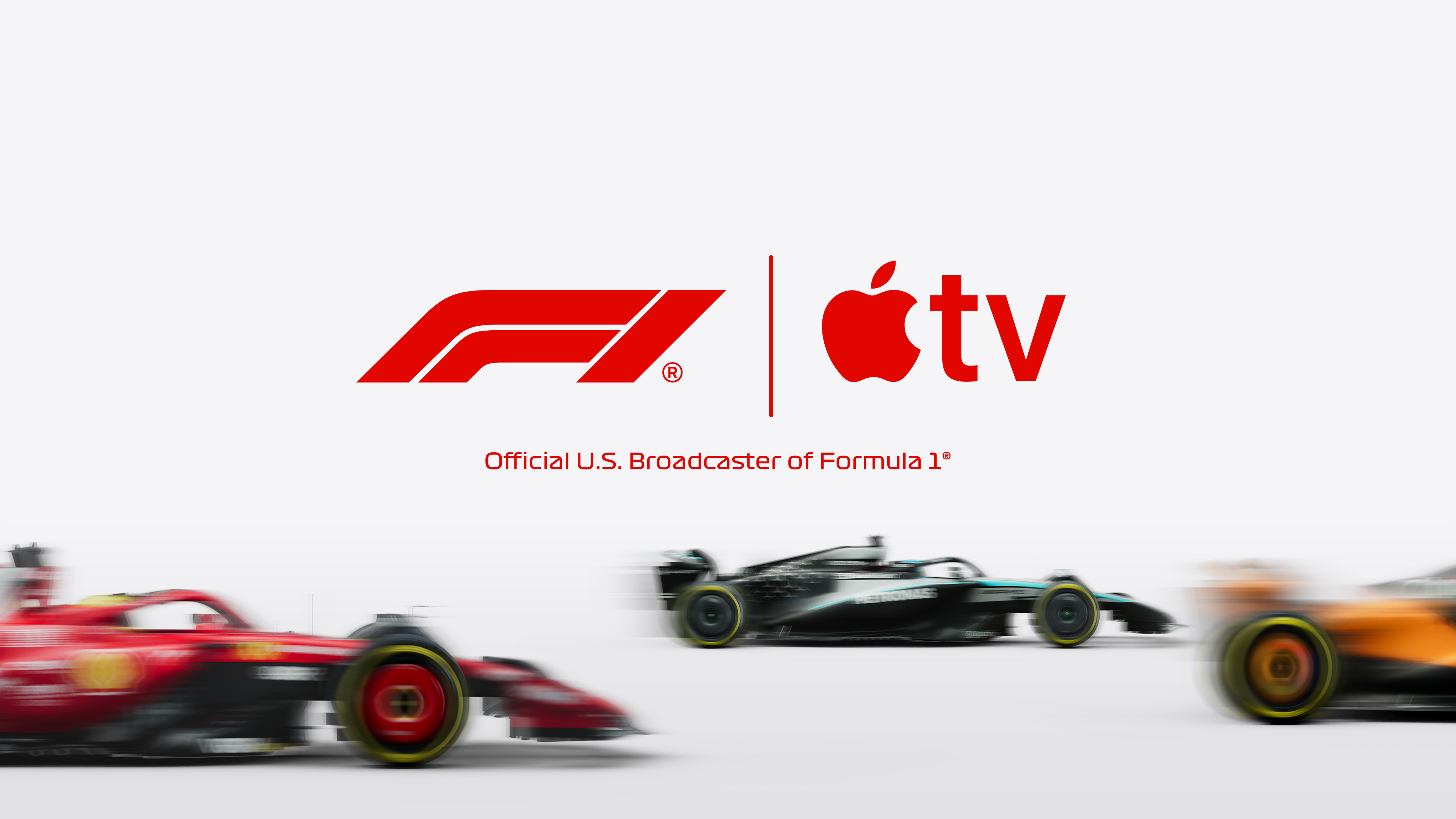
EverPass will now be able to offer Formula 1, Major League Soccer, and Major League Baseball content to its customers at no additional cost through the main EverPass Core content package. That package also includes Paramount+'s UEFA Champions League, Prime Video's Thursday Night Football, NBA, WNBA and more.
The deal includes all-access coverage of every F1 Grand Prix, including practice, qualifying, and Sprint sessions. For MLS, EverPass customers will be able to show enhanced feature matches every weekend during the regular season, plus MLS All-Star Game, Leagues Cup, MLS Cup, and pre-and post-match programming. Also included is Friday Night Baseball, with two MLB Friday night games per week.
Apple TV sporting content will be available through EverPass alongside NFL Sunday Ticket, Peacock Sports Pass, Prime Video sports content, and Paramount+.
This article, "Apple TV Sports Content Including F1, MLS, and Friday Night Baseball Coming to Bars and Restaurants" first appeared on MacRumors.com
Discuss this article in our forums
EverPass will now be able to offer Formula 1, Major League Soccer, and Major League Baseball content to its customers at no additional cost through the main EverPass Core content package. That package also includes Paramount+'s UEFA Champions League, Prime Video's Thursday Night Football, NBA, WNBA and more.
The deal includes all-access coverage of every F1 Grand Prix, including practice, qualifying, and Sprint sessions. For MLS, EverPass customers will be able to show enhanced feature matches every weekend during the regular season, plus MLS All-Star Game, Leagues Cup, MLS Cup, and pre-and post-match programming. Also included is Friday Night Baseball, with two MLB Friday night games per week.
Apple TV sporting content will be available through EverPass alongside NFL Sunday Ticket, Peacock Sports Pass, Prime Video sports content, and Paramount+.
This article, "Apple TV Sports Content Including F1, MLS, and Friday Night Baseball Coming to Bars and Restaurants" first appeared on MacRumors.com
Discuss this article in our forums
Recommended Comments
Join the conversation
You can post now and register later. If you have an account, sign in now to post with your account.