_811205.png)
_e196d8.png)
_32b3d9.png)
_1c53fe.png)

Apple has taken a new approach to its stock wallpapers with iOS 27 and macOS 27 Golden Gate, using variations of the same artwork across all platforms for the first time.
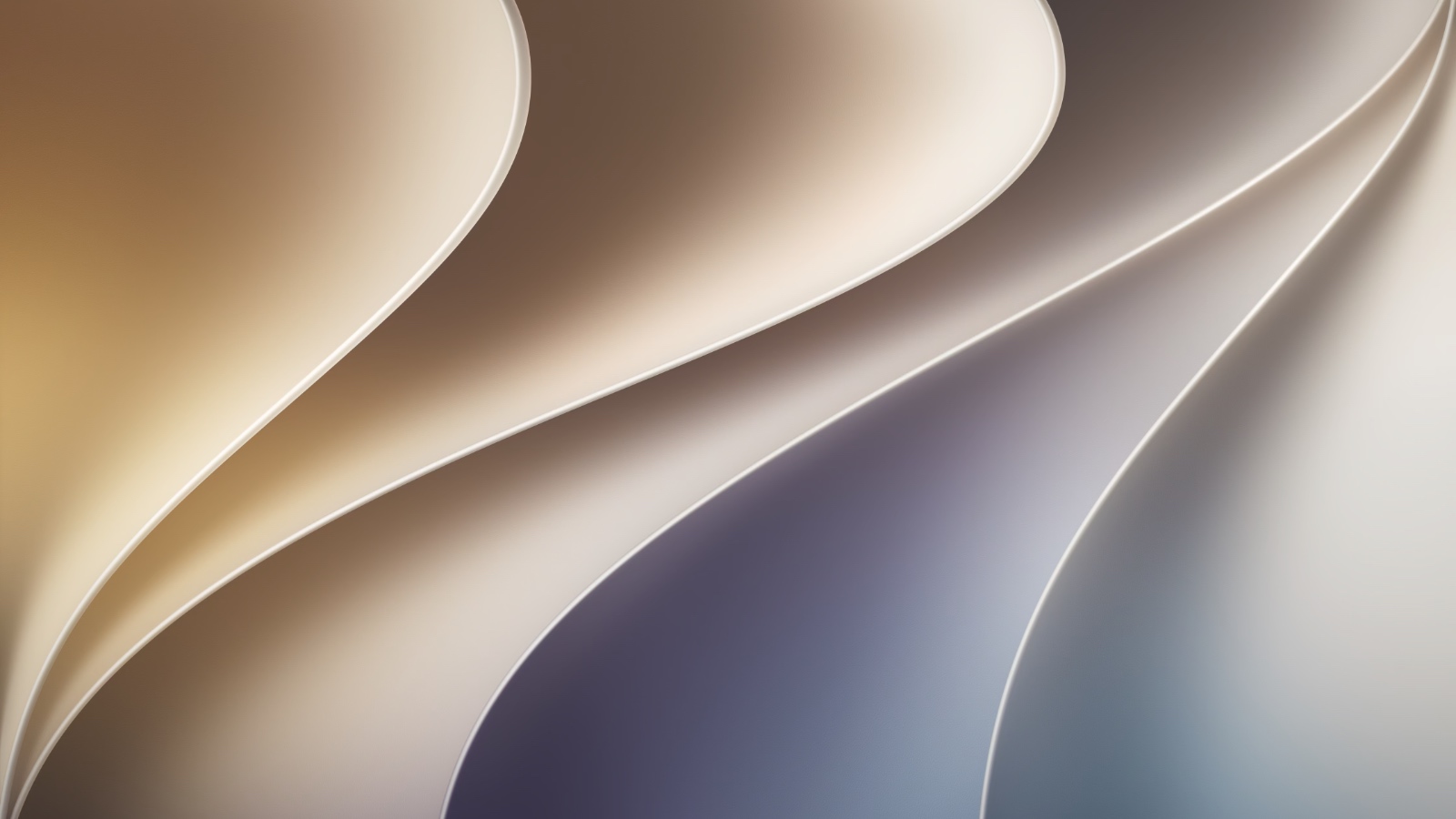
In previous years, most platforms shipped with their own distinct wallpaper. This year, they all share a design called "Celosia," featuring sweeping, overlapping curves and soft shadows inspired by layered flower petals or folded paper. In Light mode, warm sandy gold blends into soft purple; Dark mode shifts to moody deep indigos with silvery-blue edges. The curved shapes also form a stylized "27," tying the design directly to the software version.
The iOS 27 and iPadOS 27 Celosia collection comes in three variants: a standard iOS 27 version, Dynamic, and Color, each with separate Light and Dark versions optimized for the Home Screen and Lock Screen. macOS 27 Golden Gate ships with dynamic wallpapers accessible only through the OS itself. Even CarPlay contains 14 Celosia wallpaper options in the first developer beta, spanning Light and Dark modes across Grey, Purple, Red, Teal, Blue, Brown, Dark Blue, and Green variants, plus a Hero option in both Light and Dark.
This article, "Apple Unifies iOS 27, macOS, and Even CarPlay Wallpapers for First Time" first appeared on MacRumors.com
Discuss this article in our forums
In previous years, most platforms shipped with their own distinct wallpaper. This year, they all share a design called "Celosia," featuring sweeping, overlapping curves and soft shadows inspired by layered flower petals or folded paper. In Light mode, warm sandy gold blends into soft purple; Dark mode shifts to moody deep indigos with silvery-blue edges. The curved shapes also form a stylized "27," tying the design directly to the software version.
The iOS 27 and iPadOS 27 Celosia collection comes in three variants: a standard iOS 27 version, Dynamic, and Color, each with separate Light and Dark versions optimized for the Home Screen and Lock Screen. macOS 27 Golden Gate ships with dynamic wallpapers accessible only through the OS itself. Even CarPlay contains 14 Celosia wallpaper options in the first developer beta, spanning Light and Dark modes across Grey, Purple, Red, Teal, Blue, Brown, Dark Blue, and Green variants, plus a Hero option in both Light and Dark.
Related Forum: HomePod, HomeKit, CarPlay, Home & Auto Technology
This article, "Apple Unifies iOS 27, macOS, and Even CarPlay Wallpapers for First Time" first appeared on MacRumors.com
Discuss this article in our forums
Recommended Comments
Join the conversation
You can post now and register later. If you have an account, sign in now to post with your account.