_811205.png)
_e196d8.png)
_32b3d9.png)
_1c53fe.png)

Apple today announced a new Foundation Models framework for developers alongside a set of Xcode enhancements aimed at agentic coding workflows.
The Foundation Models framework gains image input support, allowing developers to pass images alongside text into on-device models. Apple also introduced custom skills and server-side model execution as part of the framework, giving developers more flexibility in how they integrate AI capabilities into their apps. Apple also announced a new Core AI framework alongside the Foundation Models changes.
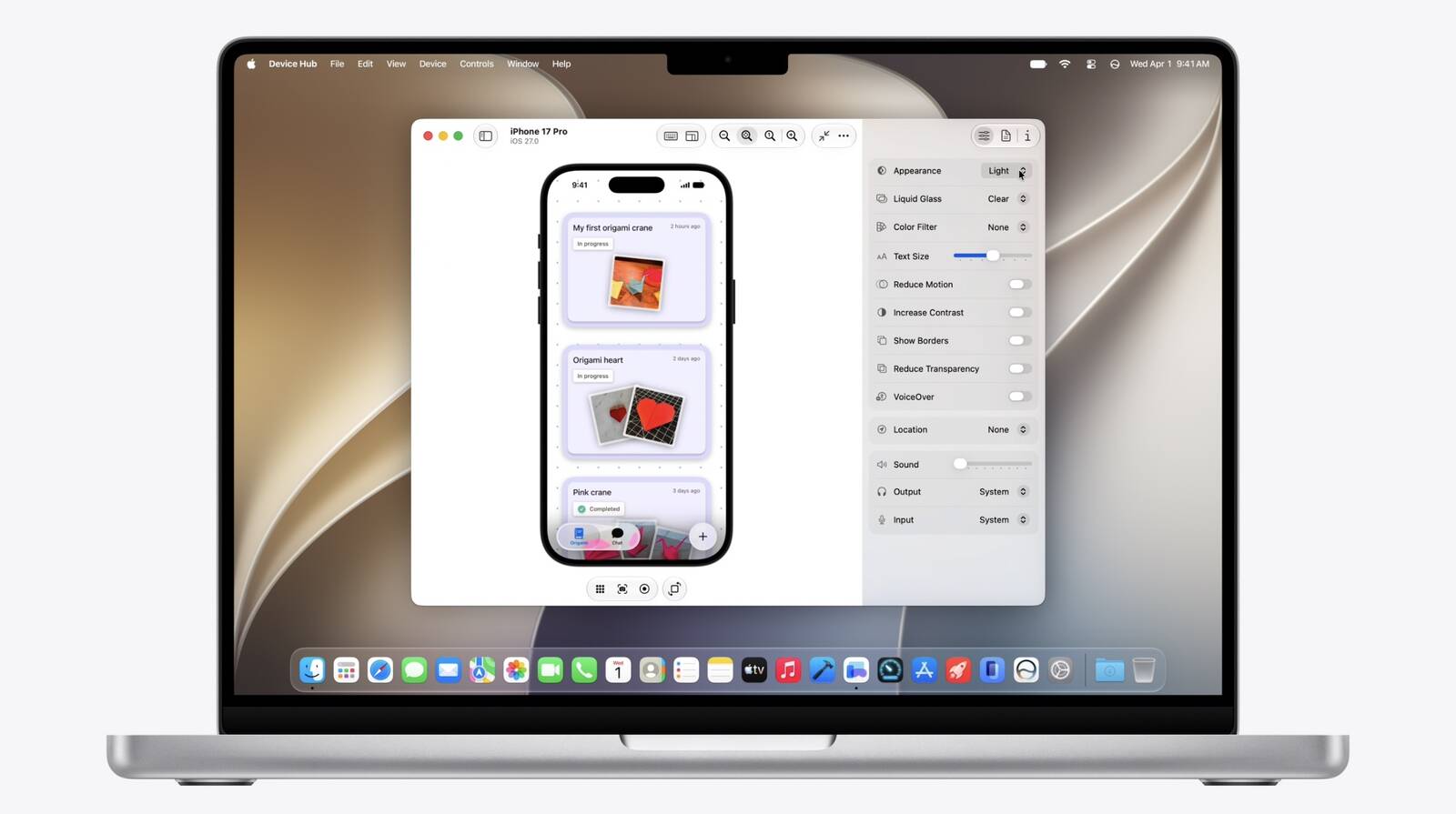
Xcode's coding assistant has been expanded to handle app localization and can now interact with simulated devices, with the ability to extend its capabilities further via custom skills. Apple also said developers will be able to more easily resize and interact with app previews, with additional details to follow in upcoming sessions and the State of the Union presentation. Apple SVP of Software Engineering Craig Federighi said Xcode is now the "best place" to build apps using agentic coding.
Apple also highlighted expanded App Intents support, with Apple citing third-party apps such as Line as examples of how developers can allow users to ask Siri to perform actions within their apps on their behalf.
This article, "Apple Unveils Xcode and Foundation Models Framework Improvements" first appeared on MacRumors.com
Discuss this article in our forums
The Foundation Models framework gains image input support, allowing developers to pass images alongside text into on-device models. Apple also introduced custom skills and server-side model execution as part of the framework, giving developers more flexibility in how they integrate AI capabilities into their apps. Apple also announced a new Core AI framework alongside the Foundation Models changes.
Xcode's coding assistant has been expanded to handle app localization and can now interact with simulated devices, with the ability to extend its capabilities further via custom skills. Apple also said developers will be able to more easily resize and interact with app previews, with additional details to follow in upcoming sessions and the State of the Union presentation. Apple SVP of Software Engineering Craig Federighi said Xcode is now the "best place" to build apps using agentic coding.
Apple also highlighted expanded App Intents support, with Apple citing third-party apps such as Line as examples of how developers can allow users to ask Siri to perform actions within their apps on their behalf.
Tag: Xcode
This article, "Apple Unveils Xcode and Foundation Models Framework Improvements" first appeared on MacRumors.com
Discuss this article in our forums
Recommended Comments
Join the conversation
You can post now and register later. If you have an account, sign in now to post with your account.