_811205.png)
_e196d8.png)
_32b3d9.png)
_1c53fe.png)

Apple today said Hearing Aid features are now available for the AirPods Pro 2 and AirPods Pro 3 in Italy, Romania, and Czechia, while Hypertension alerts have expanded to Israel.
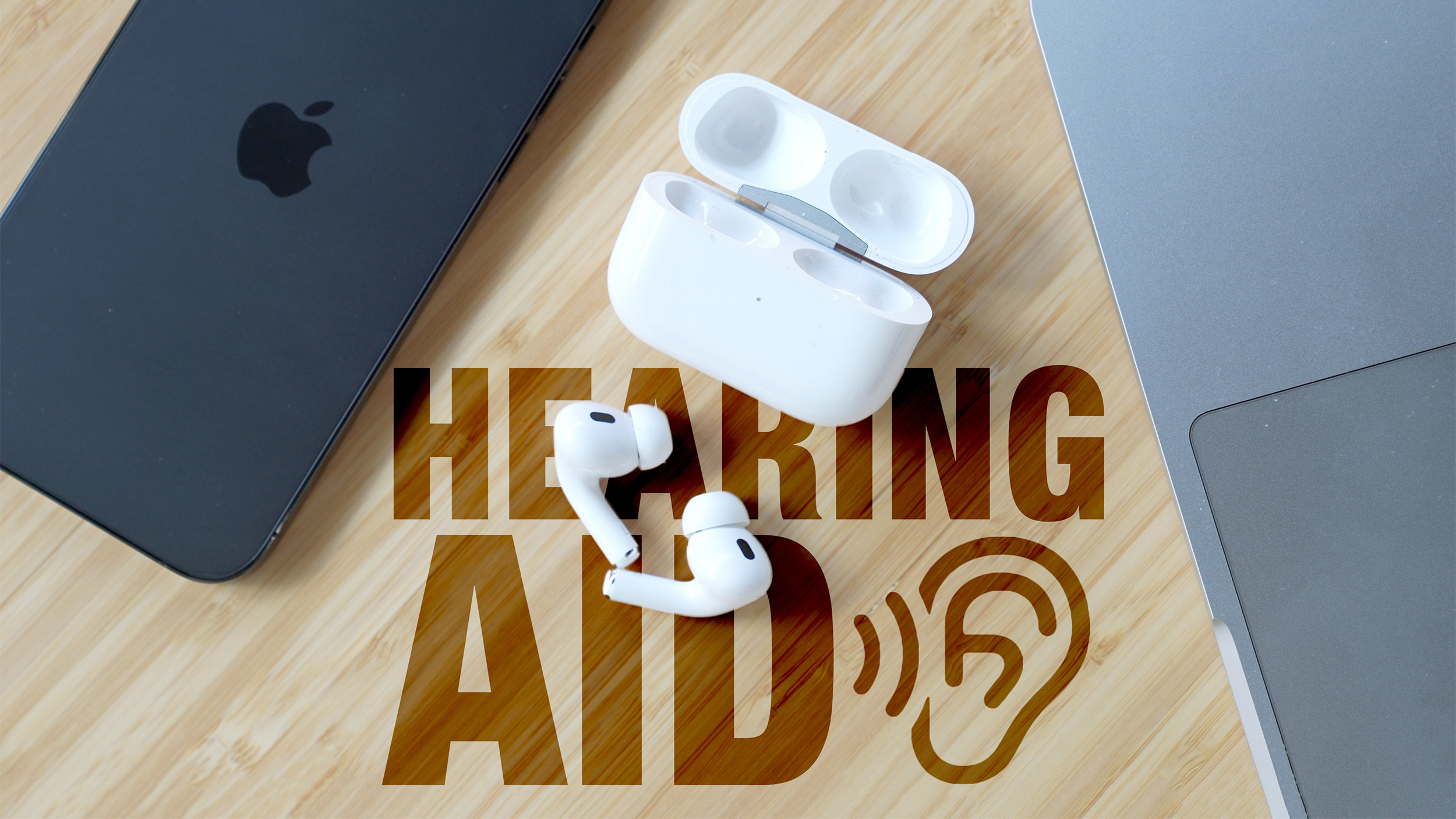
The Hearing Aid option allows the AirPods Pro to be used as an over-the-counter alternative to a traditional set of hearing aids. The AirPods Pro can improve sound to mitigate mild to moderate hearing loss, adjusting voices and sounds around the user to improve hearing. It can also set music, videos, and phone calls to optimal sound levels using a personalized hearing profile created after taking a Hearing Test.
Loud Sound Reduction also prevents hearing damage from loud ambient noise by cutting down on high-decibel sound when using Transparency and Adaptive modes.
Hearing Aid capabilities are available with the AirPods Pro 2 and AirPods Pro 3 when paired with a device running iOS 26/iPadOS 26 or later.
In Israel, users will be able to get an alert if the Apple Watch detects signs of chronic high blood pressure. Alerts use data collected from the heart rate sensor over a 30-day period.
Hypertension alerts are available on the Apple Watch Series 9 and later and the Apple Watch Ultra 2 and later.
This article, "Apple Watch Hypertension Alerts and AirPods Hearing Aid Feature Expand to More Countries" first appeared on MacRumors.com
Discuss this article in our forums
The Hearing Aid option allows the AirPods Pro to be used as an over-the-counter alternative to a traditional set of hearing aids. The AirPods Pro can improve sound to mitigate mild to moderate hearing loss, adjusting voices and sounds around the user to improve hearing. It can also set music, videos, and phone calls to optimal sound levels using a personalized hearing profile created after taking a Hearing Test.
Loud Sound Reduction also prevents hearing damage from loud ambient noise by cutting down on high-decibel sound when using Transparency and Adaptive modes.
Hearing Aid capabilities are available with the AirPods Pro 2 and AirPods Pro 3 when paired with a device running iOS 26/iPadOS 26 or later.
In Israel, users will be able to get an alert if the Apple Watch detects signs of chronic high blood pressure. Alerts use data collected from the heart rate sensor over a 30-day period.
Hypertension alerts are available on the Apple Watch Series 9 and later and the Apple Watch Ultra 2 and later.
Related Roundups: AirPods 4, Apple Watch 11
Buyer's Guide: AirPods (Neutral), Apple Watch (Caution)
Related Forum: AirPods
This article, "Apple Watch Hypertension Alerts and AirPods Hearing Aid Feature Expand to More Countries" first appeared on MacRumors.com
Discuss this article in our forums
Recommended Comments
Join the conversation
You can post now and register later. If you have an account, sign in now to post with your account.