_811205.png)
_e196d8.png)
_32b3d9.png)
_1c53fe.png)

Apple today confirmed that the Apple Watch Series 9 is compatible with watchOS 27, after the device was mistakenly omitted from the software's official compatibility page.
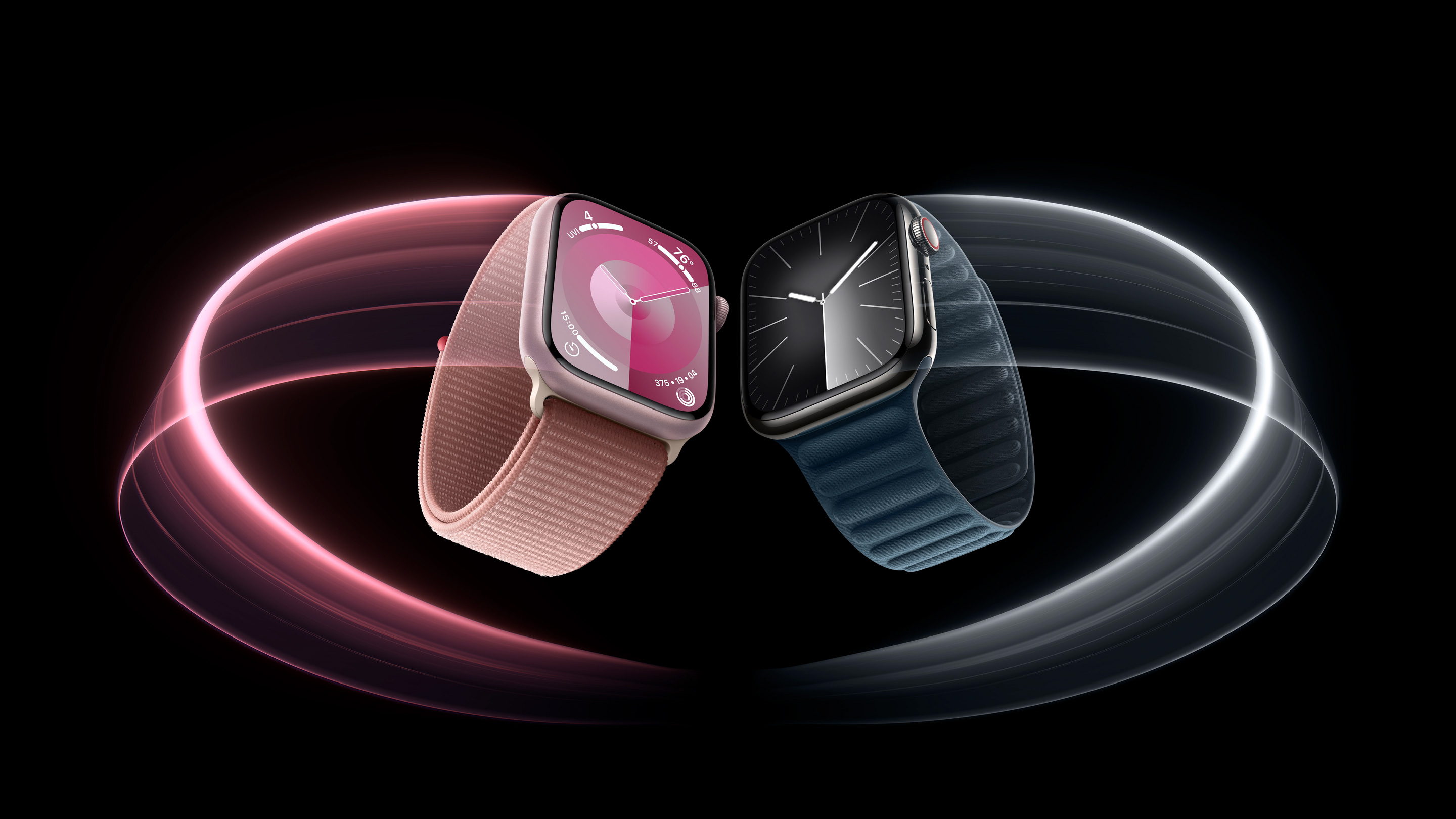
Apple updated its website immediately following its WWDC 2026 keynote, and the watchOS 27 page listed a shorter compatibility list than many users expected: the Apple Watch SE 3, Series 10, Series 11, Ultra 2, and Ultra 3. That would have meant watchOS 27 dropped support for the Apple Watch Series 9, despite both the Series 9 and Ultra 2 containing the same S9 chip.
Shortly after Apple released watchOS 27 developer beta 1, Apple Watch Series 9 owners began reporting that they were able to download, install, and run the beta on their devices. Apple confirmed to MacRumors that the Series 9 omission was an error, and that the device is indeed supported. Apple's website has since been corrected.
watchOS 27 still drops support for the Apple Watch Series 6, Series 7, and Series 8, along with the original Ultra and SE 2, a significant cut that makes it the largest single-year drop in Apple Watch software support to date. The update introduces a new Siri AI app, new workout data insights, Spanish support for Workout Buddy, and more.
This article, "Apple Watch Series 9 Mistakenly Left Off watchOS 27 Compatibility List" first appeared on MacRumors.com
Discuss this article in our forums
Apple updated its website immediately following its WWDC 2026 keynote, and the watchOS 27 page listed a shorter compatibility list than many users expected: the Apple Watch SE 3, Series 10, Series 11, Ultra 2, and Ultra 3. That would have meant watchOS 27 dropped support for the Apple Watch Series 9, despite both the Series 9 and Ultra 2 containing the same S9 chip.
Shortly after Apple released watchOS 27 developer beta 1, Apple Watch Series 9 owners began reporting that they were able to download, install, and run the beta on their devices. Apple confirmed to MacRumors that the Series 9 omission was an error, and that the device is indeed supported. Apple's website has since been corrected.
watchOS 27 still drops support for the Apple Watch Series 6, Series 7, and Series 8, along with the original Ultra and SE 2, a significant cut that makes it the largest single-year drop in Apple Watch software support to date. The update introduces a new Siri AI app, new workout data insights, Spanish support for Workout Buddy, and more.
Related Roundups: Apple Watch 11, watchOS 26
Tag: WWDC 2026
Buyer's Guide: Apple Watch (Caution)
Related Forum: Apple Watch
This article, "Apple Watch Series 9 Mistakenly Left Off watchOS 27 Compatibility List" first appeared on MacRumors.com
Discuss this article in our forums
Recommended Comments
Join the conversation
You can post now and register later. If you have an account, sign in now to post with your account.