_811205.png)
_e196d8.png)
_32b3d9.png)
_1c53fe.png)

In addition to discontinuing the Mac Pro, Apple today discontinued the $700 wheel add-on kit that it sold for the Mac Pro.
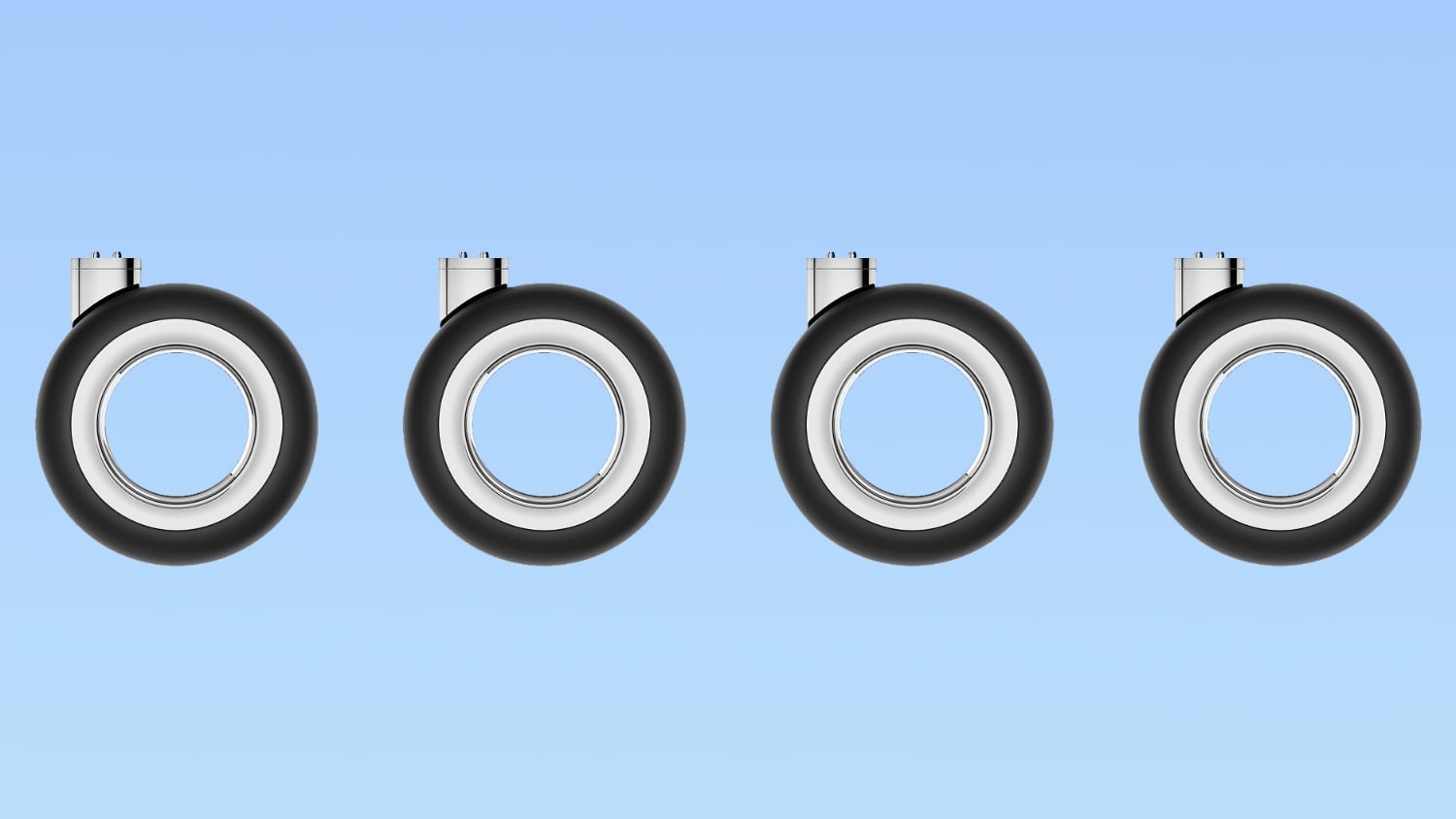
The Mac Pro Wheels kit was introduced in 2020, and allowed Mac Pro owners to add wheels to their machine after purchase. The Mac Pro could be bought with a wheel option for an additional $400, but the lower price was because opting for wheels removed the $300 feet.
Apple's kit included a 1/4-inch to 4mm hex bit for installing the wheels, and an installation guide.
Apple also sold a $300 Mac Pro Feet Kit for users who ordered wheels but wanted to swap to standard feet. That kit has also been discontinued. The Mac Pro and its accessories have been removed from Apple's website entirely, and old links now redirect to the online Apple Store.
For Mac Pro owners who want to switch to wheels but are now unable to do so, OWC sells a less expensive Rover Pro wheels kit for $200.
This article, "Apple's $700 Mac Pro Wheels Kit Discontinued Along With Mac Pro" first appeared on MacRumors.com
Discuss this article in our forums
The Mac Pro Wheels kit was introduced in 2020, and allowed Mac Pro owners to add wheels to their machine after purchase. The Mac Pro could be bought with a wheel option for an additional $400, but the lower price was because opting for wheels removed the $300 feet.
Apple's kit included a 1/4-inch to 4mm hex bit for installing the wheels, and an installation guide.
Apple also sold a $300 Mac Pro Feet Kit for users who ordered wheels but wanted to swap to standard feet. That kit has also been discontinued. The Mac Pro and its accessories have been removed from Apple's website entirely, and old links now redirect to the online Apple Store.
For Mac Pro owners who want to switch to wheels but are now unable to do so, OWC sells a less expensive Rover Pro wheels kit for $200.
Related Roundup: Mac Pro
Buyer's Guide: Mac Pro (Caution)
Related Forum: Mac Pro
This article, "Apple's $700 Mac Pro Wheels Kit Discontinued Along With Mac Pro" first appeared on MacRumors.com
Discuss this article in our forums
Recommended Comments
Join the conversation
You can post now and register later. If you have an account, sign in now to post with your account.